

Editing Overview
Editing fills PDF form fields programmatically and returns a completed document. You give it a PDF and either natural-language instructions or a schema describing the fields and values, and Extend detects the form’s fields, fills them, and returns a downloadable PDF along with the values it wrote. Use it to auto-fill applications, pre-populate documents with customer data, and generate filled forms at scale.
Quick start
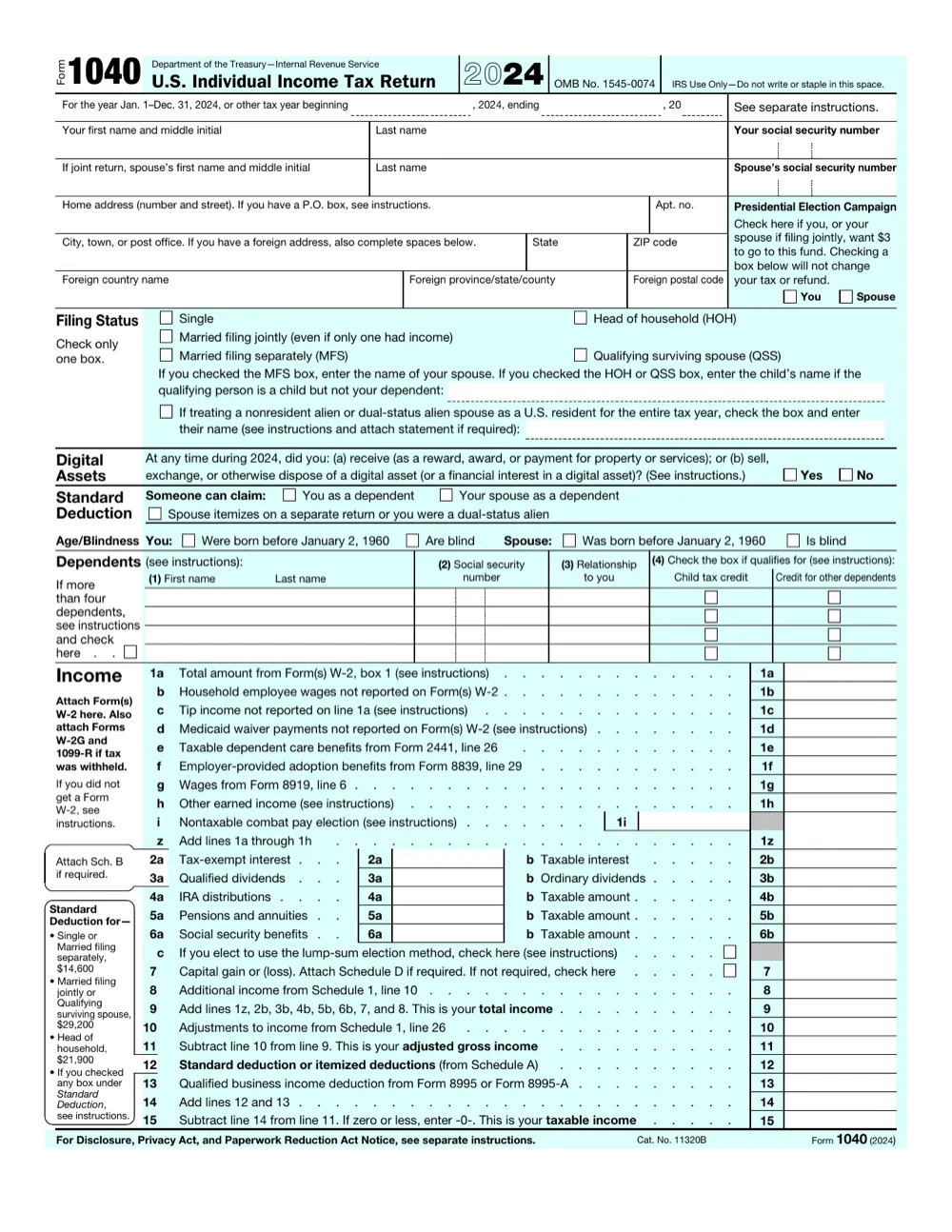
We’ll fill a blank IRS Form 1040 from natural-language instructions. For this quick-start we’ve uploaded the file here.
Grab a key from the Developers page and store it as the EXTEND_API_KEY environment variable. If you’re using an SDK, see the installation instructions.
The /edit endpoint takes a file and a config with instructions (or a schema).
Python
TypeScript
Java
Go
cURL
Want to edit your own document? Upload it first, then pass the returned file id instead of a url (reusing the same config).
Python
TypeScript
Java
Go
cURL
Example response
After you run the code snippet above, you’ll see a response like this. Extend detects the form’s fields, fills the ones your instructions describe, and returns an output with the completed PDF in editedFile and the written values in filledValues.
Key fields
For full request/response details, see the Create Edit Run API reference.
Use the output
Read the download link off output.editedFile, and inspect output.filledValues to see what was written.
Python
TypeScript
Java
Go
For the full response shape and status values, see Response Format.
Sync vs async
The example above calls the synchronous /edit endpoint. We also have an asynchronous /edit_runs endpoint that should be used for large files and high volume use cases.
See Async Processing for the full comparison, polling options, and webhook setup.
Reuse a saved template
If you’ve saved an edit template — a source file paired with a default config — you can pass its ID as templateId in place of file:
Extend runs the edit against the template’s saved file, using the template’s saved schema, instructions, engine version, and advanced options as defaults. Any config values you also include in the request take precedence over the template’s saved values, so you can override just what’s different for a given run:
Exactly one of file or templateId must be provided — a request either supplies a file directly or references a template, not both. If the template ID doesn’t exist the request fails with a 404; if it belongs to another workspace or organization it fails with a 403.
To find a template ID, call List Edit Templates.
Configuration
The quick start sends file and config.instructions. To control how the form is filled, pass more options inside config. Here are the most commonly used ones; for the full reference, see Configuration.
Instructions
Natural-language guidance describing the values to fill and any special handling. The fastest way to start — Extend detects the form’s fields and fills the ones you describe.
Schema
A JSON Schema that pins each field’s PDF type, value, and position using extend_edit:* keywords. Use it for exact, repeatable control over what gets filled and where.
Flatten the PDF
Flatten the document after editing so the filled fields become non-editable. Use it when generating final documents.
Don’t have a schema yet? Detect Form detects a form’s fields and returns a starter schema with positions annotated. For every config option, see the Configuration reference.