

The conditional worfklow step allows you to apply conditional logic and routing to your workflows. Some example use cases include:
null.>= 10.The conditional step can use these logical operators: =, ≥, ≤, IS NULL, and Contains.
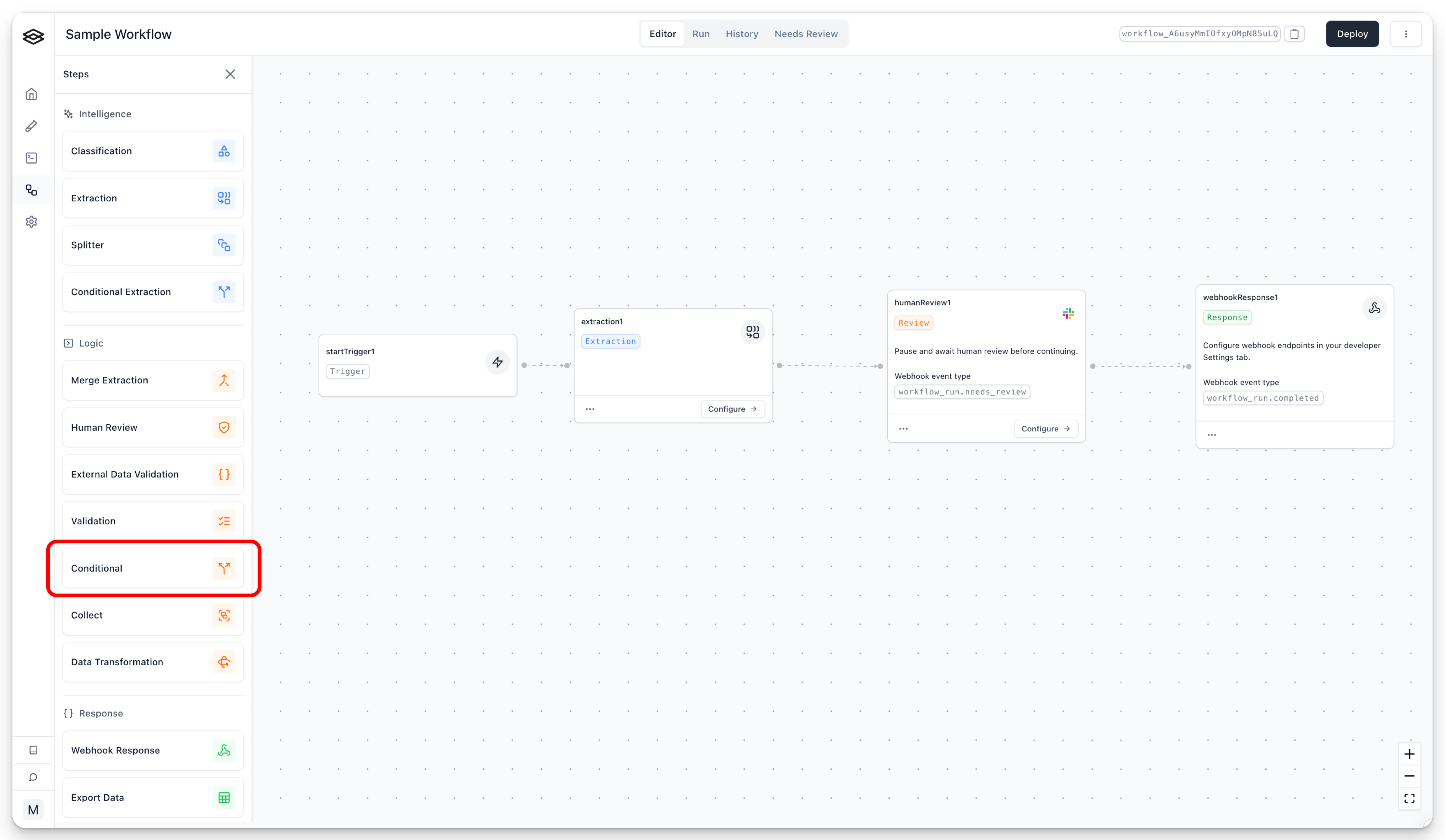
To configure the Conditional step, you can start by adding it to your workflow from the add step menu.
Once you drag the step into your workflow, you can configure it in the UI. Here, we set up the conditional step to lead to a human review if a delivery_address we extracted is null. Note that you can add multiple conditions with the “Add condition” button at the bottom of the conditional step UI, allowing you to make more complex logic.
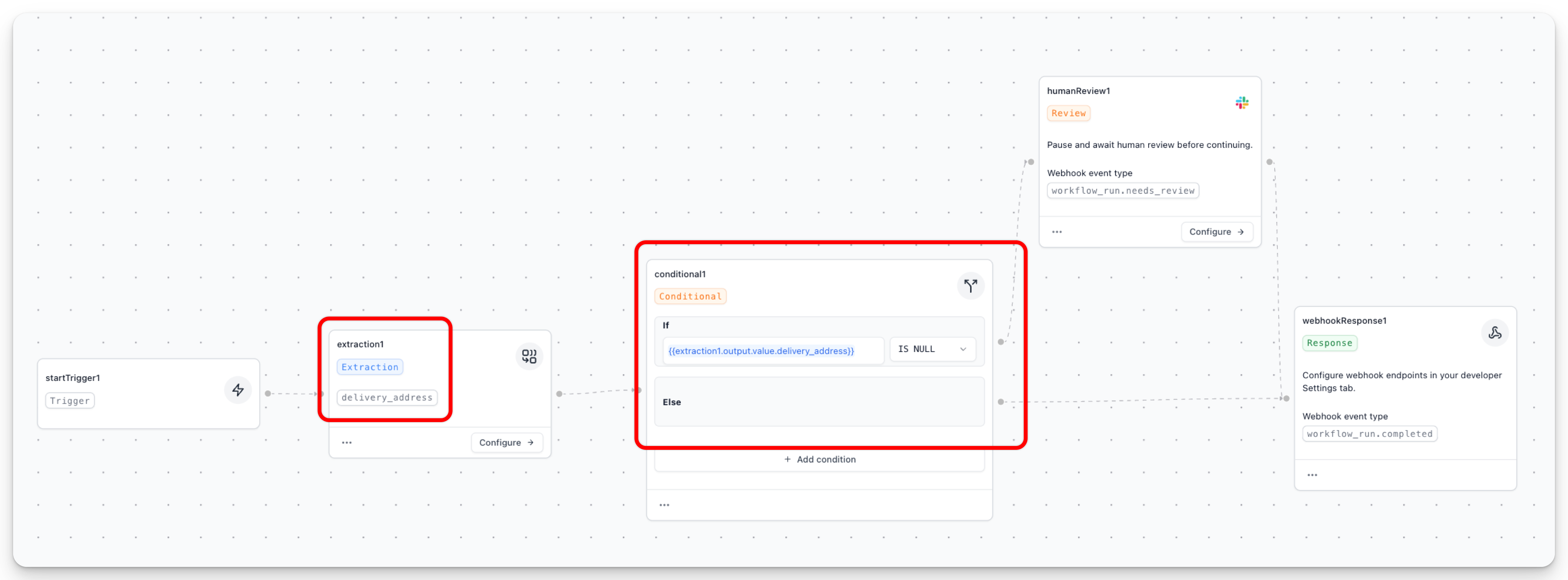
Let’s examine how this works:
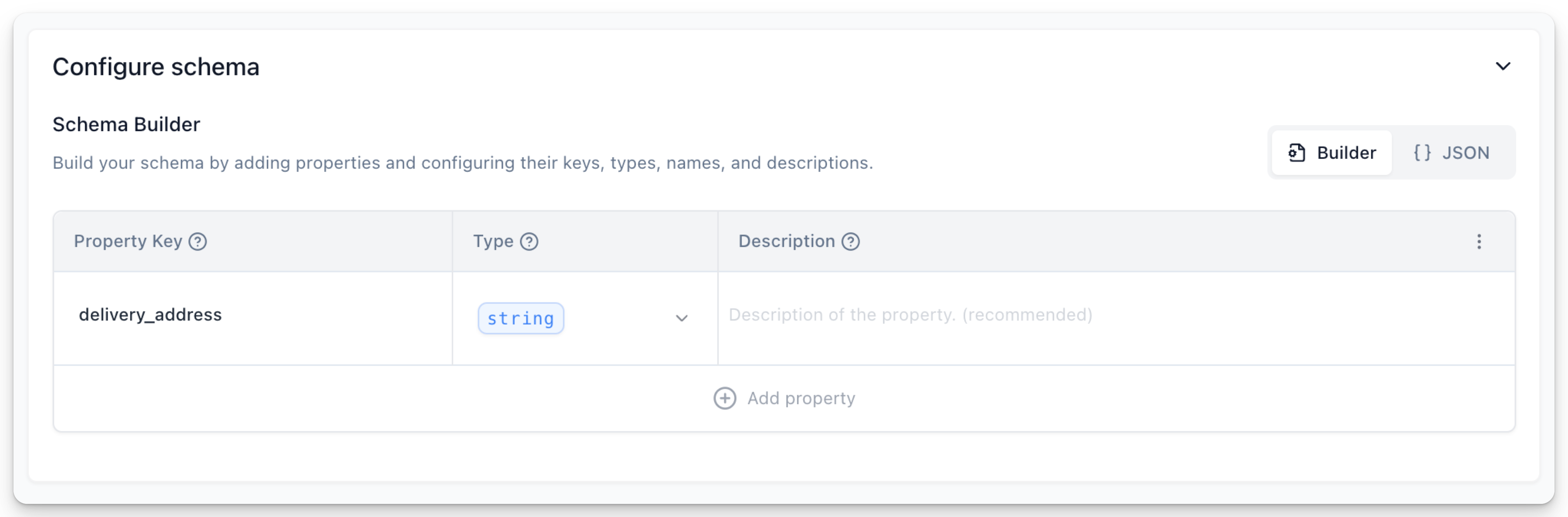
The Extractor we use in the extraction1 step is configured to have a field delivery_address. This was set within that Extractor’s processor settings.
The conditional step we added, conditional1, has a term {{extraction1.output.value.delivery_address}}. Note the {{}} are required to use dynamic values. This grabs the extracted value from the preceding extraction step. Let’s break it down:
extraction1 - The name of the step feeding into the conditional
.output - This is the notation to access the actual outputted payload from the Extraction processor. View the “Output Type” section for your specific processor for more details.
.value - This is a field on the processor output shape for Extractors. See the above guide for more details.
.delivery_address - The actual field inside .value that we wish to run logic against.
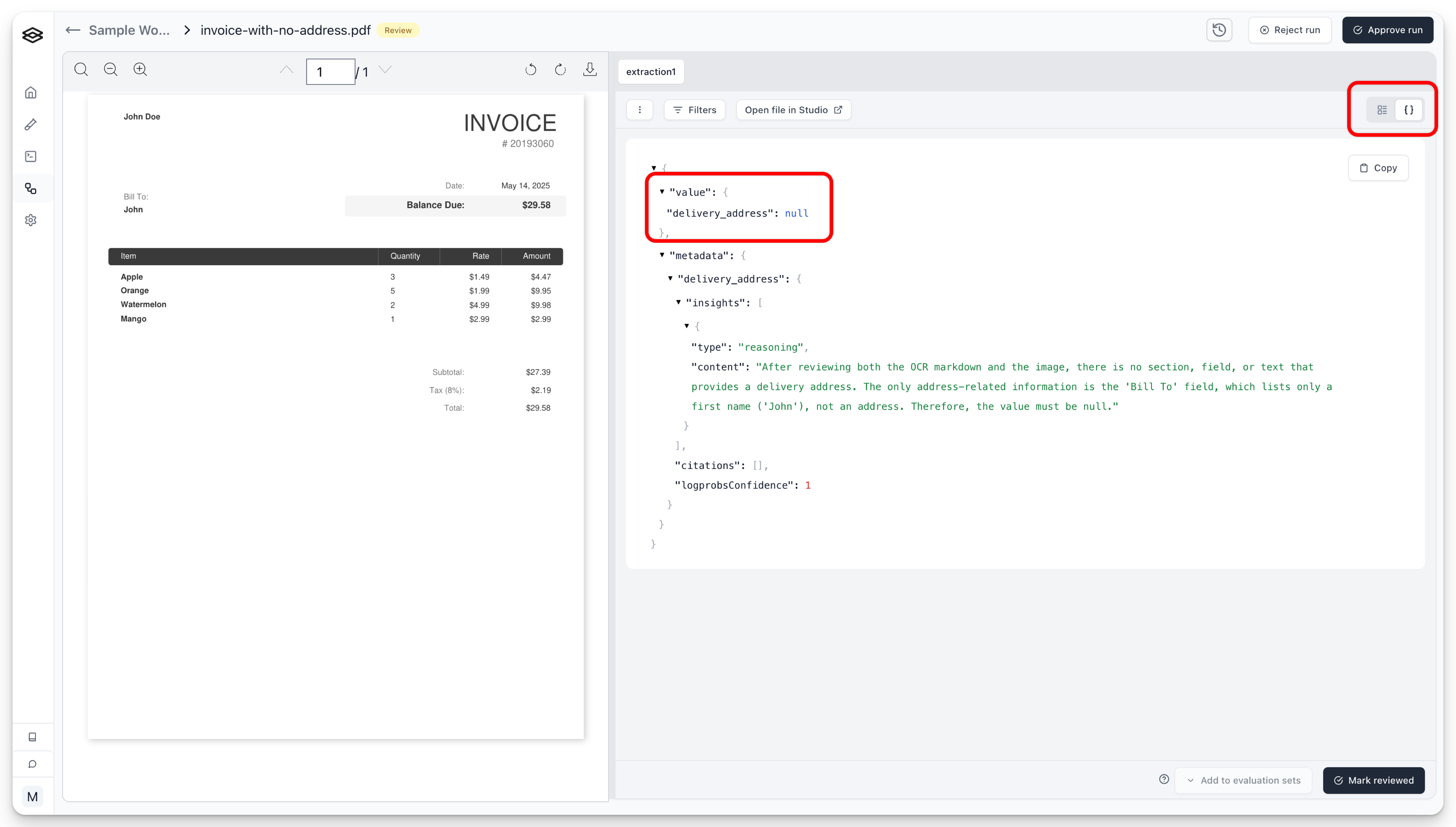
In the below image, we’ve run a document missing a delivery address, through a workflow. Viewing the workflow run with the JSON view toggle in the top right shows us the full structure of the output. Here, we can see .value.delivery_address shows us we extracted null for that field. We can also see the workflow is in “review” since it was routed to conditional review based on our logic.
Similarly, other fields in the output can be referenced, such as the processor output’s metadata or anything else you see present.
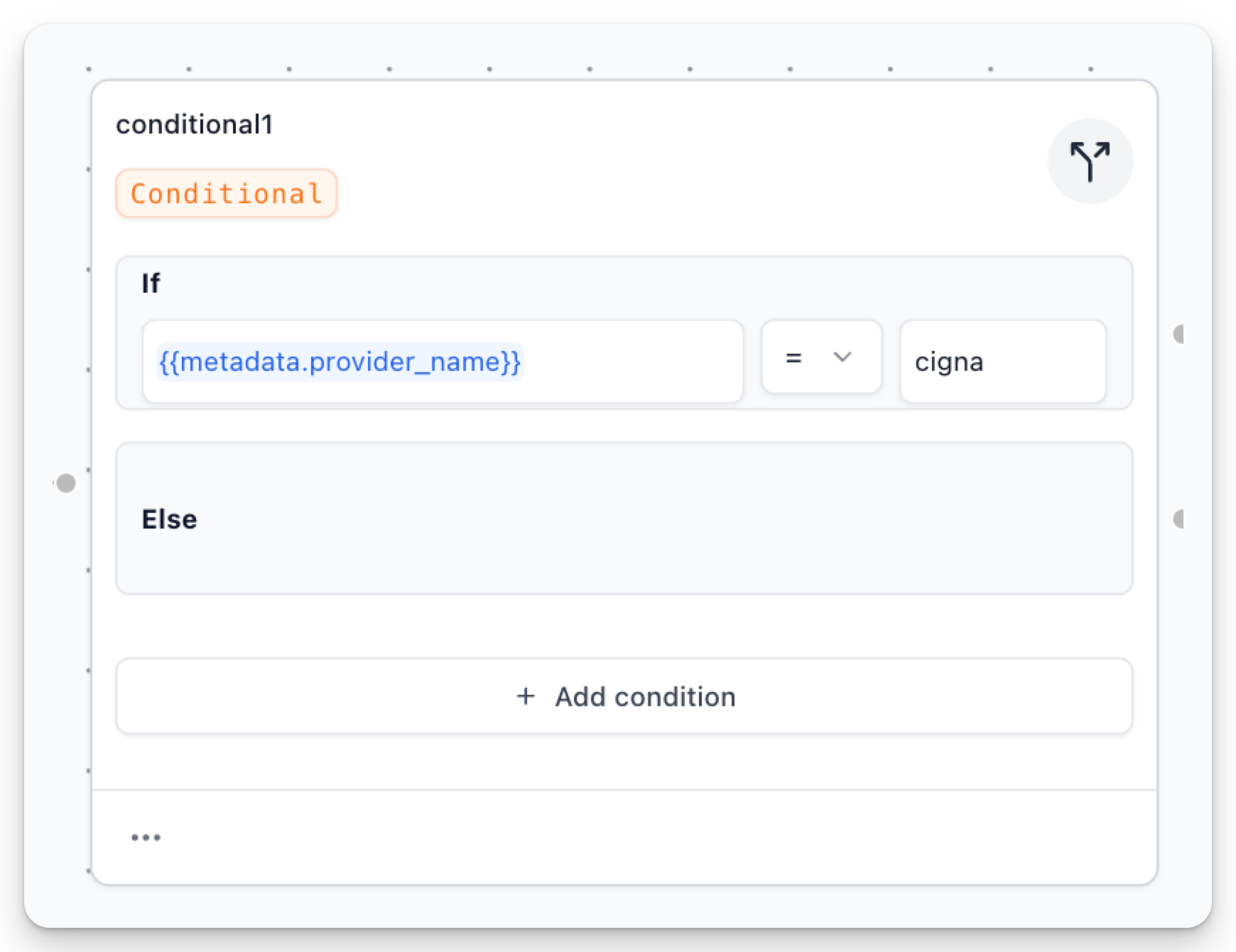
When running a workflow via our API, users can supply a metadata field to the workflow. This is useful for identifying your workflowRun. The metadata object is returned back to you in your API responses and webhooks. The metadata field can also be accessed in the conditional step.
Imagine this is the API request you make to run the workflow:
In the conditional step you can then reference the metadata value with:
{{metadata.provider_name}}
We can then use conditional logic on this value, such as checking if the {{metadata.provider_name}} equals "cigna".
The External Data Validation step is a powerful tool that allows you to validate data within a workflow against your own system, provided that your system exposes an API for Extend to interact with.
The results from your external data validation can be used in the conditional logic step of your workflows. See the External Data Validation Step results guide for more info.
The output of any processor step: {{processorStepName.output.*}}
Metadata for the workflow: {{metadata.*}}
External data validation: {{externalDataValidationStepName.output.response.data}}