

Parse Step
The Parse step is the first step in every workflow and runs automatically when files are submitted. By default, parser settings are inherited from the document processors configured downstream in your workflow. However, you can override this behavior by configuring custom parser settings directly on the Parse step.
When to Configure the Parse Step
Configure the Parse step when you need:
- Explicit control over parsing - Override the default settings inherited from downstream processors
- Consistent parsing across all branches - Ensure the same parse configuration is used regardless of which extraction, classification, or splitting steps run
Configuration
To configure the Parse step:
- Click on the Parse step in your workflow diagram
- Click the “Configure” button
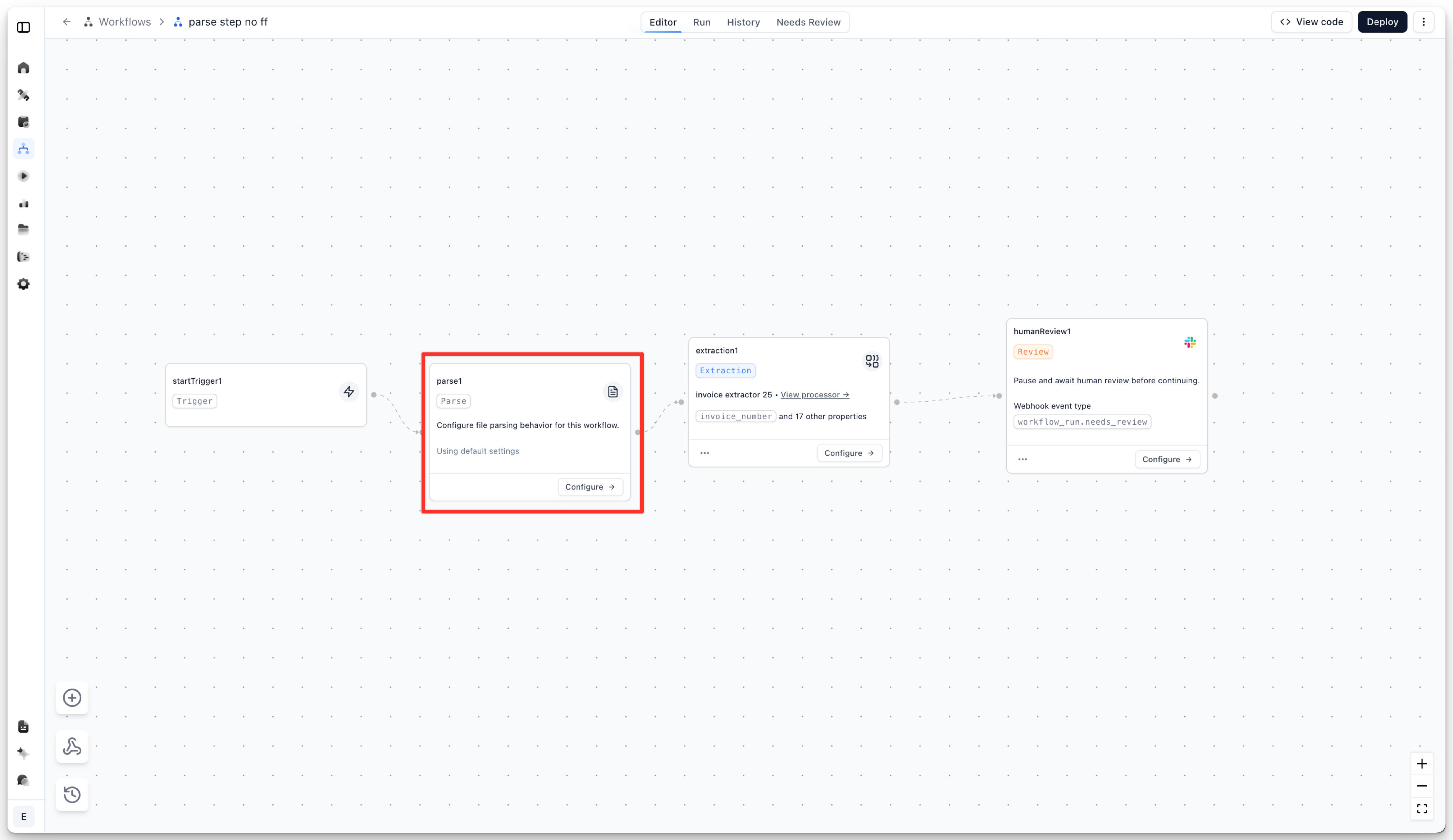
This opens the Parse step configuration dialog.
Enabling Custom Settings
By default, “Use custom parser settings” is disabled, meaning the parser will inherit settings from downstream document processors. Toggle this setting on to configure explicit parser behavior.
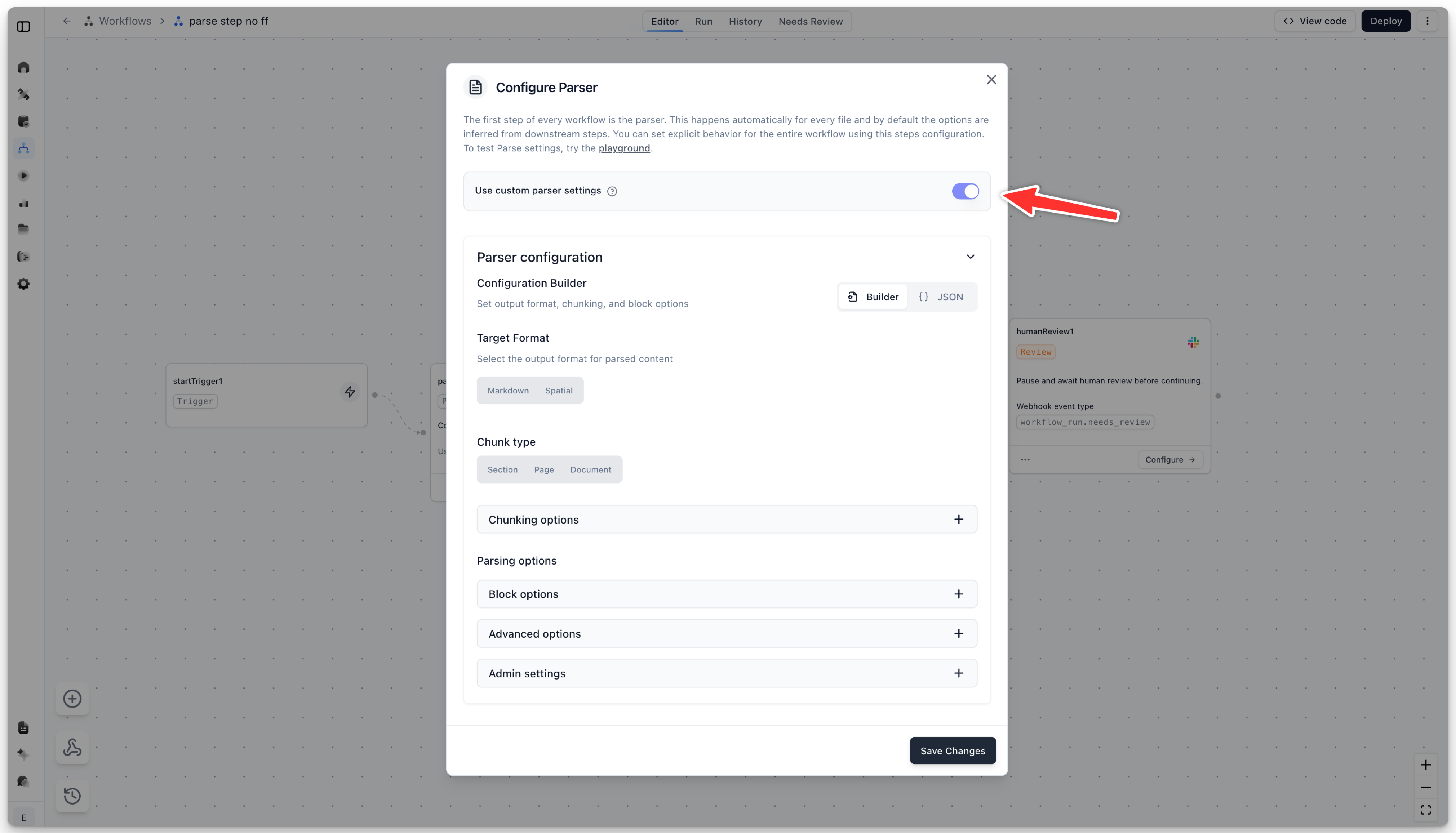
When custom settings are enabled, you can configure chunking strategy, block options, and advanced options. See the Parse guide for detailed documentation of all configuration options.
Builder vs JSON Mode
The configuration panel offers two modes:
- Builder: Visual form-based configuration with all options
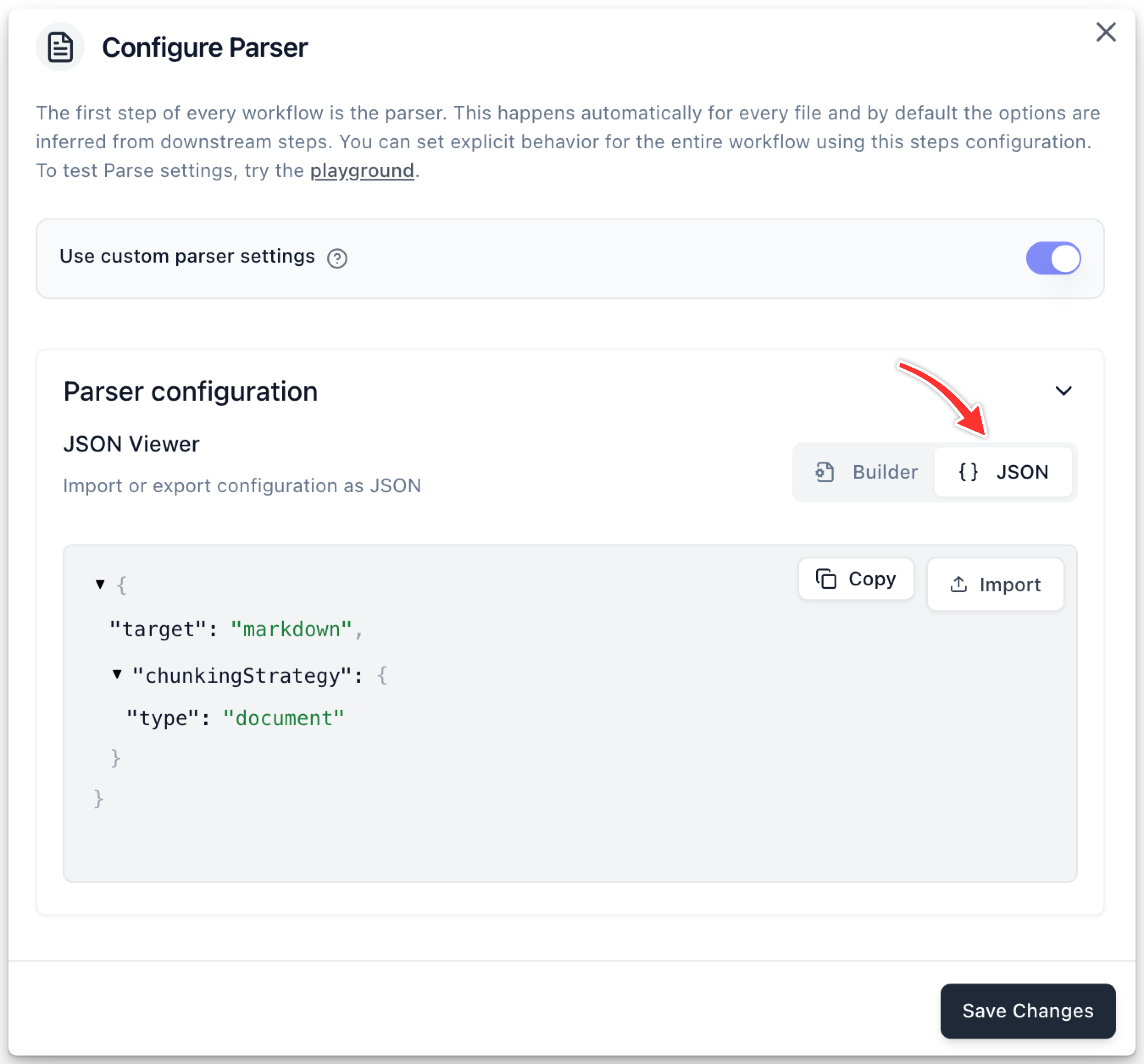
- JSON: View and import parser configuration as JSON
Use JSON mode to copy configurations between workflows or to import settings from the Parse API.
Viewing Parse Output
After a workflow runs, you can view the parser output in the workflow run review page. The Parse tab appears first in the output tabs and shows:
- Processing time and page count
- Parsed chunks with their content
- Individual blocks with type and position information
- Raw JSON output
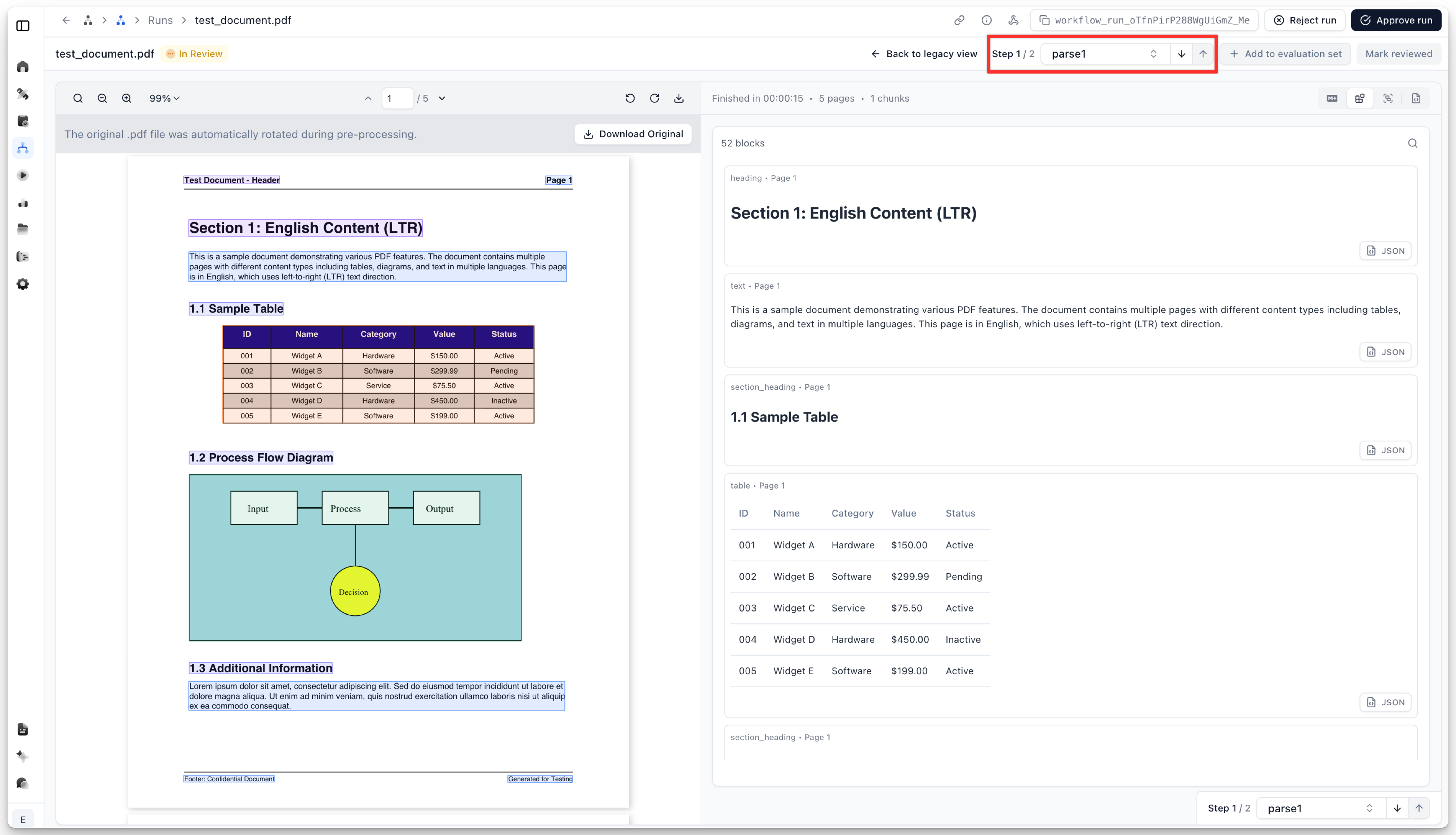
You can switch between different views:
- Blocks: Individual content blocks with spatial highlighting on the document
- Chunks: Grouped content chunks
- Markdown: Formatted chunk content (when using markdown target)
- JSON: Raw parser output
Hovering over blocks in the output panel highlights the corresponding region in the document viewer, and vice versa.
Relationship to Capabilities
Parser settings can also be configured on individual document processors (extractors, classifiers, splitters). When the Parse step has custom settings enabled:
- The Parse step configuration takes precedence
- All downstream processors use the same parsed content
- This ensures consistent parsing across conditional workflow branches
When custom settings are disabled on the Parse step:
- Parser settings are inferred from downstream processors
- Each processor may contribute to the final parse configuration
Best Practices
Use Custom Settings When:
- Your workflow has multiple branches that should use identical parsing
- You need parsing optimizations (like disabling figure parsing for speed)
- You’re processing specific document types that require particular settings
Inherit Settings When:
- Downstream processors already have the correct parser configuration
- You want processor-specific parsing behavior
- You’re still iterating on your extraction schema
Related
- Parse guide - Full documentation of parser configuration options
- Parse API reference - API documentation (same configuration schema applies)