Best Practices: Advanced Options
Best Practices: Advanced Options
Extend offers several advanced configuration options to optimize extraction performance, accuracy, and cost. This guide provides detailed explanations of each option.
For a quick guide to reducing latency, see Latency Optimization.
Extraction Performance vs. Light
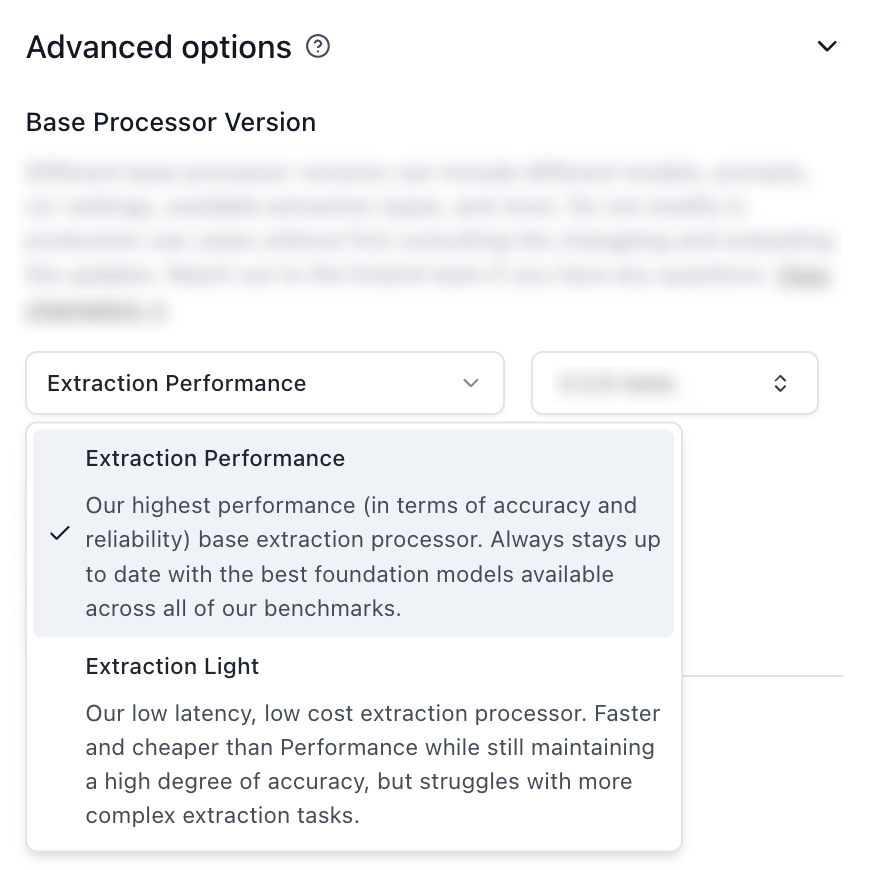
Extraction Performance
Best for: Complex documents, high accuracy requirements, multimodal content
Characteristics:
- Higher accuracy for complex layouts
- Better handling of handwritten content
- More sophisticated reasoning capabilities
- Parses documents as markdown for better performance
Extraction Light
Best for: High-volume processing, cost-sensitive applications, simple document types
Characteristics:
- Faster processing
- Lower cost per processor run
- Good accuracy for straightforward extractions
- Removes support for advanced visual features (e.g. figure parsing, signature detection, page rotation)
Core Performance Settings
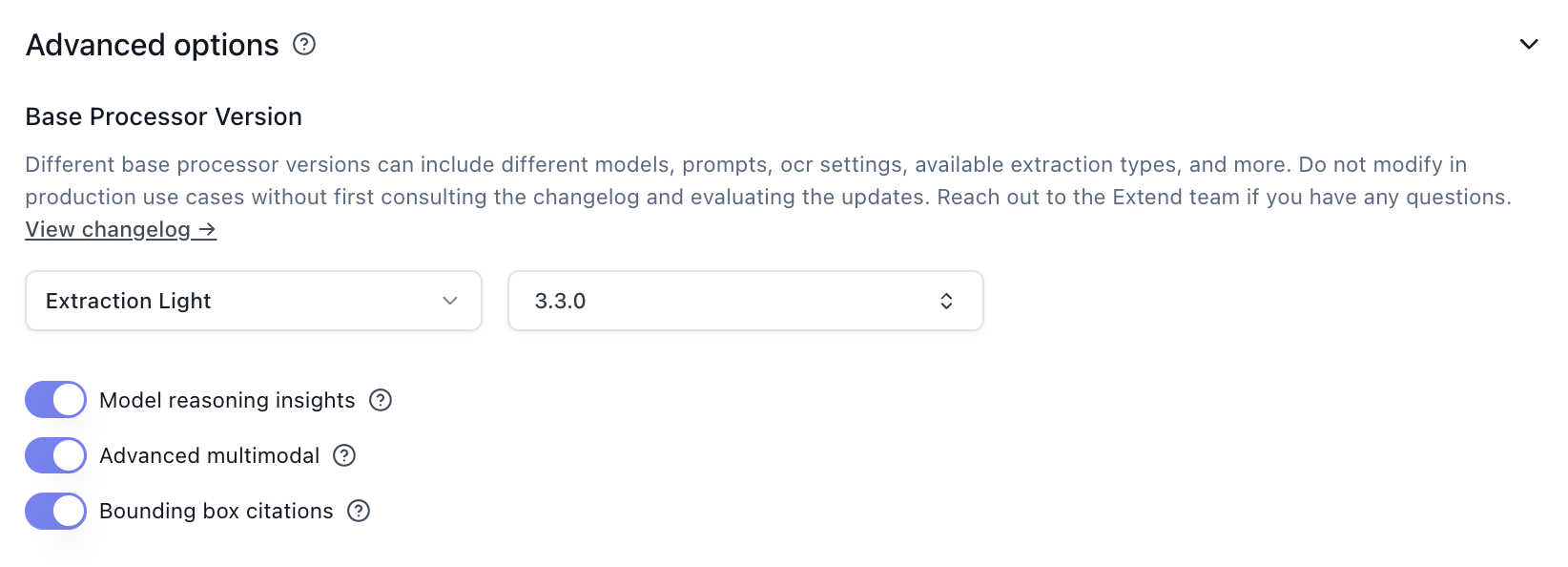
Bounding Box Citations
Bounding box citations provide spatial location references for extracted values. While useful for highlighting and validation in review interfaces, they add processing overhead.
For more details, see the Citations documentation.
Configuration:
Advanced Multimodal
Advanced multimodal processing uses vision-language models to better understand visual elements in documents. While this adds latency, it is essential for:
- Scanned documents
- Handwritten content
- Checks and forms
- Poor quality images
Disable for:
- Clean, digital PDFs
- Documents containing primarily text
- Latency-critical workflows where visual understanding is not required
Configuration:
Model Reasoning Insights
Model reasoning insights provide explanations for the model’s decision-making process, which adds processing overhead. These are primarily useful for debugging and validation during development, and can be disabled in production.
Configuration:
Array Strategies
Array strategies control how large arrays are extracted and merged across document chunks. The default (none) uses standard extraction behavior.

Page Ranges

For documents where you only need to extract from specific pages, limiting the page range reduces processing time by skipping unnecessary content.
Configuration:
Use when:
- Relevant data is consistently located on specific pages
- Processing long documents where only a portion is needed
- Standardized document formats with predictable layouts
Chunking & Merging
Chunking and merging are essential pre-processing steps that optimize document processing by breaking large documents into manageable pieces and intelligently combining related content.
Chunking Strategy
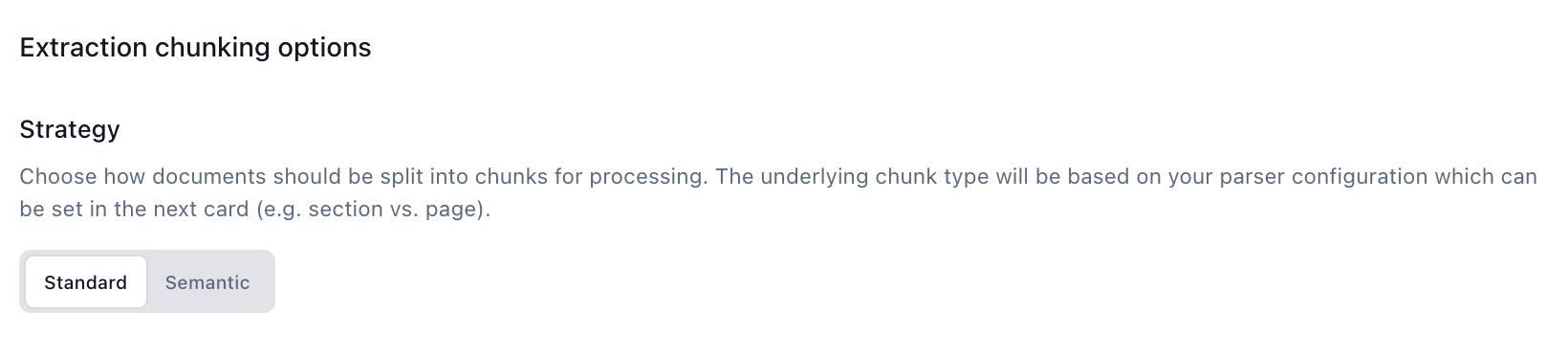
- Standard: Page-based chunking with heuristics (reduces chunk size for large tables, etc.)
- Semantic: Uses AI to intelligently determine if pages can be split without breaking content relationships
Configuration:
Chunk Types
- Section: Splits by logical sections (headings, subheadings). Preserves content structure.
- Page: Groups by pages (25 by default). Standard chunking setting, works for most documents.
- Document: Treats entire document as single chunk. Fastest for non-array extraction.
* The default page chunk size can be smaller than 25 if large tables are present
Chunk Size
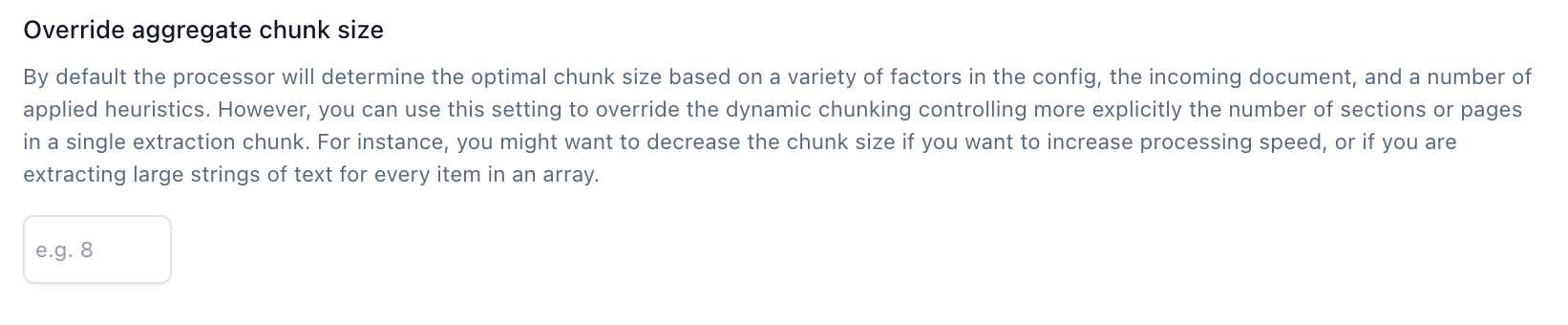
The optimal chunk size depends on your extraction type:
- For large array extraction: Decreasing chunk size lowers latency by reducing intelligent chunking/merging overhead
- For non-array extraction: Setting chunk type to
documentis fastest as it skips intelligent merging entirely - General rule: Larger chunks (20-25 pages) mean fewer processing calls and less overhead
Configuration:
Merging Strategy
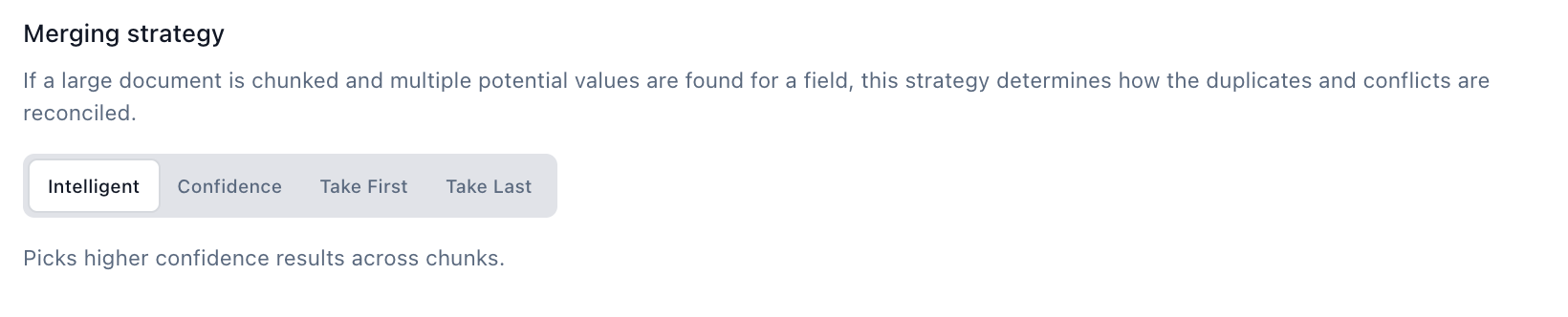
When the same field is extracted from multiple chunks, the merging strategy determines which value to use.
Configuration:
Chunking Tips & Common Issues
Table Splitting: Large tables can reduce the default chunk size, especially when chunking by page. Test these options to preserve context across large tables:
Parser Configuration
Parser Block Options
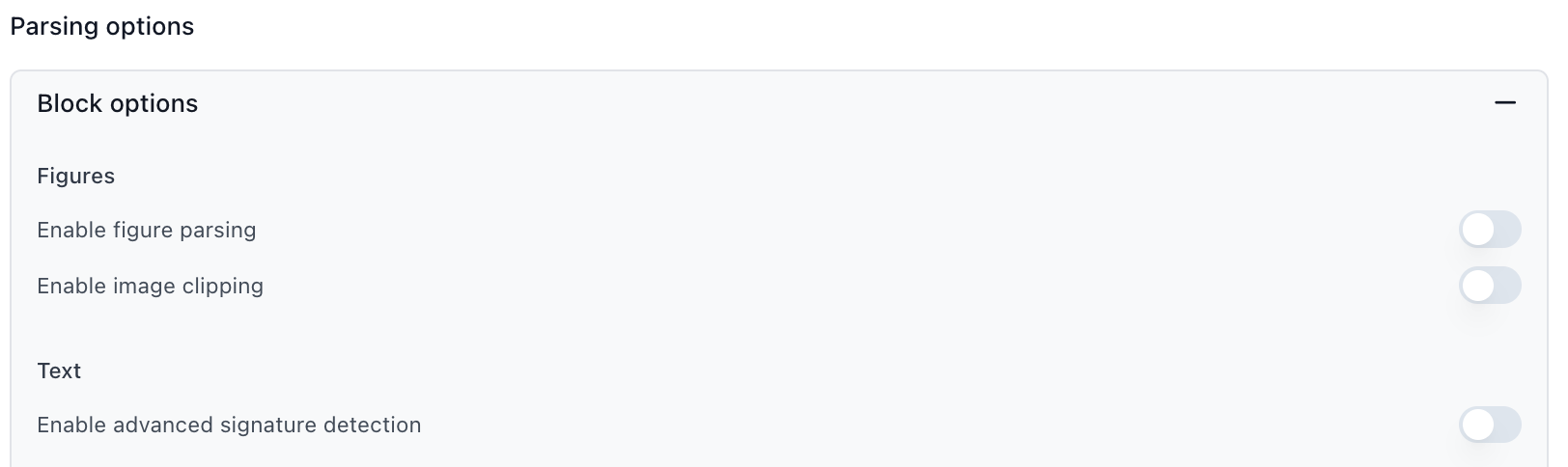
Figure Parsing: Converts charts, diagrams, and images into text descriptions that extraction can read. Disable if your documents don’t contain important visual elements.
Signature Detection: Detects signatures on documents and determines whether they’re signed. Disable if signature verification is not needed.
Agentic OCR: Uses AI to fix OCR mistakes, especially for handwritten text or poor-quality scans. Adds processing time and cost. Keep disabled unless processing handwriting or poor scan quality.
Formula Parsing: Detects mathematical formulas and equations and outputs their LaTeX representations. Disable if your documents don’t contain formulas.
Parse Engine
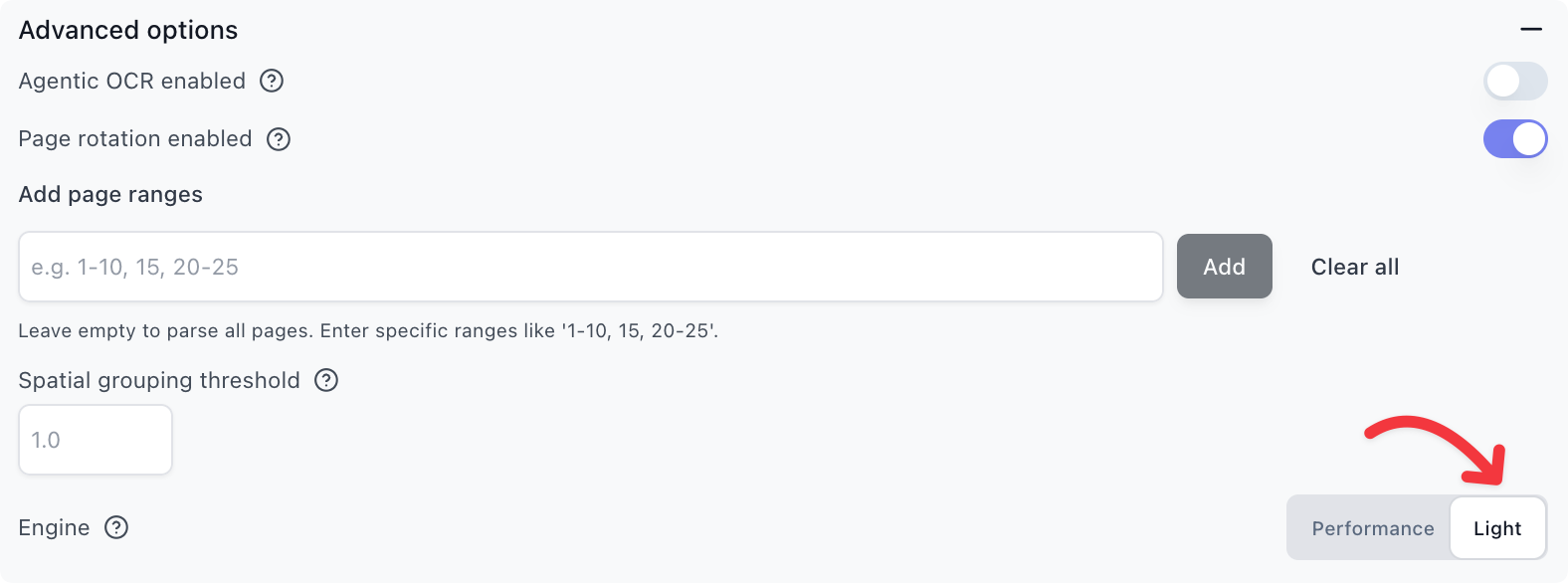
The parse engine controls how documents are processed. Performance is the default and recommended for most use cases. Light is cheaper and slightly faster, but does not support all parsing features such as markdown and advanced table parsing.
Use Light when:
- Processing standard digital documents
- Tables are simple or not critical
- Cost and speed are priorities
Avoid Light when:
- Documents require advanced table parsing
- Complex multi-column layouts
- Markdown output is needed
Parallel Extractors
For large extractions or schemas, consider breaking a single extractor into multiple extractors that run in parallel. This is particularly effective when you have both simple top-level fields and complex array extractions.
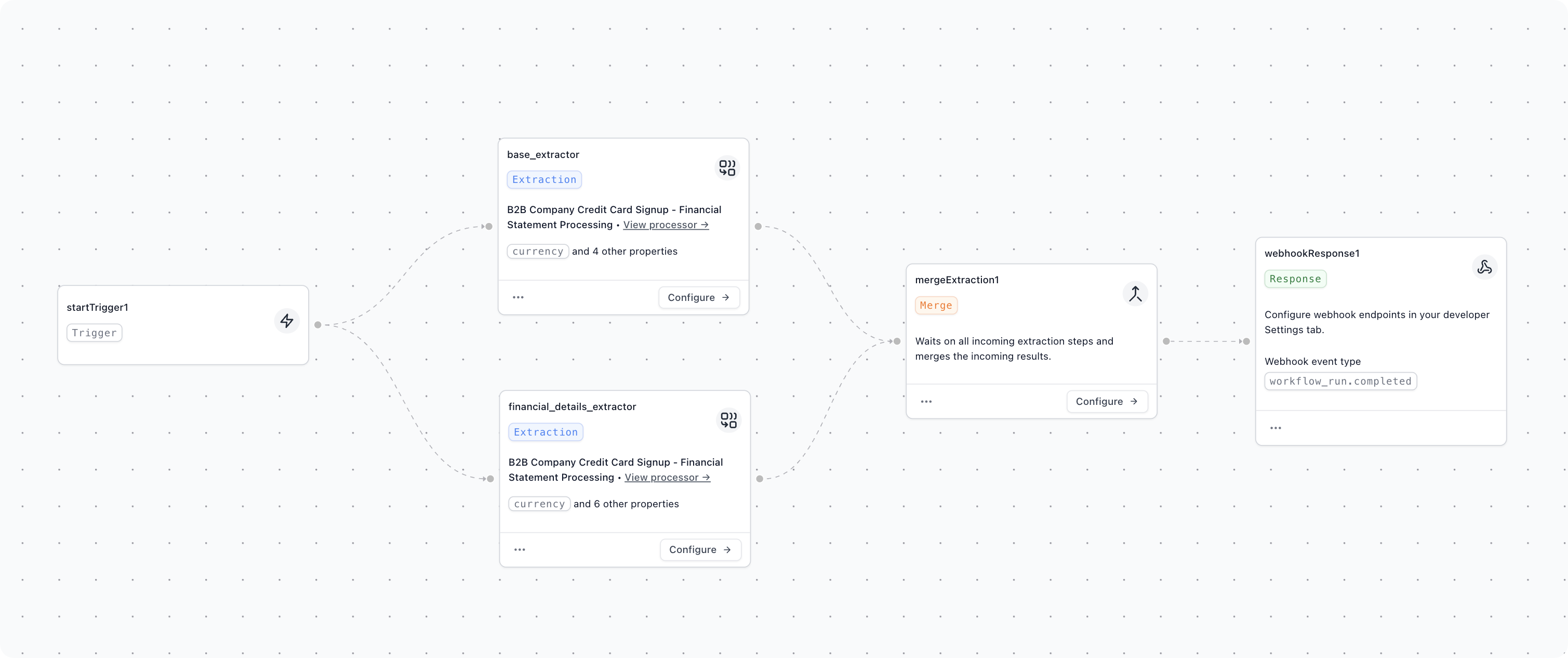
The workflow above shows an example where a financial document is split into two parallel extractors: one for high-level fields, and one for the financial line item details. These run in parallel and are later combined in the workflow output.
Use when:
- Documents have both simple fields and complex arrays
- Array extraction is significantly slower than other fields
- Total latency is critical to your use case
Related Topics
- Learn about Field Names and Prompt Crafting for schema setup
- For a quick latency optimization guide, see Latency Optimization

