

Running Evaluation Sets
An evaluation set run scores one processor version against every item in an evaluation set and returns aggregate metrics: overall accuracy plus a per-field (extractors), per-class (classifiers), or precision/recall (splitters) breakdown. Running well-maintained sets is the most reliable way to check that a configuration change improved a processor before you publish it. Evaluation sets can also be run against workflows to score end-to-end output; this page covers processor runs.
Via the API
A run is asynchronous: create returns immediately with a run in PENDING state, and you poll retrieve until the status is terminal.
Start the run
Pass the evaluation set ID and, optionally, the processor and version to evaluate. If you omit entity, the set’s default processor runs at its draft version. version accepts "draft", "latest", or a published version string such as "1.0". To run a subset, pass evaluationSetItemIds.
Python
TypeScript
Java
Go
Poll until the run finishes
status moves PENDING → PROCESSING → one of the terminal states PROCESSED, FAILED, or CANCELLED. Metrics are only meaningful once the status is PROCESSED. A run over a large set can take several minutes; poll every few seconds.
Python
TypeScript
Java
Go
Read the metrics
metrics is a discriminated union on type. Every variant carries numFilesTotal, numFilesProcessed, and latency percentiles; the accuracy fields depend on the processor:
Array fields are scored with the cell-level method described in Calculating Array Accuracy.
Python
TypeScript
Java
Go
Update an item’s expected output
When a run shows that the expected value was wrong rather than the processor, correct the item so future runs score against the right ground truth. Pass a complete expectedOutput, in the same shape you used when creating the item.
Python
TypeScript
Java
Go
What the API does not expose today. The run object carries aggregate metrics only. Per-document actual-vs-expected diffs, CSV export, run-to-run comparison, and the scoring options below (field exclusion, matcher type, null coalescing) are available in Extend Studio. If you need a per-document view in code, run the processor on each item’s file yourself and diff against the item’s expectedOutput.
Via Extend Studio
-
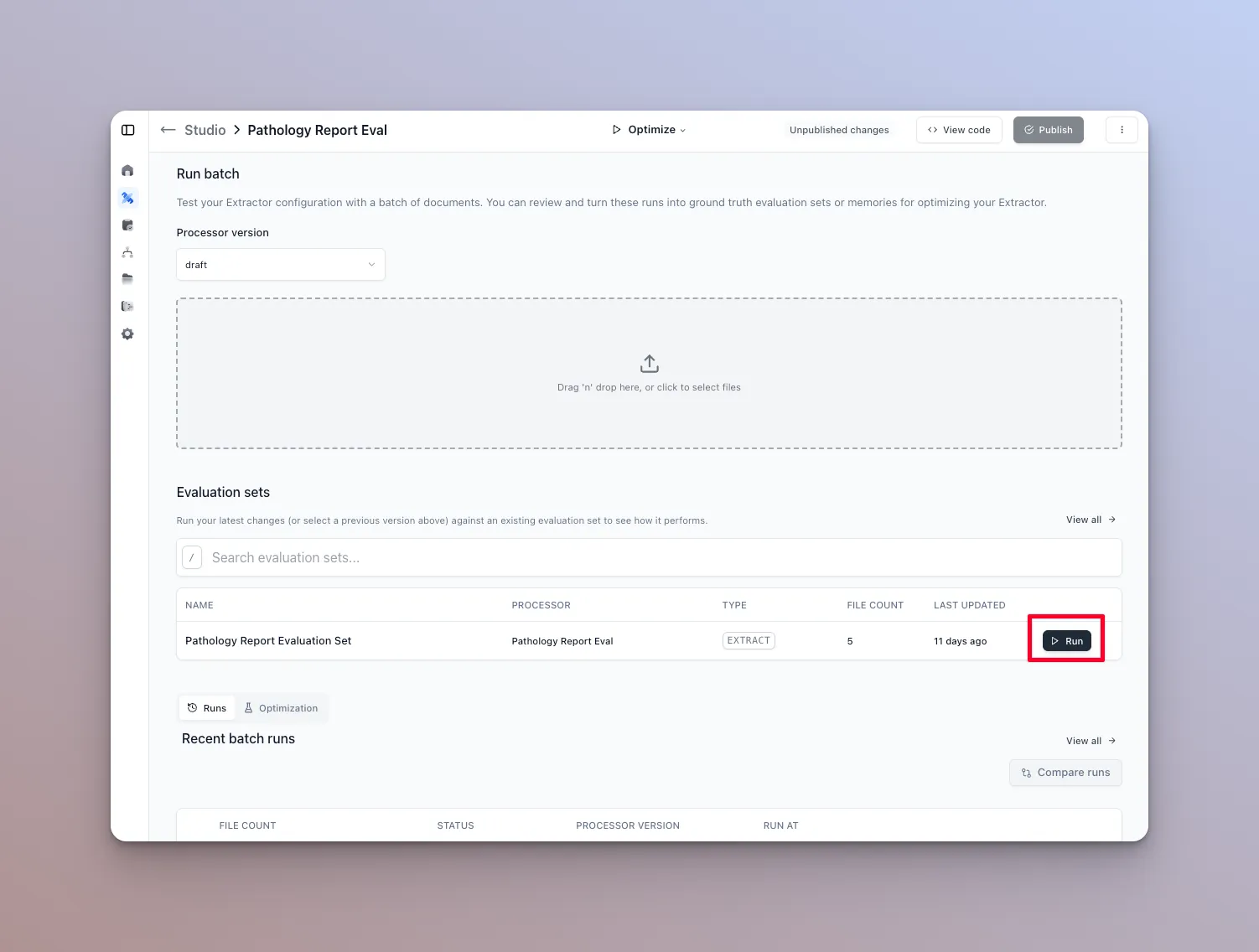
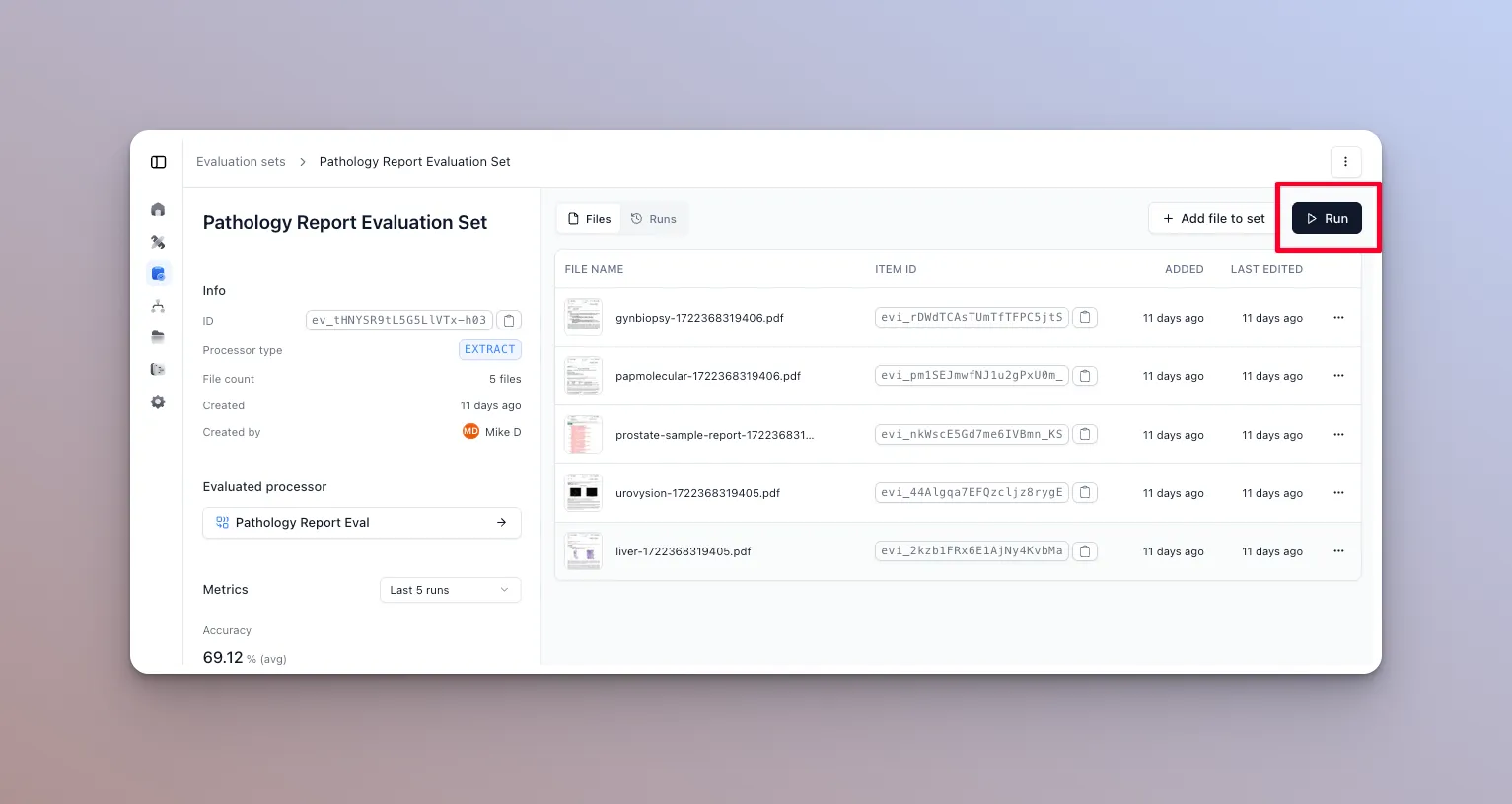
Open the runner from either of two places:
- The runner page for the processor that the evaluation set is tied to.
- The evaluation set’s home page.
-
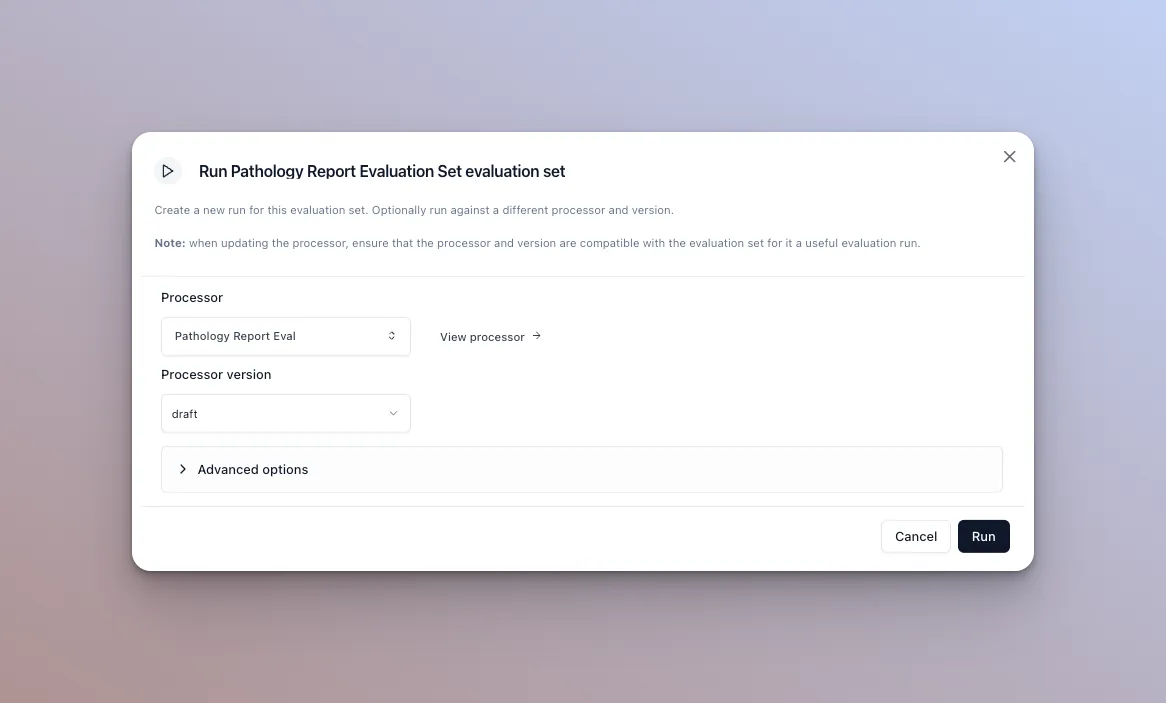
Click the “Run” button on the evaluation set you want to run. This opens the run dialog.
-
The defaults are the processor and version you selected in the runner. You can change the version, or the processor itself, before running. See Advanced options below.
-
Click “Run Evaluation” to start. You are redirected to the evaluation run page, where you can watch progress.
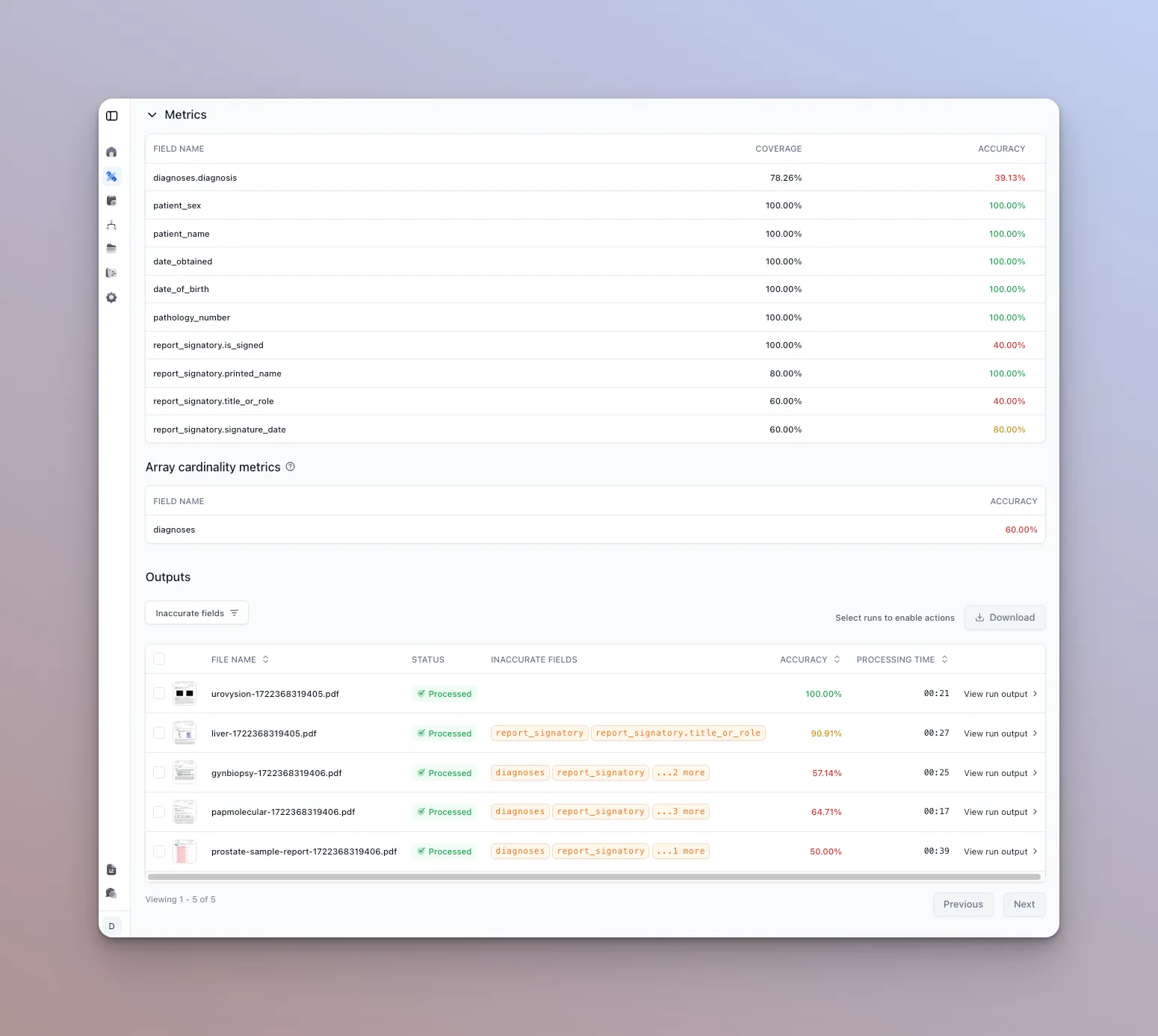
A metrics summary sits at the top of the page, with the list of documents and their results below. Each processor type has its own metrics view; a classifier, for instance, shows a per-type accuracy distribution and a confusion-matrix-style view.
-
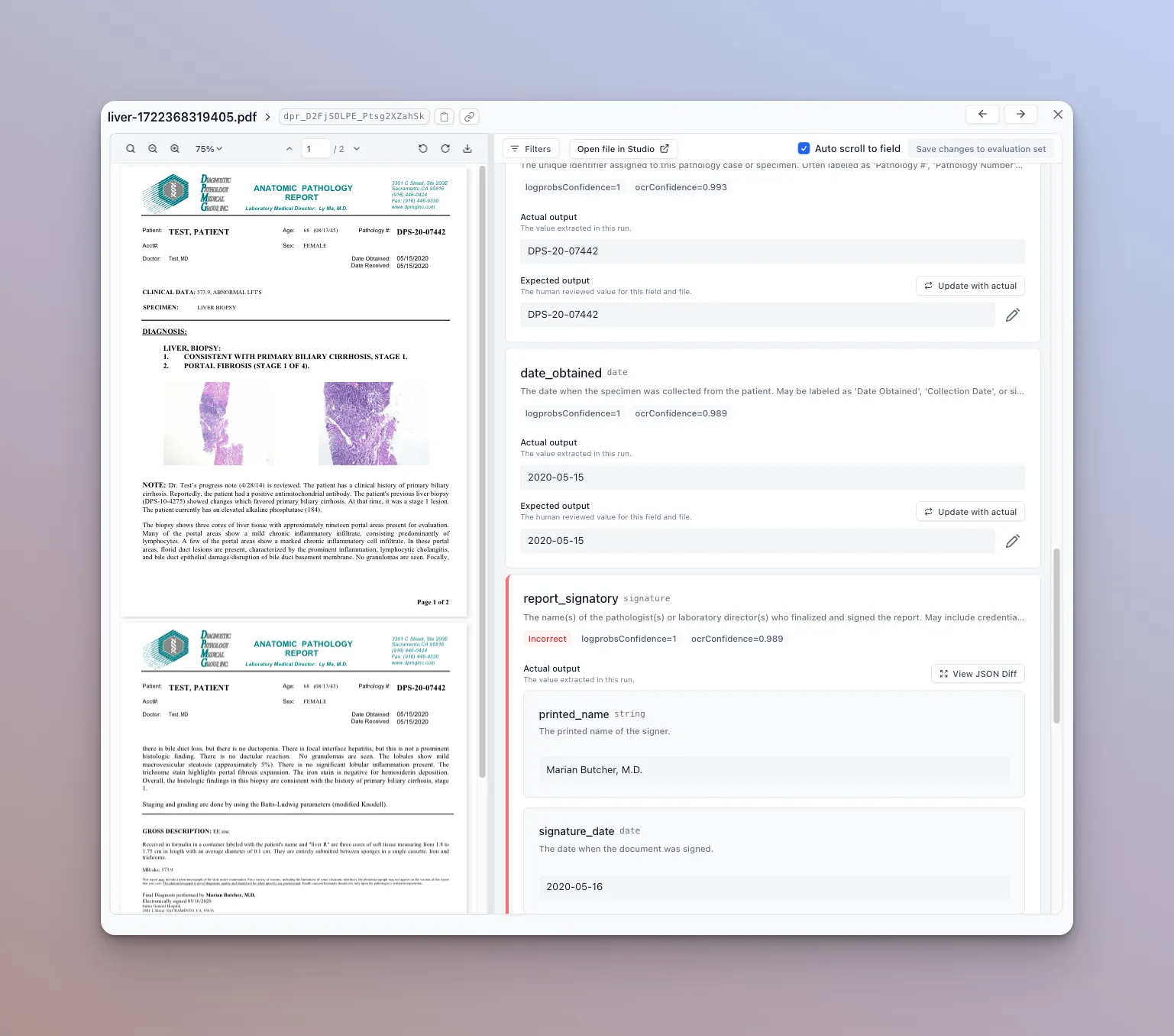
Click a row to compare actual vs. expected outputs for that document.
-
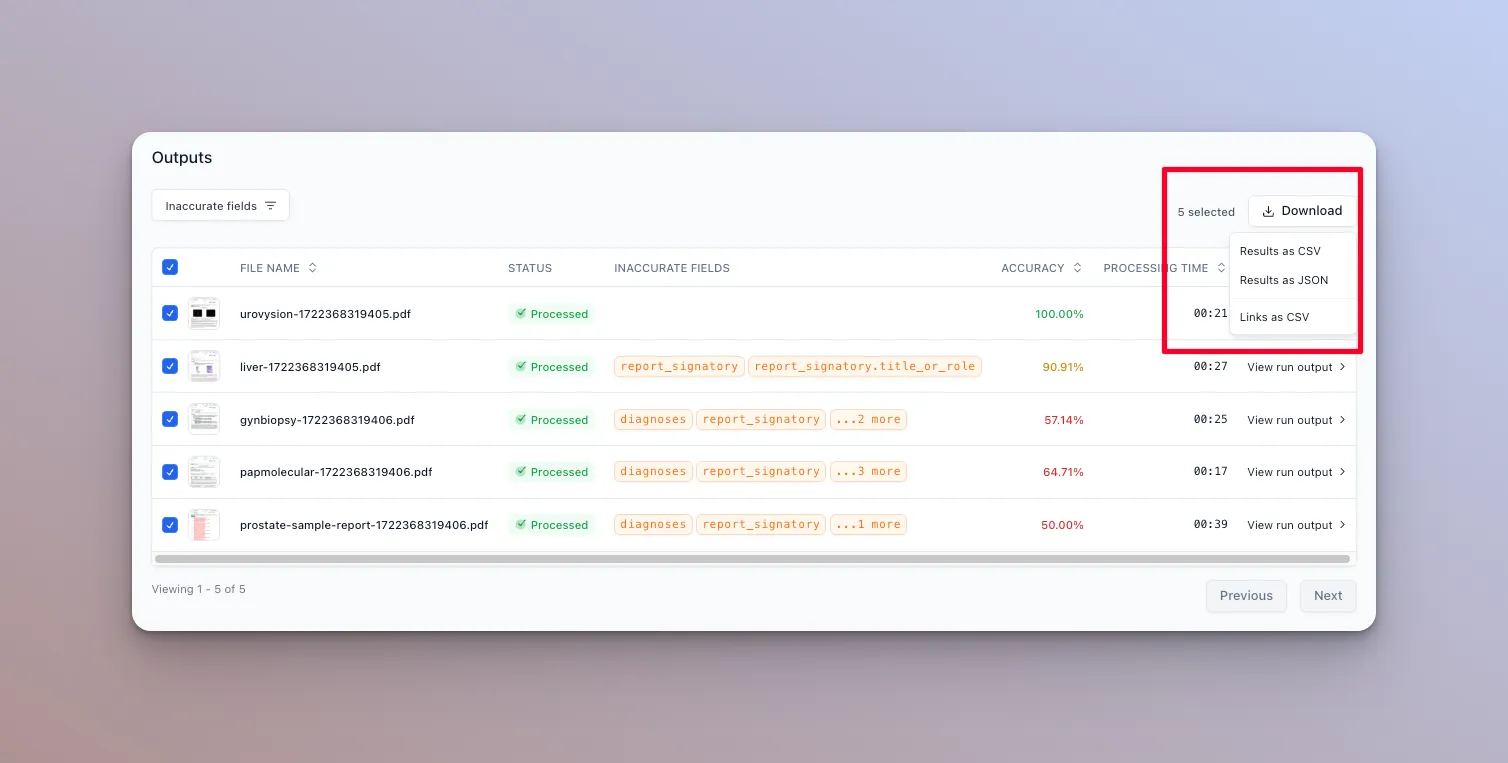
Download the results as a CSV with the Export button.
-
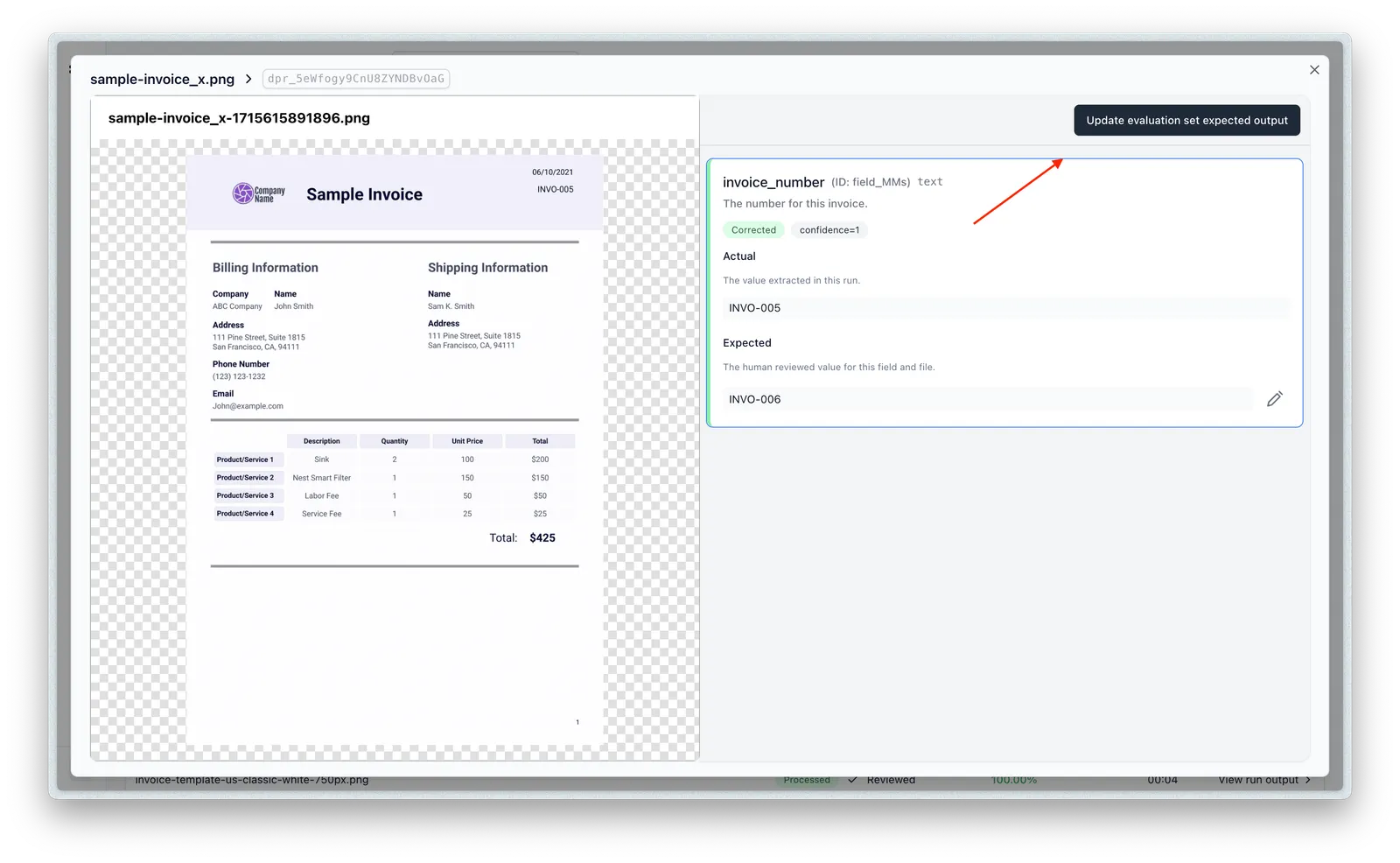
Adopt a run’s actual output as the new expected output for an item with the “Update” button.
Advanced options
These options are configured in the Studio run dialog and affect how metrics are calculated.
Excluding fields (extractors only)
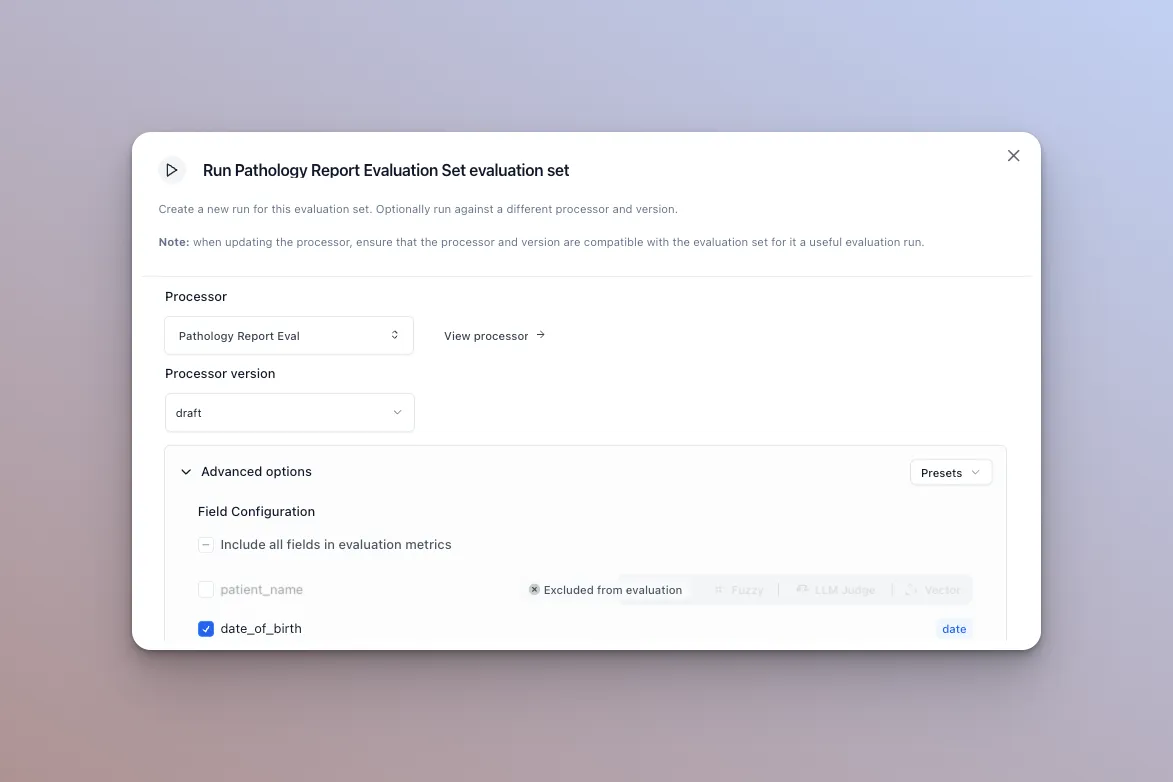
To exclude a field from the run’s metrics, uncheck the checkbox next to it. Per-document and overall accuracy will not take this field into account.
Matcher type (extractors only)
For string fields, you can configure a custom matcher. Four are available: strict, fuzzy, LLM judge, and vector.
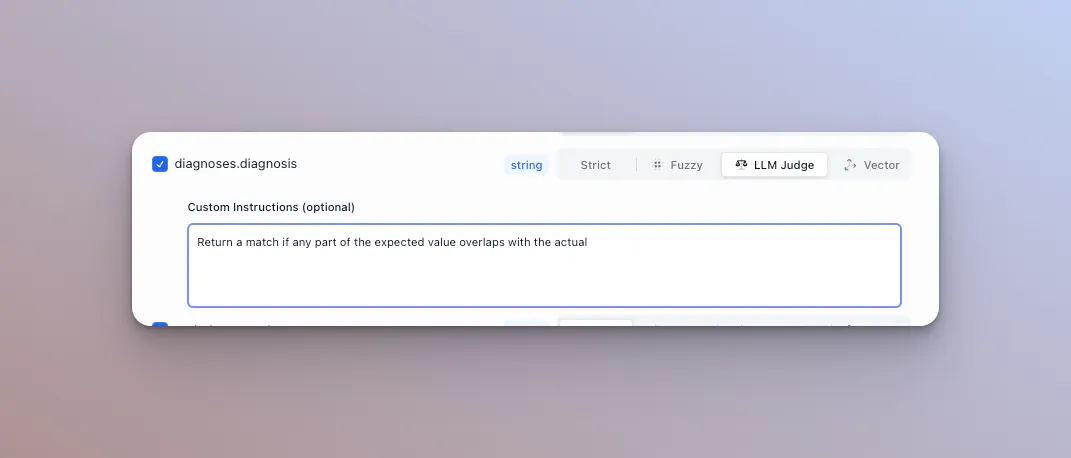
Strict
The default matcher. Checks for exact, case-sensitive string equality.
Fuzzy
Uses fuzzy matching distance, allowing small differences between actual and expected output. You configure a threshold; values above it count as a match. Uses a modified Levenshtein distance algorithm.
Recommended if you expect some variability, but only by a few characters.
LLM Judge
Passes the actual and expected output to an LLM and asks whether they are semantically the same. By default it handles date formats (1/1/2025 vs Jan 1st 2025), abbreviations (St. vs Street), and numerals (1,000,000 vs one million). We highly recommend adding a custom instruction that acts as a rubric for the model.
For example: Return true if and only if the expected and actual output have the same address, but you can ignore added or removed text.
Recommended if the extracted values are long sentences or paragraphs, or if you expect variability and want to define custom matching rules.
Vector
Embeds both values and computes cosine similarity. Semantically similar values score higher (“house” and “home”); dissimilar values score lower (“hot” and “cold”). You configure a threshold; values above it count as a match.
Recommended if you are matching on the value’s meaning.
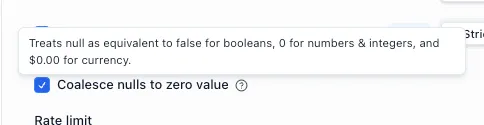
Null coalescing (extractors only)
For booleans, null and false are treated as a match. For numbers, 0 and null are treated as a match. For currency, $0.00 and null are a match.
Rate limits and file pre-processing cache (all processors)
The rate limit caps how many runs this evaluation set run executes in a time period.
Clearing the pre-processing cache re-runs pre-processing operations such as chunking and metadata extraction.
Compare accuracy across runs
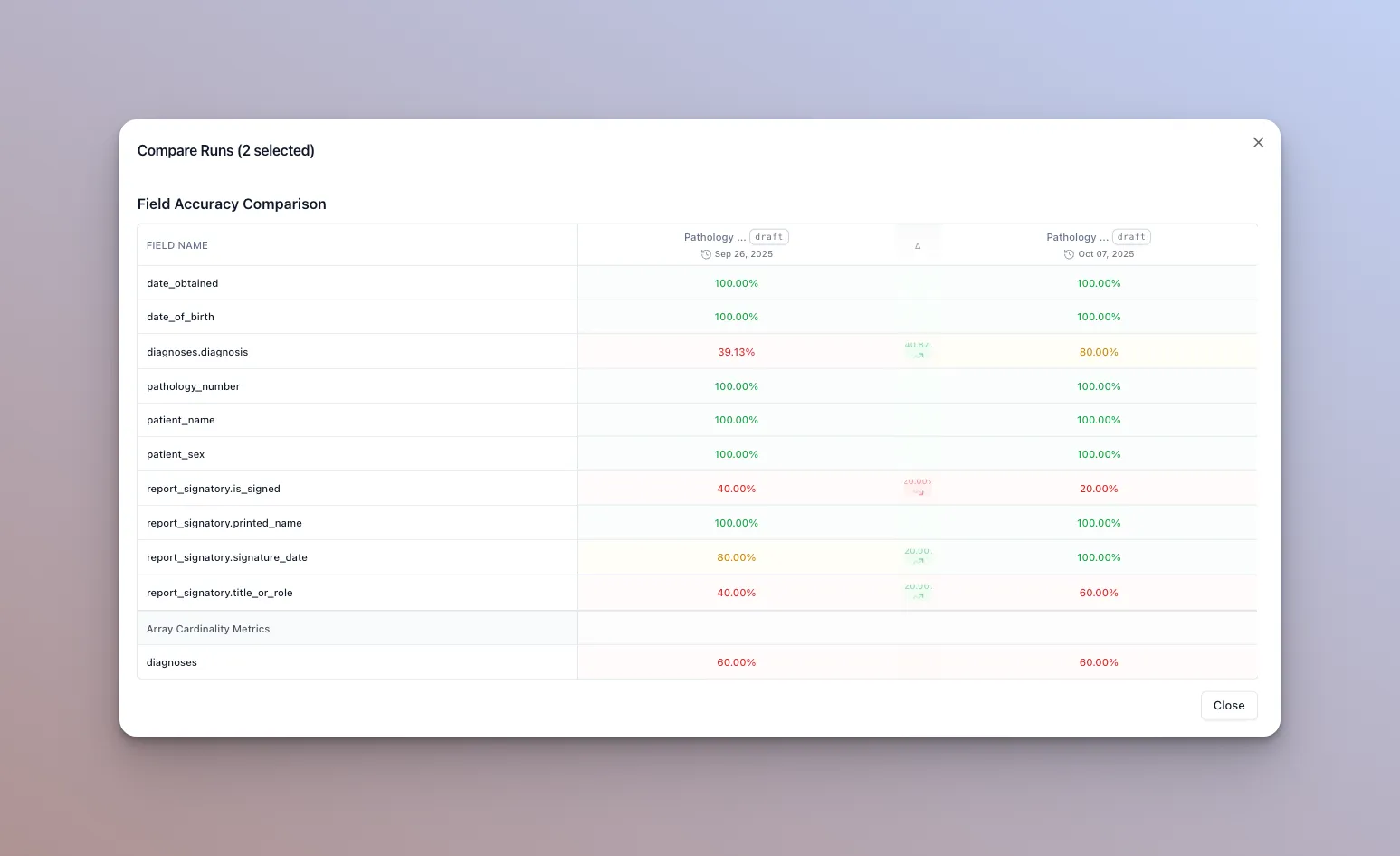
To see how a set is trending, compare accuracy across runs. Select the runs to compare and click “Compare runs” in the runs tab of the evaluation set home page.
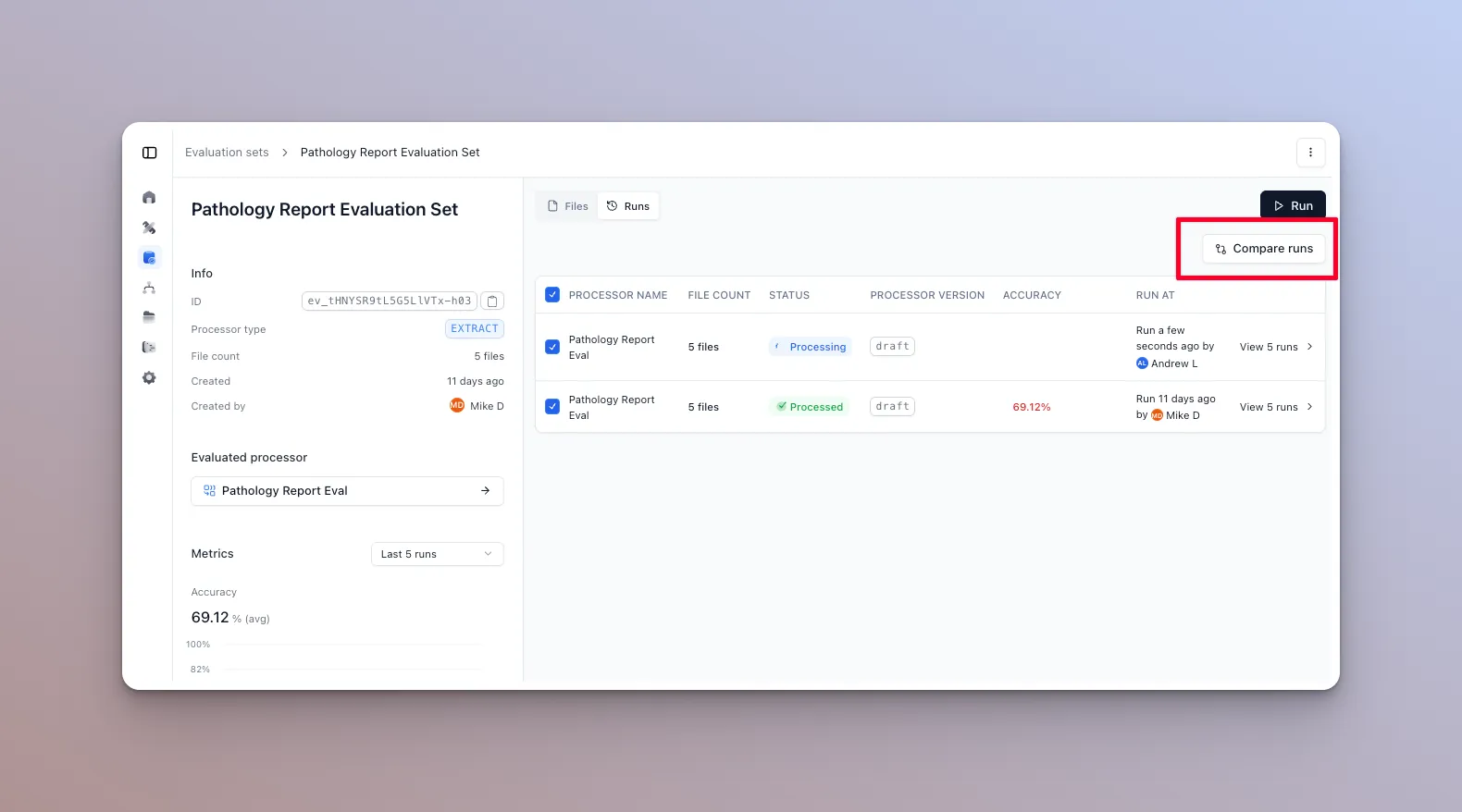
The dialog shows color-coded accuracy metrics and whether each increased or decreased between runs. Hover over a column for the exact percentage change.
Reference
- Create Evaluation Set Run, Get Evaluation Set Run, Update Evaluation Set Item
- Creating Evaluation Sets: build the set the run scores against
- Calculating Array Accuracy: how array and table fields are scored
- Processors: what
"draft","latest", and published versions mean - Composer: use evaluation sets to optimize a processor’s configuration automatically