

Workflows Overview
A Workflow orchestrates multiple processors into a single document pipeline — for example, classify a document, route it to the right extractor, validate the result, then deliver it to your webhook. Workflows are async-only and run end to end on each file you submit.
This guide walks through the full lifecycle via the API: create → configure steps → deploy → run. Prefer a visual canvas? See Prefer the dashboard? at the end.
1. Create a workflow
POST /workflows creates a workflow and initializes an empty draft.
Python
TypeScript
Java
Go
cURL
2. Configure the steps
A workflow is a graph of steps. Each step has a name, a type, an optional config, and a next array that defines where documents flow after it completes. Every workflow begins with a TRIGGER step followed by a PARSE step.
An EXTRACT step can reference a published extractor by its processor id and version (create the extractor first — see Processors and the Extraction overview), or embed the full extractor configuration inline with extractorConfig — no saved extractor needed. See Saved processors vs. inline configs.
Update the draft’s step graph with POST /workflows/{id} (update workflow):
This is the heart of building a workflow. For the full catalog of step types, routing rules (classify/split branching, conditional logic, validation), and complete patterns, see Configuring Workflows.
3. Deploy a version
Steps accumulate on the workflow’s draft. To make the workflow runnable, publish an immutable version with POST /workflows/{id}/versions (create workflow version):
Python
TypeScript
Java
Go
cURL
See Workflow Versioning for how draft, latest, and pinned semver versions behave.
4. Run the workflow
Submit a file to a deployed workflow with POST /workflow_runs. Workflow runs are asynchronous — poll with the SDK helper or receive results via webhook.
Pass either a single file or a package of files — see Package runs below.
Python
TypeScript
Java
Go
cURL
For high volume or long-running pipelines, prefer webhooks over polling. See Asynchronous Processing and Batch processing for running many files at once.
Package runs
When several documents belong together — an invoice with its bill of lading and delivery receipt, or a loan application split across separate PDFs — submit them as a package instead of a single file. Pass package in place of file and Extend ingests every file up front, then runs the workflow over the full set as one WorkflowRun.
Python
TypeScript
Java
Go
cURL
Constraints
fileandpackageare mutually exclusive — provide exactly one. Sending both, or neither, returns a400.package.filesaccepts 2–50 entries. For a single document, usefile.- Each entry must be a
{ "url": ... }or{ "id": ... }. Raw text and base64 inputs are not supported in packages. - Duplicates are rejected: the same file ID cannot appear twice, and neither can the same URL. A URL and a file ID are never treated as duplicates of each other, even if they point at the same document.
outputscannot be combined withpackage. A package run produces a single merged result across all files, so there is nowhere to attach pre-supplied per-processor outputs.
Response
A package run returns the same WorkflowRun shape as a single-file run. The files array holds one FileSummary per input file, rather than the single entry a file run returns.
To extract across every file in the package as one corpus, the workflow needs a COLLECT step ahead of its extract step. See Multifile Extraction in Workflows.
A package is one run over a set of documents. To process many files independently, use the Batch Run Workflow endpoint instead — it creates one workflow run per file. See Batch processing.
Prefer the dashboard?
Extend Studio provides a visual canvas for the same lifecycle — drag steps onto the canvas, connect them, and deploy with a button.
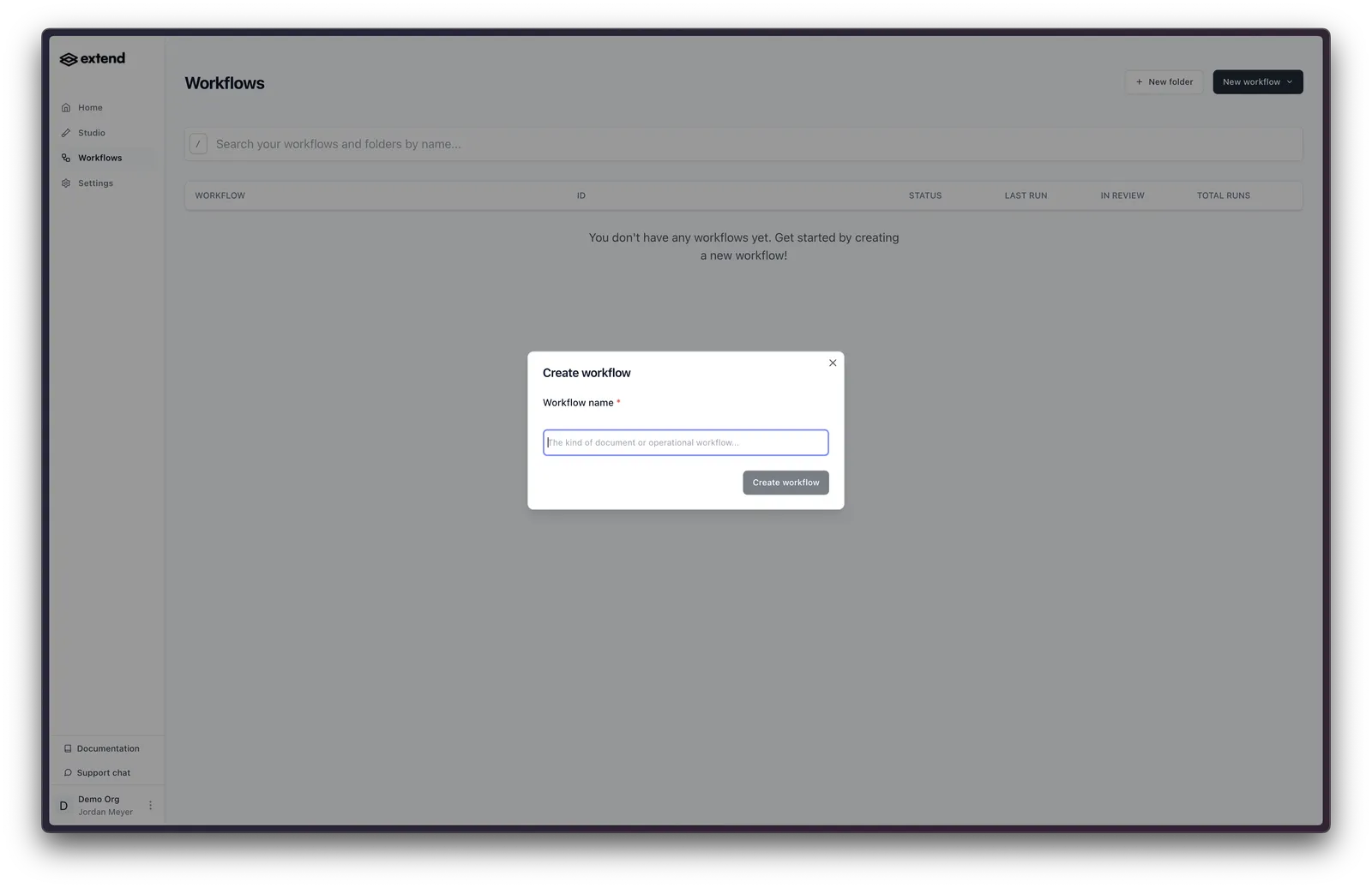
- In the Studio, open Workflows and click Create new Workflow, then give it a name.
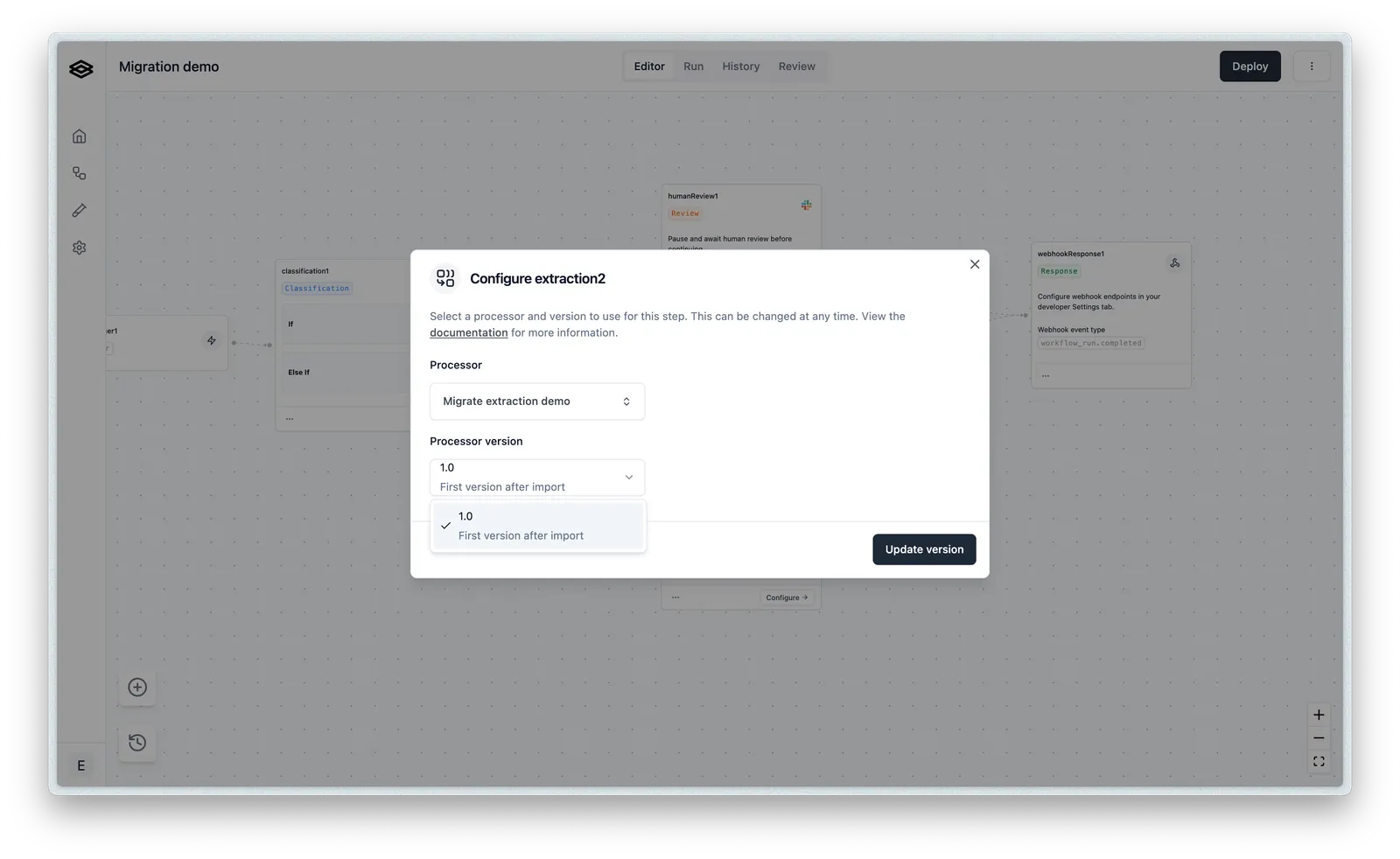
- Drag step types from the Step Drawer onto the canvas and connect them. Select a step to configure it — for an Extraction step, pick your published processor and version.
- Changes save automatically to the workflow draft.
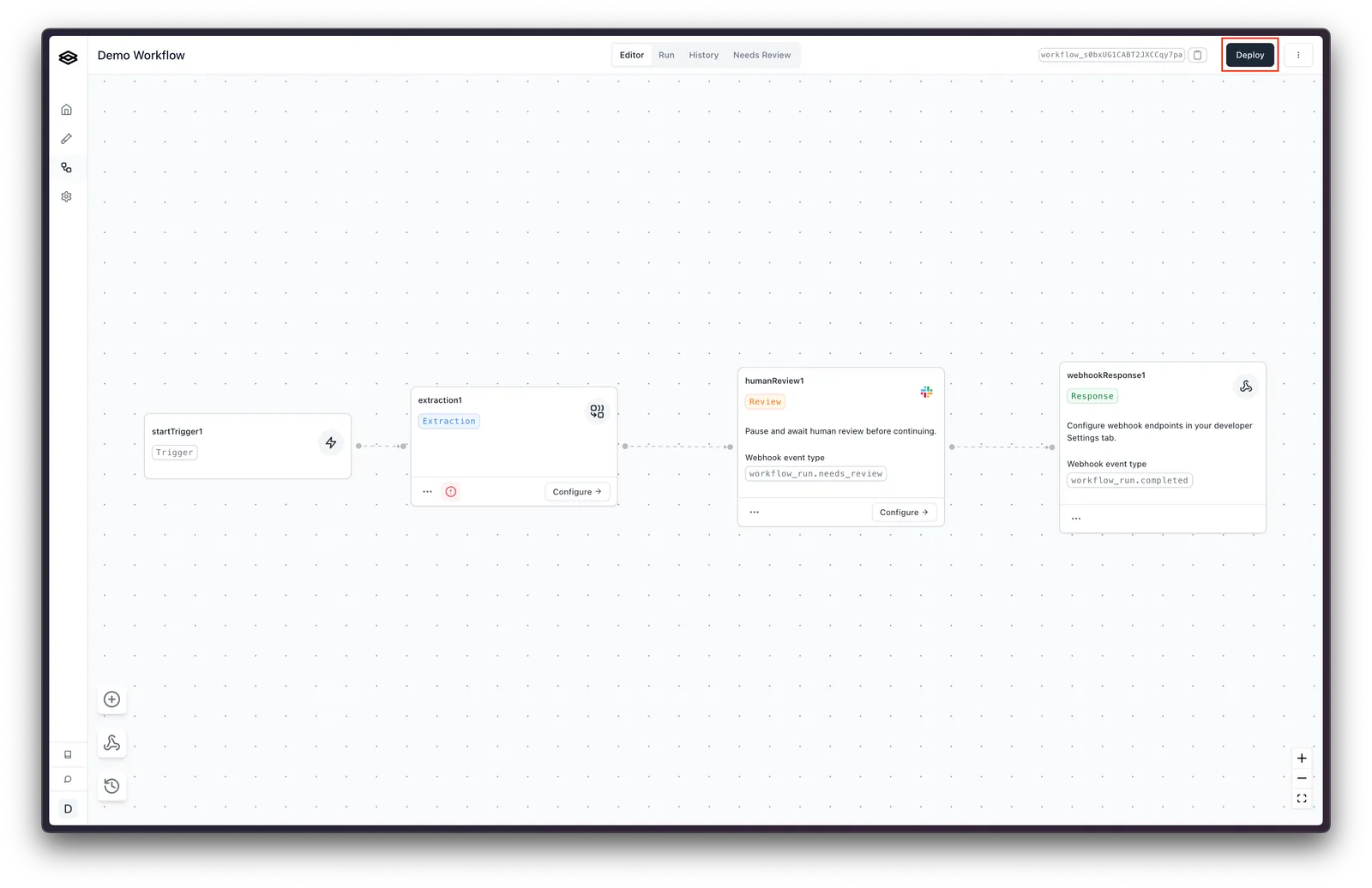
- Click Deploy in the top-right to publish a new immutable version.
Workflows built in the Studio are run the same way — via POST /workflow_runs as shown above.