

Configuring an Extractor
Configuring Extraction
From the Extend home page:
- Navigate to the Studio by clicking on the “Studio” tab in the left sidebar.
- Click the “Create new” button.
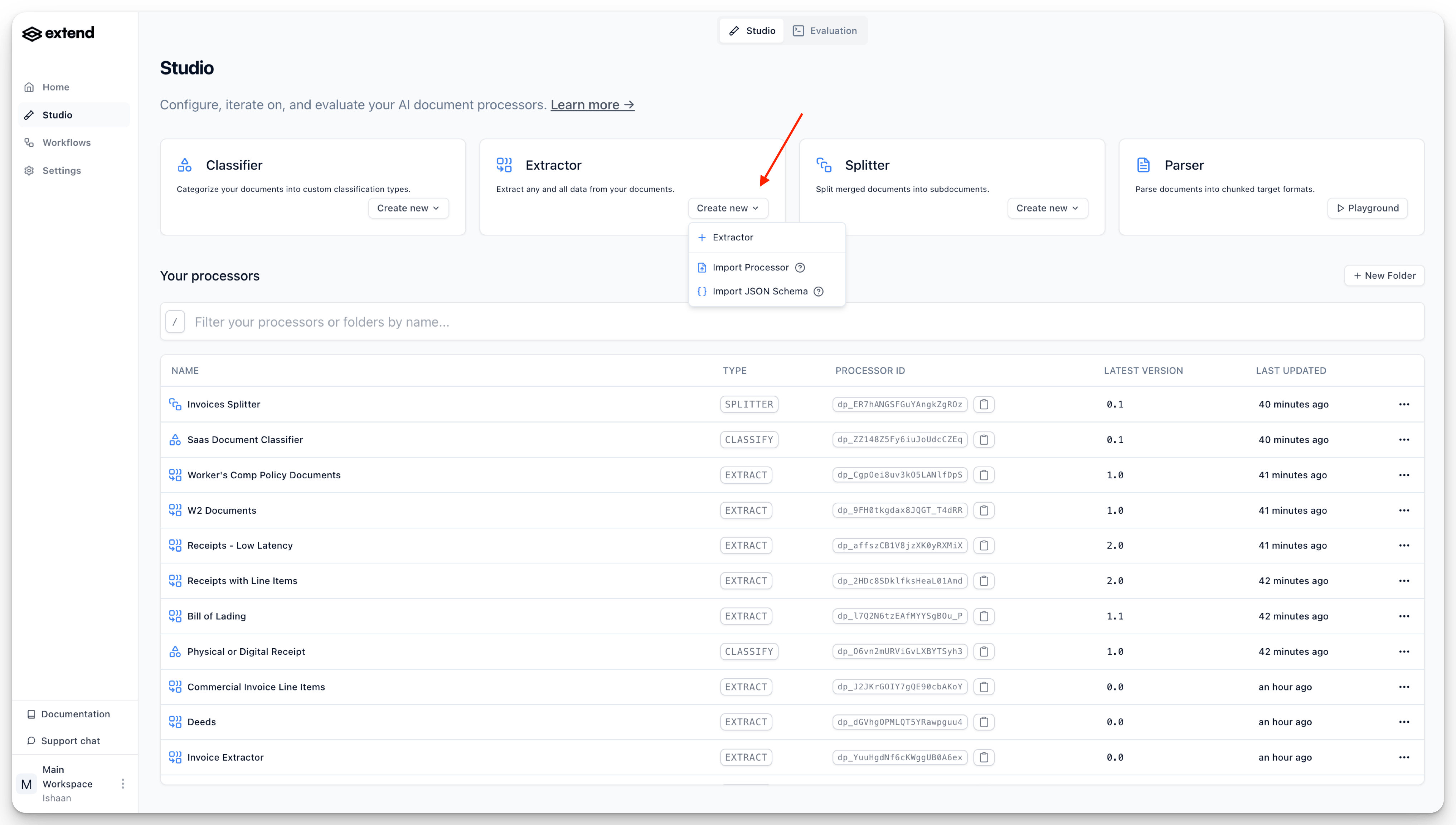
- Select ”+ Extractor” to create a new Extractor processor.
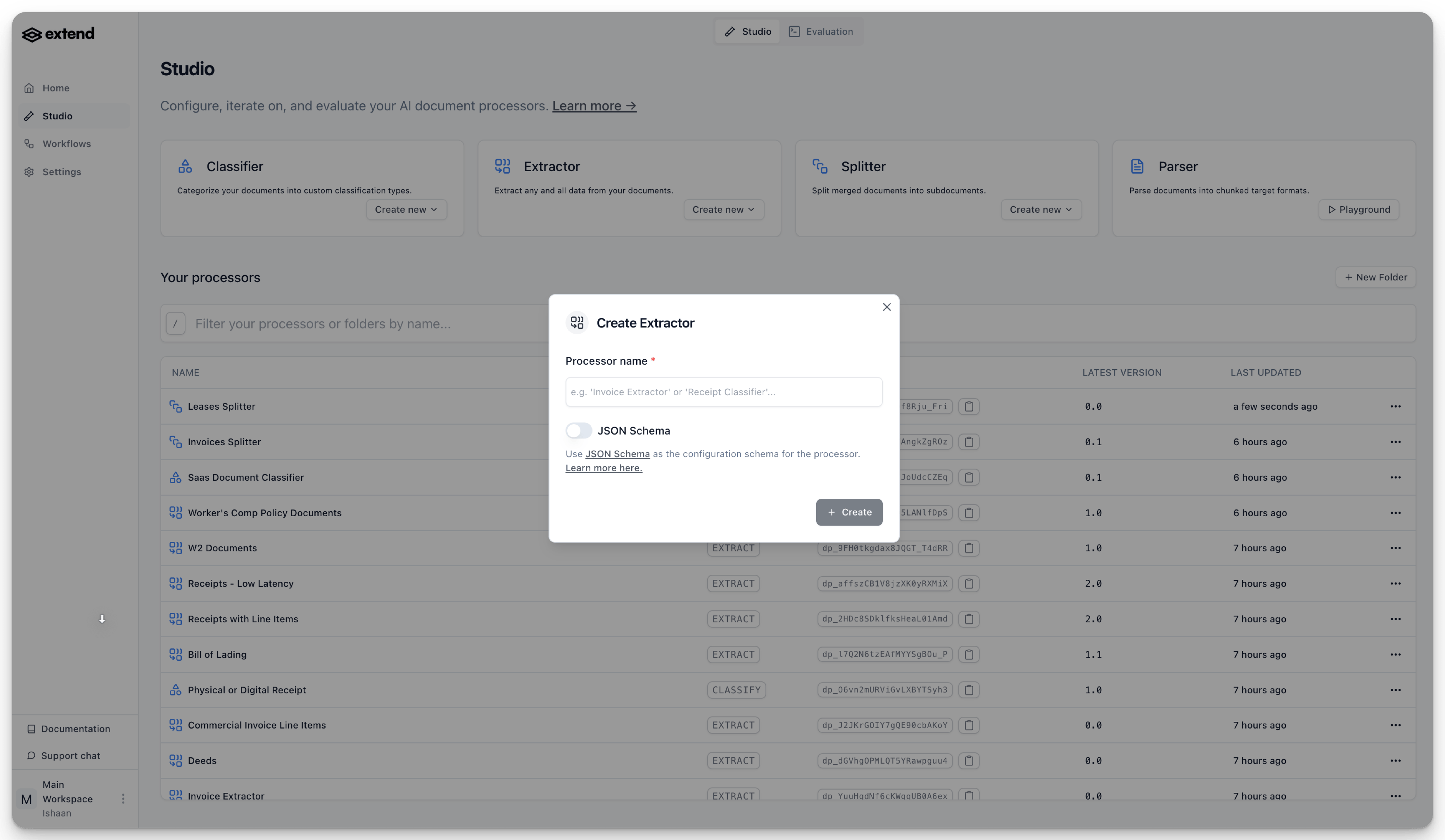
- You will be prompted to give your new Extractor a name. Enter a descriptive name and click “Create”.
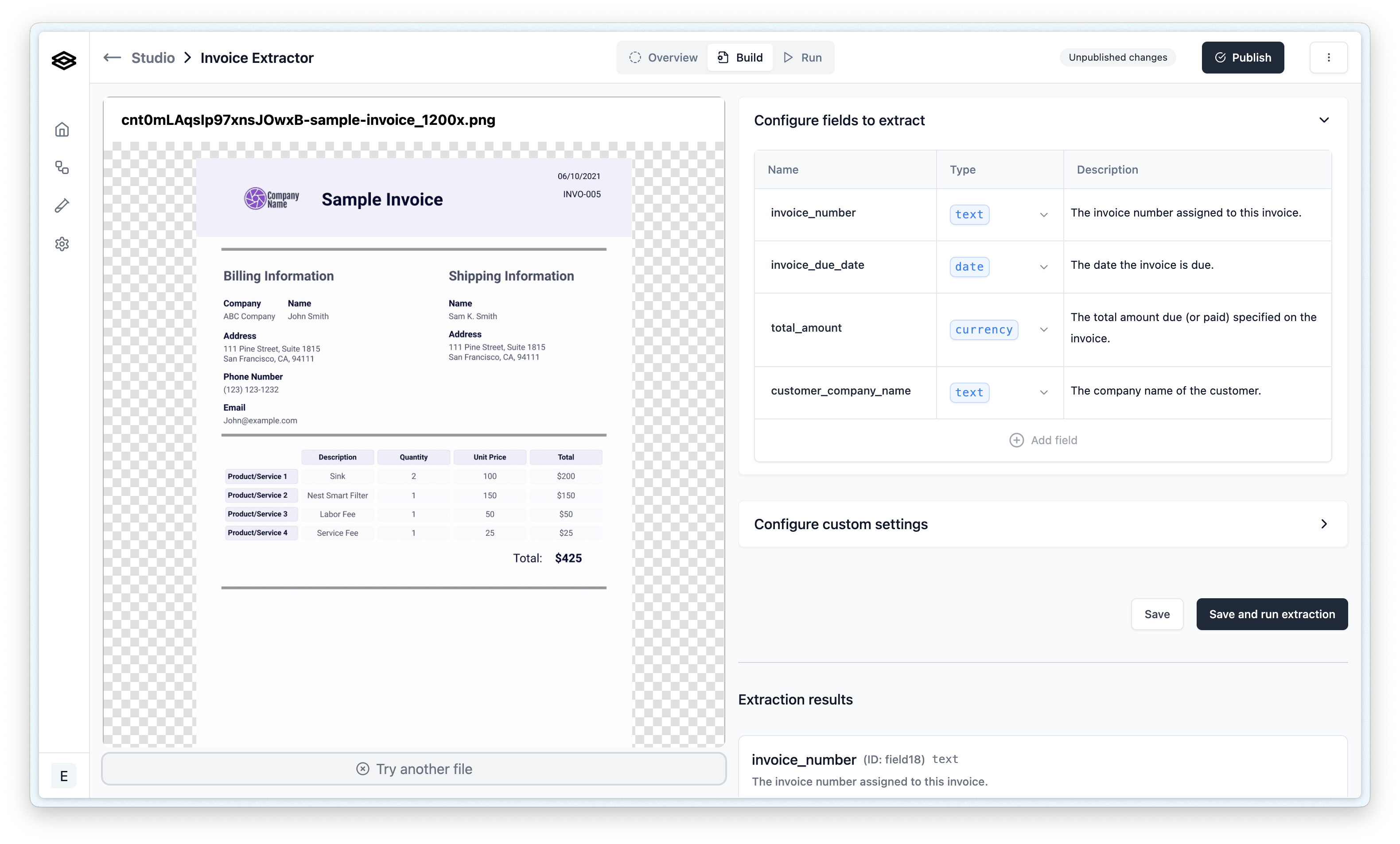
- After naming, you will be redirected to the “Build” tab for your new Extractor, ready to define its schema.
Note that you can also create a processor by importing existing configurations:
- Import Processor: Directly import the configuration for a processor from a configuration file.
- Import JSON Schema (for Extractors): You can import settings from a JSON Schema file. This is useful if you have a pre-defined schema.
Builder
Once you have created an Extraction processor, navigate to the “Build” tab.
Configuring Properties
Defining your extraction schema involves adding and configuring properties. A “property” represents a piece of data you want the AI to find and extract (e.g., “invoice_number”, “customer_name”, “total_amount”).
To add and configure a property:
- Add Property: Click the ”+” button in the schema builder section.
- Name: Assign a meaningful name for the property. This name is critical as it’s what the AI model uses to understand what to look for. Choose names that are semantically descriptive of the data.
- Description: Write a clear and concise description. This tells the AI how to identify and extract the information from a typical document. Good descriptions are vital for accurate extraction.
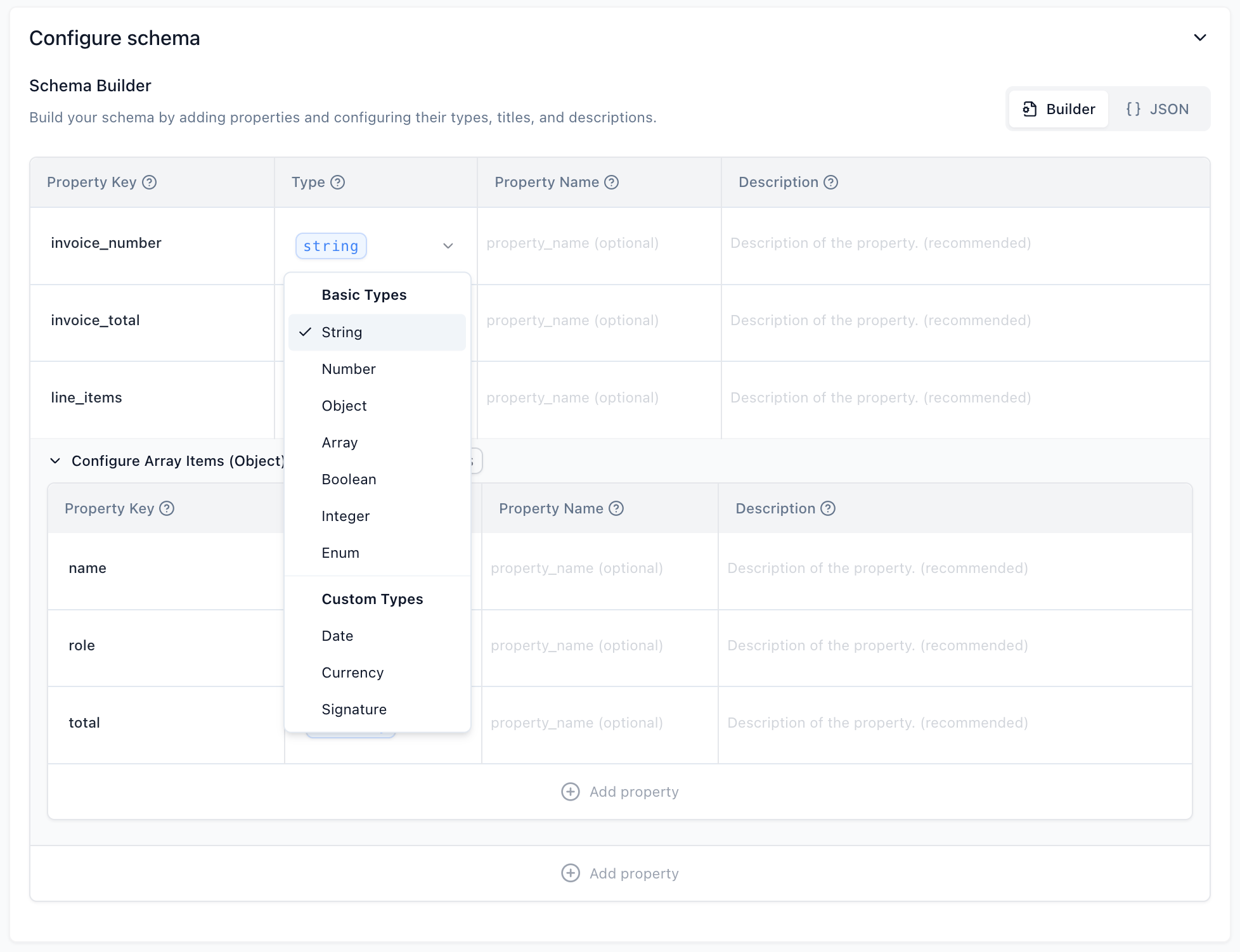
- Property Type: Select the appropriate Property Type that matches the data you expect (e.g., String, Number, Date). See “Property Types” below for details.
- (Optional) Property Key for Model: By default, the “Name” you provide is sent to the AI model. If you need to use a different internal identifier for your property key but want to send a more descriptive name to the model, you can specify this using the “Property Name” field in the advanced settings for a property.
Property Types
The following property types are supported for the JSON Schema configuration:
Basic Types
These are the fundamental data types for your properties:
- String: Used for any sequence of text. Example: extracting a person’s name or a product description.
- Number: Used for numerical values, including decimals. Example: extracting an item quantity or a subtotal.
- Boolean: Used for true/false values. Example: indicating if a checkbox is marked or if an item is in stock.
- Integer: Used for whole number values (no decimals). Example: extracting the number of pages in a document.
- Enum: Used when a field must have one of a predefined set of specific string values. Example: a “status” field that can only be “Pending”, “Approved”, or “Rejected”. You will define the allowed values when configuring this type.
- Object: Used to group several related properties together into a nested structure. Example: an “address” object containing “street”, “city”, and “zip_code” properties.
- Array: Used for a list of items, where each item can be of a specified type (including Objects). Example: a list of “line_items” in an invoice, where each line_item is an Object containing “description”, “quantity”, and “price”.
Custom Types
Custom types are extensions of the basic types, often Objects, with added validation, specific formatting expectations, and specialized processing logic tailored for common structured data.
- Date:
- Type: String
- Description: Represents a date. The AI will attempt to identify and extract dates, formatting them into the ISO 8601 standard (
YYYY-MM-DD). - Example: extracting a “document_date” or “date_of_birth”.
- Currency:
- Type: Object
- Description: Represents a monetary value along with its currency code.
- Structure:
amount(Number): The numerical value of the currency.iso_4217_currency_code(String): The three-letter ISO 4217 currency code (e.g., “USD”, “EUR”).
- Example: extracting a “total_amount” from an invoice.
- Signature:
- Type: Object
- Description: Captures details related to a signature found on a document.
- Structure:
is_signed(Boolean): Indicates whether a signature is present.printed_name(String, optional): The printed name associated with the signature.signature_date(Date, optional): The date accompanying the signature, formatted as YYYY-MM-DD.title_or_role(String, optional): The job title or role of the signatory.
- Example: extracting details from a signature block on a contract.
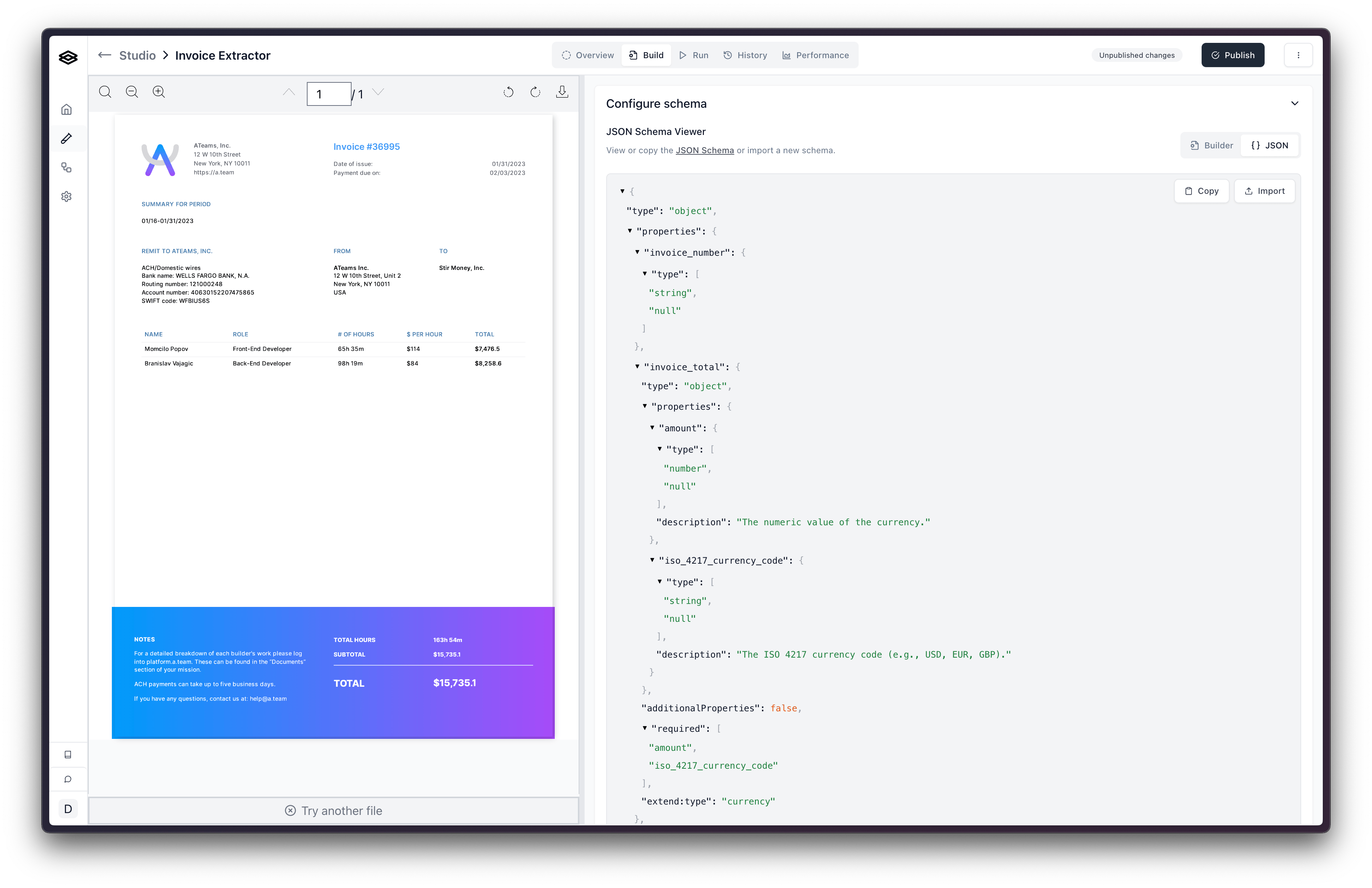
Once you’ve configured your schema using the Schema Builder, you can view the complete JSON Schema representation by clicking the “JSON” toggle. This can be useful for understanding the underlying structure or for sharing the schema.
API
You can create and configure extractors programmatically using POST /extractors. This is useful for automated pipelines, agent-driven workflows, or anywhere you want to manage extractors without touching the dashboard.
Create an extractor with a known schema
Pass a config object with your JSON Schema to create an extractor with a predefined schema:
Generate a schema from sample documents
If you don’t have a schema ready, pass a generate object instead of config. Extend analyzes your sample documents, generates a JSON Schema, and applies it to the extractor’s draft — all in a single synchronous call.
You can provide 1–5 sample documents as file URLs or existing Extend file IDs. The response includes the extractor with the generated schema already applied to its draft.
Using instructions to guide generation
The optional instructions field is injected into the schema generation prompt. Use it to provide context the generator can’t infer from the documents alone. There are two common uses:
Document context — Describe the document type and scope to help focus on the right fields:
"These are examples of a W2 form that an employee receives from their employer. We are only interested in the federal return fields, not state return fields."
Field and type constraints — Specify how particular fields should be represented in the schema:
"All date fields should be returned in ISO 8601 format."or"Extract line items as an array of objects with quantity, unit_price, and description."
Both can be combined in a single instructions string. Maximum length is 2,500 characters.
For the full request and response schema, see the Create Extractor API reference.
Using the Run tab
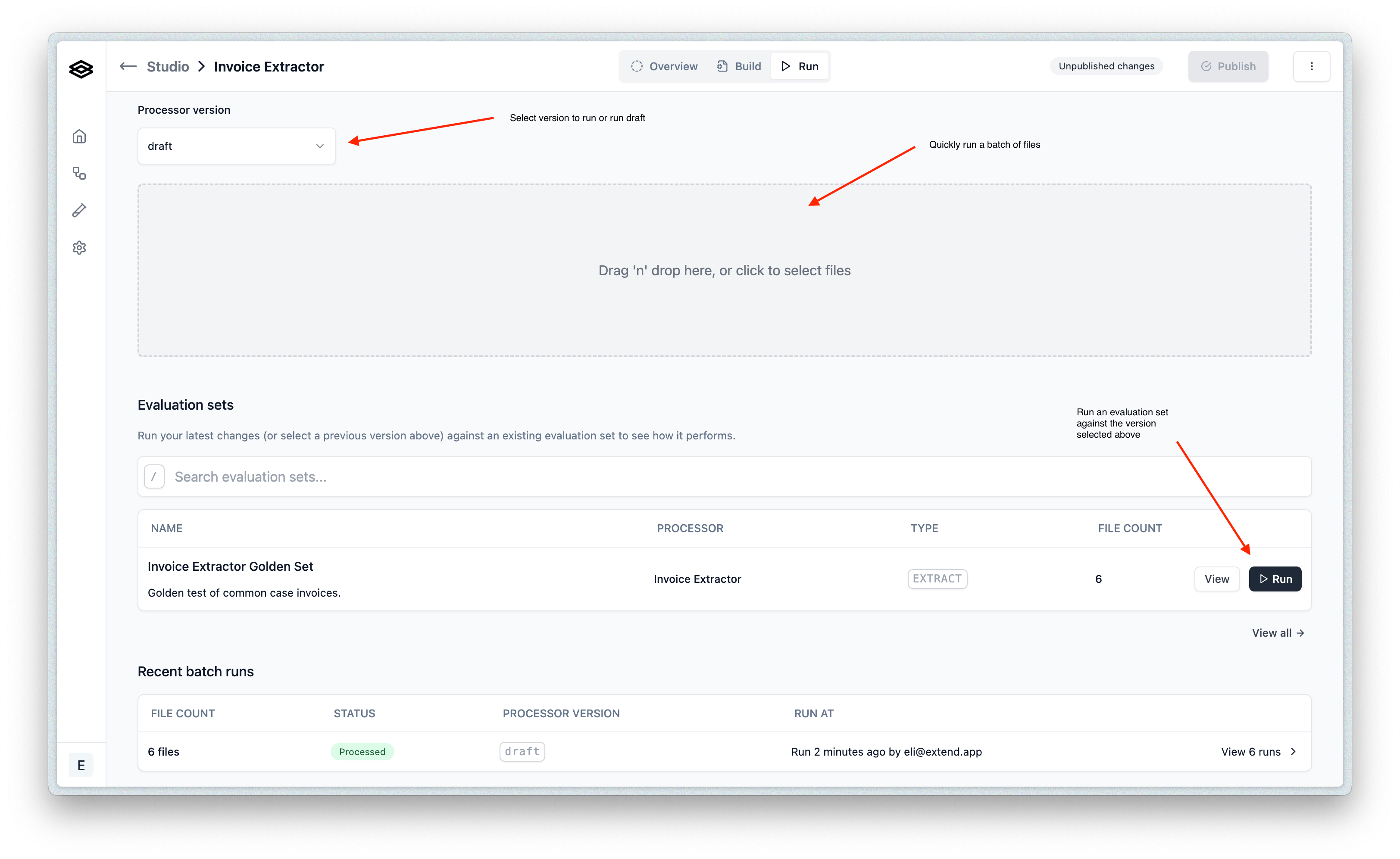
While the “Build” tab is excellent for initial setup and iterative changes to your processor’s configuration, the “Run” tab is designed for testing your processor more extensively. Effective testing is key to refining your property names, descriptions, and types.
From this tab you can:
- Upload and run multiple files in a batch to see how your configuration performs across a diverse set of documents. (Supported file types can be found here).
- Select a specific published version of your processor to test, or use the current saved draft.
- Run an existing Evaluation Set if you have one, to get structured feedback on performance.
After running a batch, the results page will provide insights:
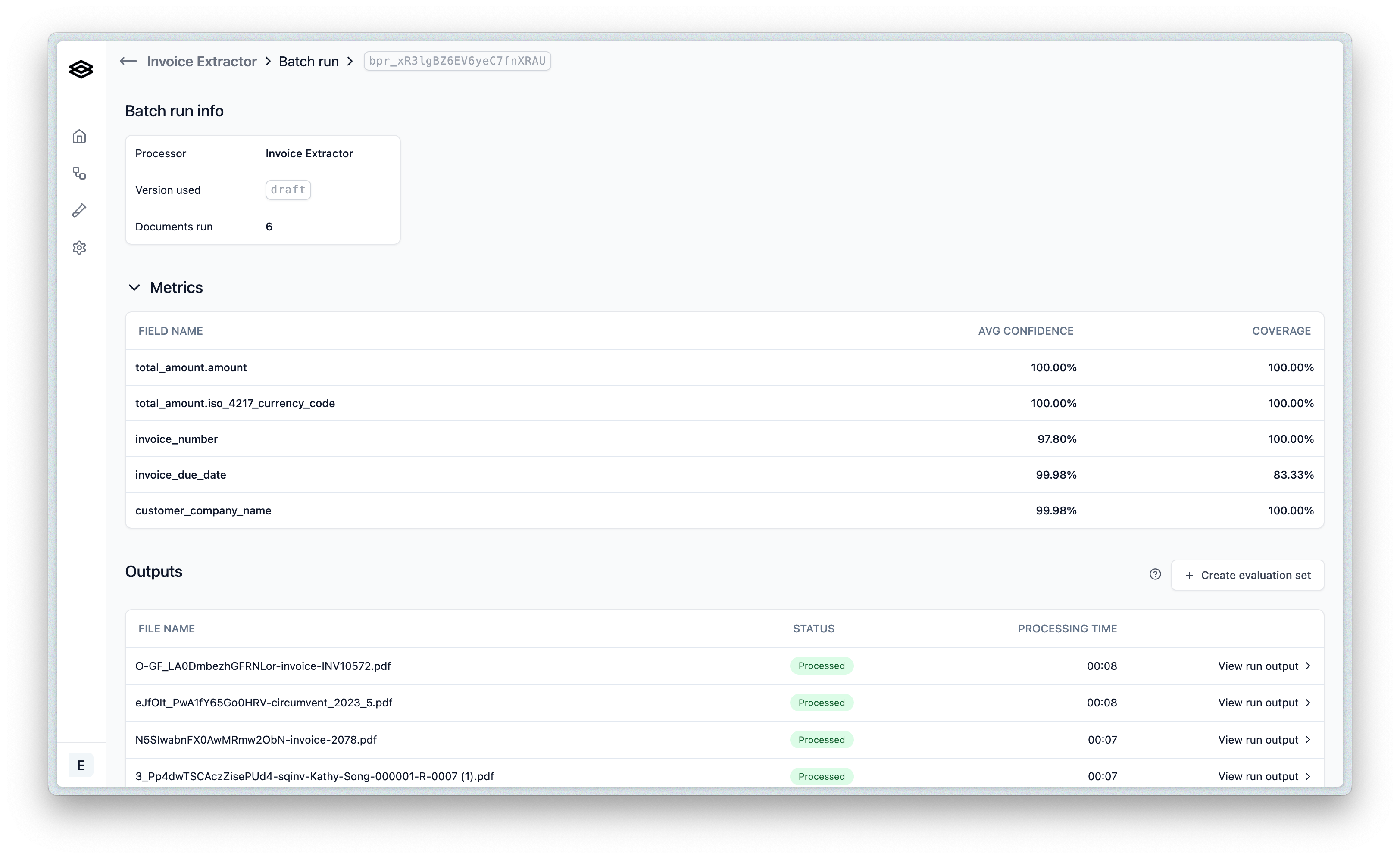
Key actions on the results page include:
- Assessing overall extraction coverage and average confidence scores.
- Examining individual files to see specific extracted values and their confidence, helping you pinpoint areas in your configuration that may need adjustment.
- Optionally, correcting or editing results and then saving the batch as a new Evaluation Set. This is particularly useful once your schema (the set of properties and their types) has stabilized.
Note on Evaluation Sets and Configuration Iteration: It’s generally best to finalize the set of properties you are extracting before heavily investing in creating detailed Evaluation Sets. If you add or remove properties (a schema change), your existing Evaluation Sets might show misleading accuracy or coverage metrics until they are updated to match the new schema. Iterating on names and descriptions with draft versions and smaller test batches is often more efficient in the early stages.
Next Steps
Once you have iteratively configured and tested your processor and are satisfied with its performance, you’ll want to publish it. Publishing makes your processor version available for use in live Workflows.
See the Publishing Processors page for detailed information on how to publish and manage processor versions.