

Dashboard Quickstart
The Extend Studio is the visual way to build and test processors. It is the fastest path when you want to try Extend on a real document, tune a configuration, and review results before writing any code. Everything you build in Studio runs on the same API, so the workflow is simple: prototype and inspect in Studio, then run in production from the API.
This guide walks through parsing an Explanation of Benefits (EOB) into clean, chunked markdown that is ready for an LLM or a RAG pipeline.
1. Open Studio and pick a processor
Sign in at dashboard.extend.ai and open Studio from the sidebar. The studio has example documents and results for each processor type.
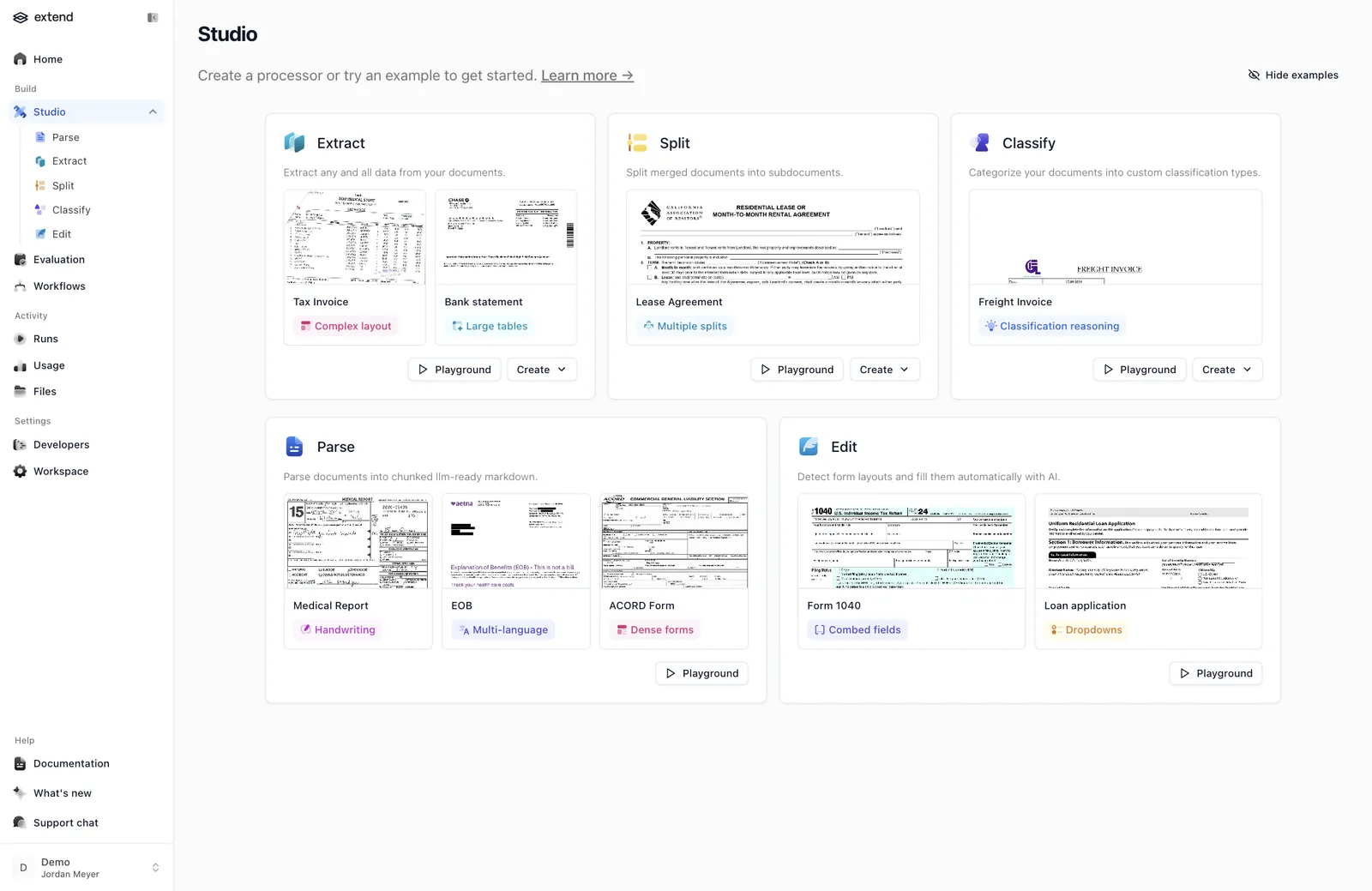
We will use Parse, which turns any document into layout-aware, LLM-ready markdown. Under Parse, click the EOB example to open it in the playground.
2. Review the parsed output
The example opens with a completed run already loaded, so you see real output immediately but normally you would upload a document and click Run parser. The document sits on the left with each detected region highlighted, and the parsed output appears on the right.
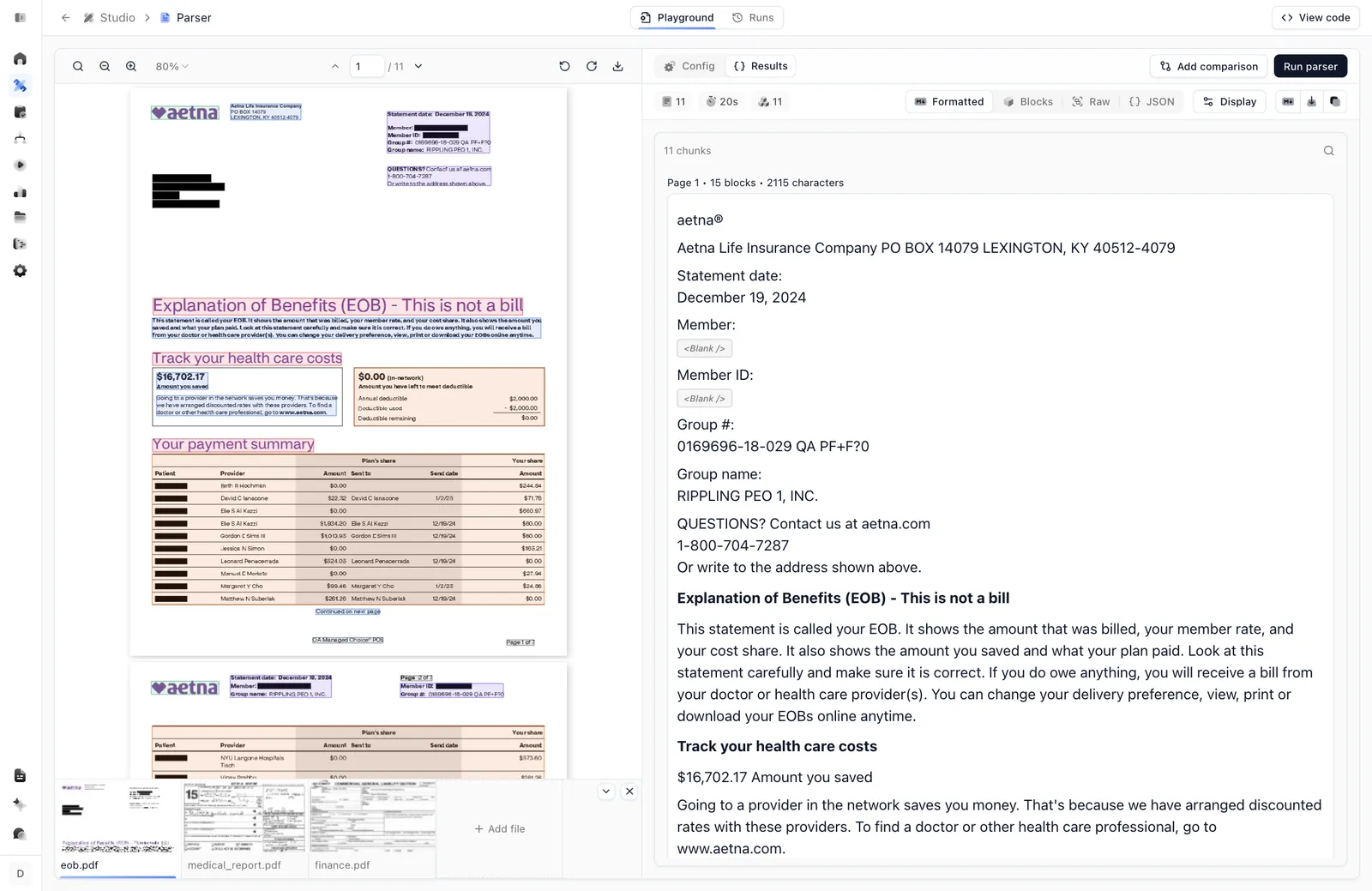
The output is available in several views:
- Formatted renders the markdown the way an LLM would receive it. It is split into chunks (here, 11 of them), with per-page block and character counts so you can see exactly how the document was segmented.
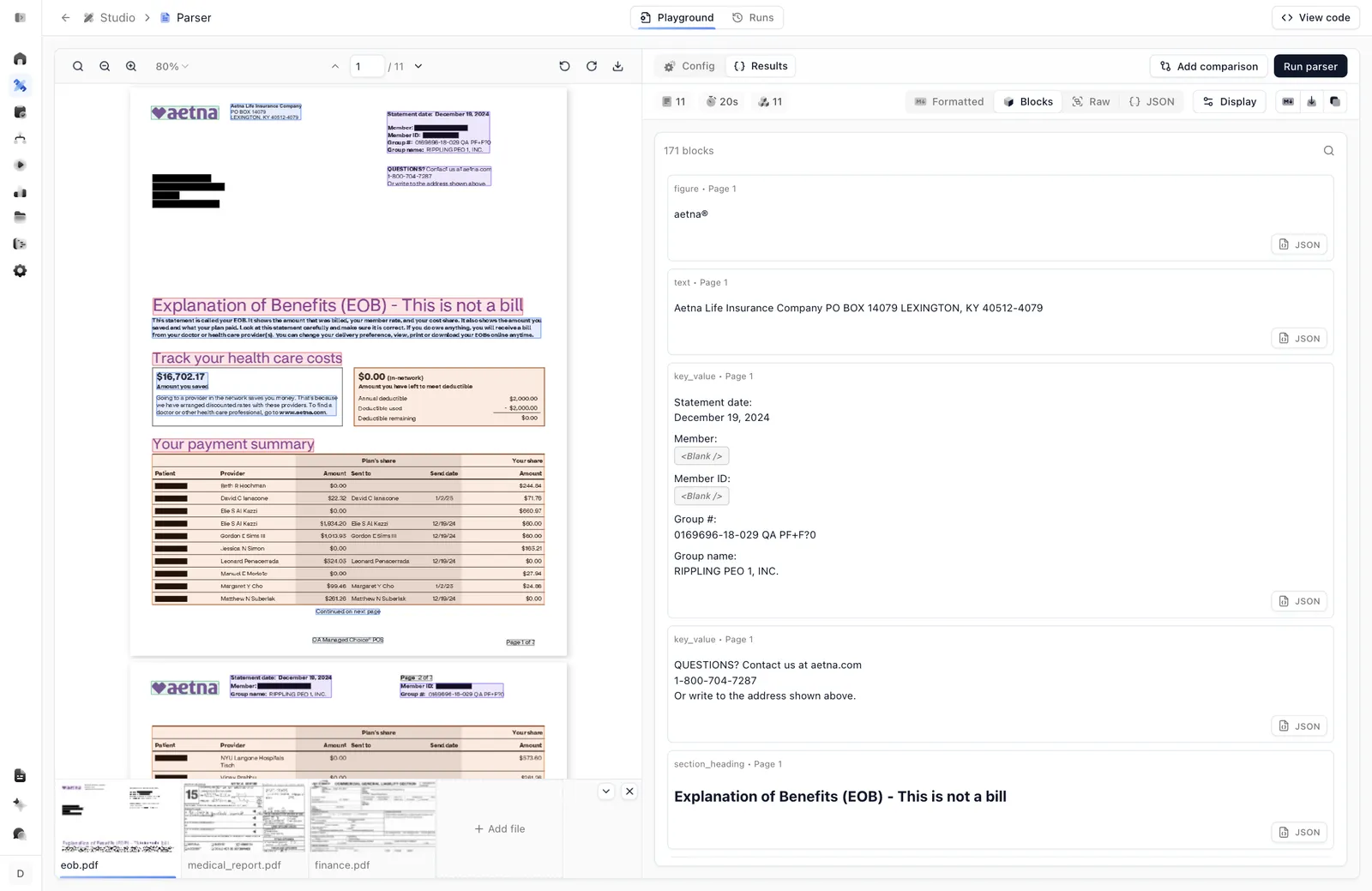
- Blocks breaks the document into typed, layout-aware blocks. Raw shows the unrendered markdown, and JSON shows the full structured response.
Notice that Extend preserves structure that plain text extraction loses: headings stay headings, tables stay tables, and figures and key-value pairs are detected as their own blocks.
Inspect the blocks
Switch to Blocks to see how Extend understands the layout. Each block is tagged with a type (section_heading, text, key_value, table, figure, and more) and the page it came from, and any block can be expanded to view its raw JSON.
3. Configure the parser
Switch to the Config tab to control how the document is parsed.
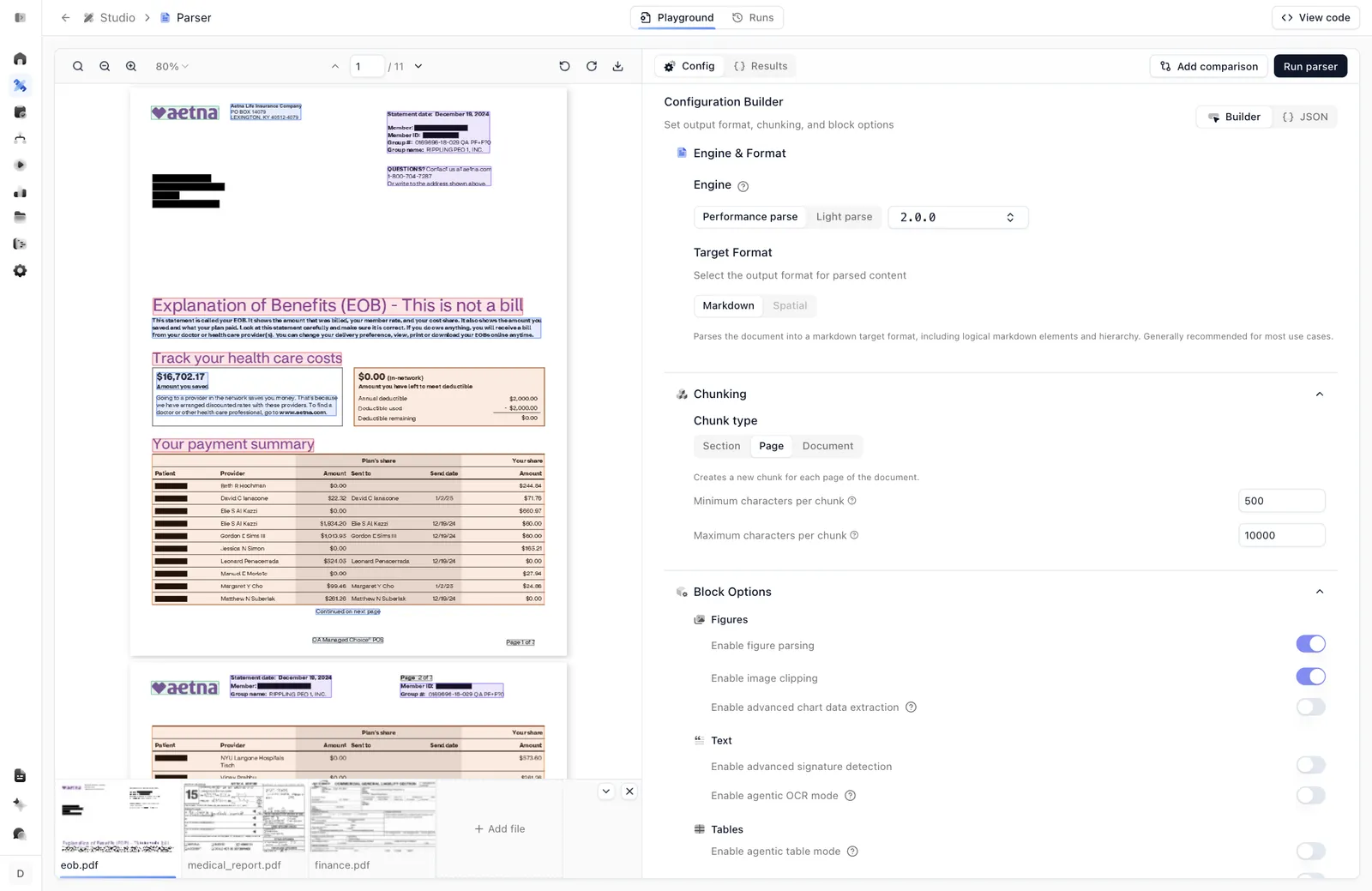
- Engine. Choose Performance for the highest accuracy or Light for faster, cheaper parsing.
- Target format. Parse into Markdown (recommended for LLMs) or spatial output.
- Chunking. Chunk by section, page, or document, and set minimum and maximum characters per chunk to fit your model’s context window.
- Block options. Toggle features per block type, like figure parsing, agentic OCR, agentic table mode, signature detection, and math (LaTeX) parsing.
Change a setting and click Run parser to see the effect immediately. For the full reference, see Parse Configuration Options.
4. Take it to the API
This is the step that connects Studio to production. Click View code for a runnable snippet in your language of choice.
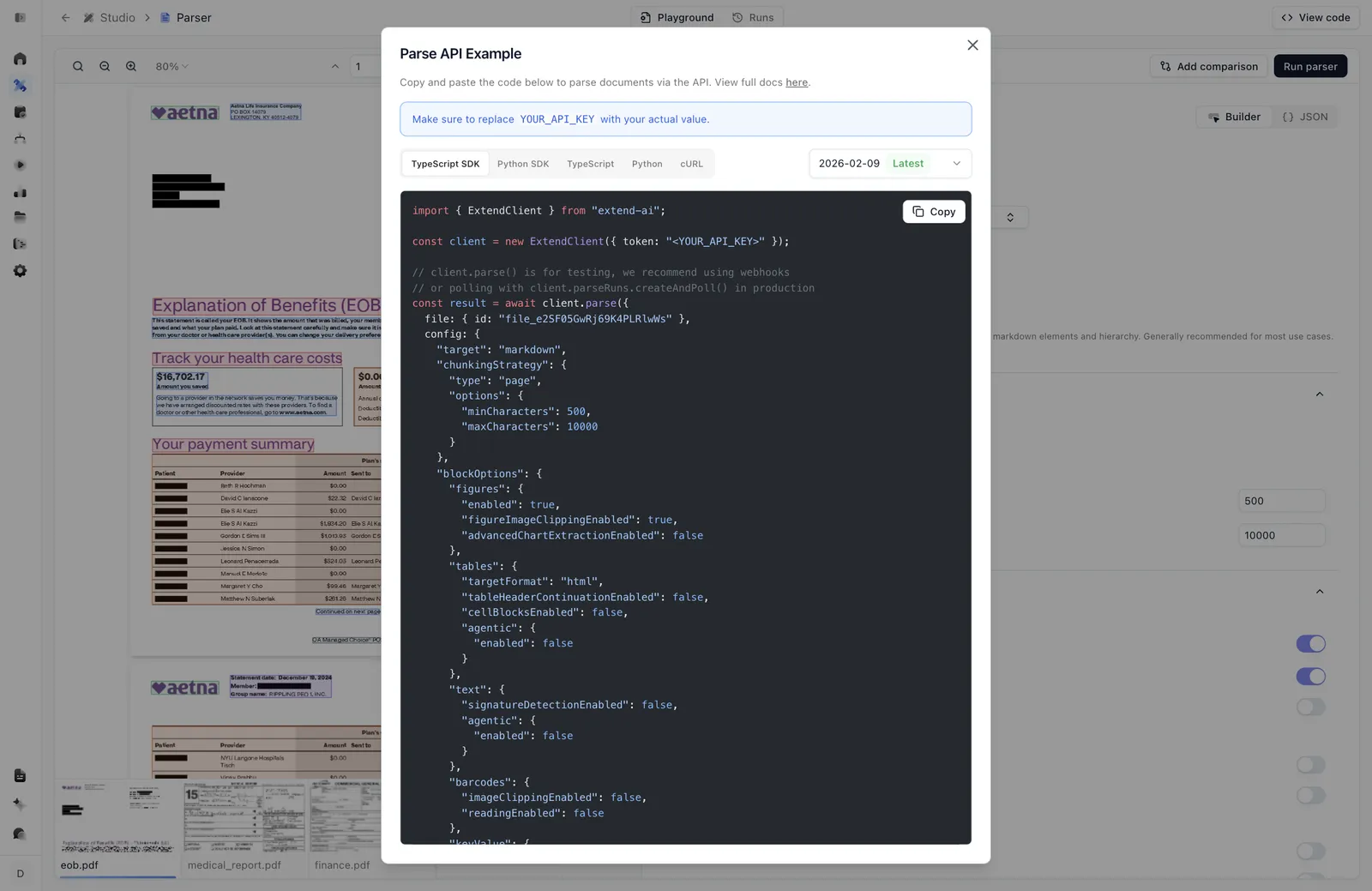
The snippet is the exact equivalent of calling the Parse endpoint, with your configuration inlined. Replace YOUR_API_KEY with a key from the Developers page and run it.
Next steps
You’ve parsed a document in Studio. Here’s where to take it next: