

For AI agents: a documentation index is available at the root level at /llms.txt and /llms-full.txt. Append /llms.txt to any URL for a page-level index, or .md for the markdown version of any page.
Book a demoLog in
DocumentationAPI ReferenceModel VersioningChangelog
    • Studio
    • Support
    • Benchmarks
    • Status
  • Getting Started
    • Overview
    • API Quickstart
    • Dashboard Quickstart
    • Agent Quickstart
  • Dev Tools
    • SDKs
    • CLI
  • Capabilities
      • Overview
      • Configuration
      • Response Format
      • Best Practices
      • Error Handling
LogoLogo
Book a demoLog in
On this page
  • Quick start
  • Example response
  • Key fields
  • Use the output
  • Sync vs async
  • Configuration
  • Engine
  • Chunking
  • Table format
  • Figures and charts
  • Agentic OCR and tables
  • Page range
  • Next steps
CapabilitiesParsing

Overview

Was this page helpful?
Previous

Configuration

Next
Built with

Parsing converts documents into clean, structured, LLM-ready content. It turns PDFs, images, spreadsheets, presentations, and scanned files into layout-aware markdown, split into chunks, alongside a block-level breakdown (text, tables, figures, and key-value pairs) with spatial metadata. Use it as the foundation for RAG pipelines, custom ingestion workflows, downstream extraction, and agents.

Quick start

We’ll parse a sample bank statement. For this quick-start we’ve uploaded the file here.
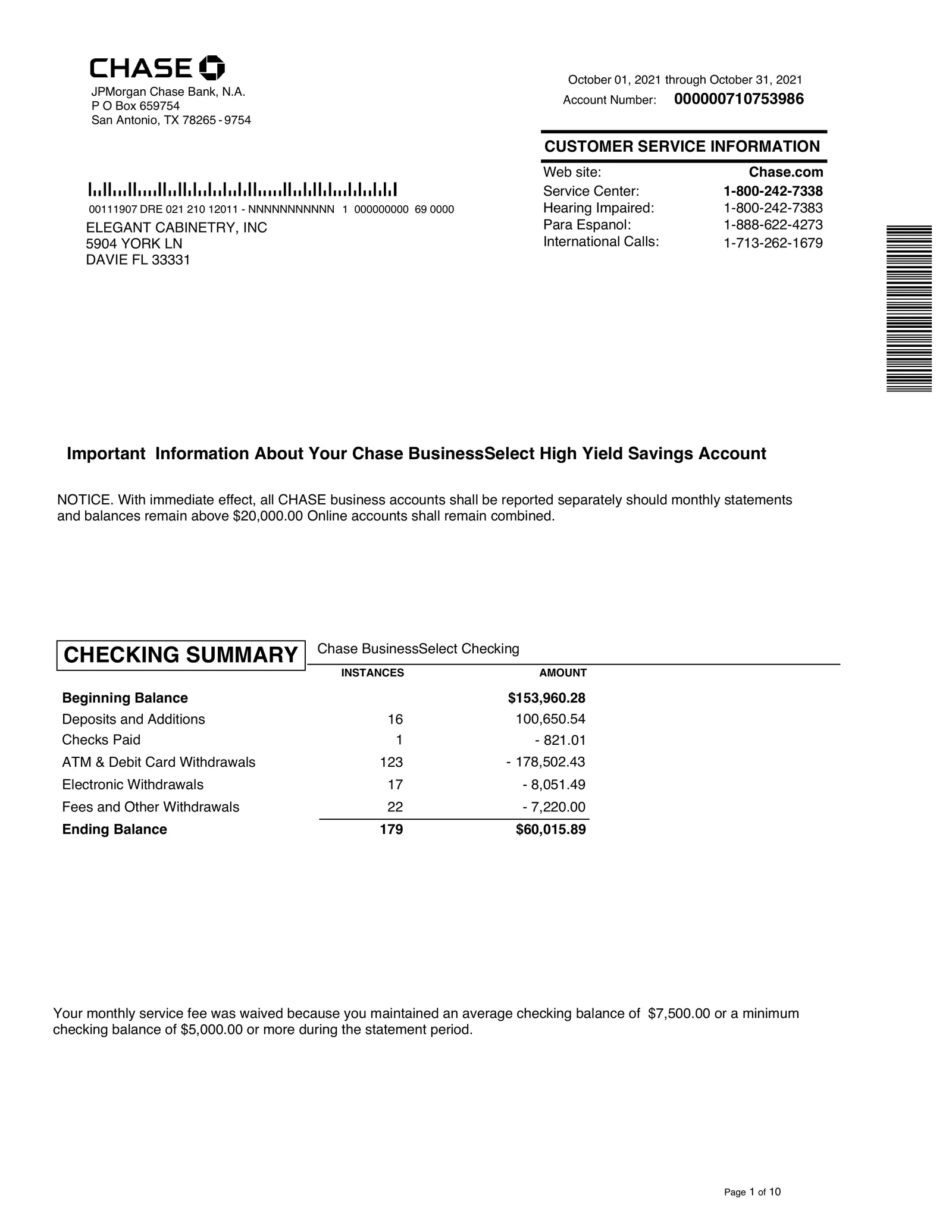
Bank statement page 1

Grab a key from the Developers page and store it as the EXTEND_API_KEY environment variable. If you’re using an SDK, see the installation instructions.

$export EXTEND_API_KEY="your_api_key_here"
Python
TypeScript
Java
Go
cURL
1import os
2from extend_ai import Extend
3
4client = Extend(token=os.environ["EXTEND_API_KEY"])
5
6response = client.parse(
7 file={
8 "url": "https://extend-public-files.s3.us-east-2.amazonaws.com/bank_statement_example.pdf",
9 }
10)
11
12print(response)

Want to parse your own document? Upload it first, then pass the returned file id instead of a url.

Python
TypeScript
Java
Go
cURL
1with open("bank_statement.pdf", "rb") as f:
2 uploaded = client.files.upload(file=f)
3
4response = client.parse(file={"id": uploaded.id})

Example response

After you run the code snippet above, you’ll see a response like this. This example response is truncated for brevity. The response is organized into output.chunks, which in this case are page-level units. Each chunk includes a formatted content string for the full page and a blocks array for block-level elements (like text, tables, and figures) with metadata and spatial data.

1{
2 "object": "parse_run",
3 "id": "pr_3f1j6I1gsw5k96xFiCnkM",
4 "file": {
5 "object": "file",
6 "id": "file_GzKUy0VDhHscv7tweODYb",
7 "name": "bank_statement.pdf"
8 },
9 "status": "PROCESSED",
10 "output": {
11 "chunks": [
12 {
13 "id": "chunk_qncr8Txe-wYvmFjipXgMD",
14 "type": "page",
15 "content": "CHASE JPMorgan Chase Bank, N.A. P O Box 659754...",
16 "metadata": { "pageRange": { "start": 1, "end": 1 } },
17 "blocks": [
18 {
19 "object": "block",
20 "id": "block_WNoJ0WbMj4pRW9MpMpUox",
21 "type": "text",
22 "content": "CHASE JPMorgan Chase Bank, N.A. P O Box 659754 San Antonio, TX 78265 - 9754",
23 "details": {},
24 "metadata": { "page": { "number": 1, "width": 612, "height": 792 } },
25 "polygon": [
26 { "x": 56.873, "y": 35.374 },
27 { "x": 162.173, "y": 35.215 },
28 { "x": 162.245, "y": 81.158 },
29 { "x": 56.938, "y": 81.317 }
30 ],
31 "boundingBox": { "left": 56.873, "top": 35.215, "right": 162.245, "bottom": 81.317 }
32 }
33 ]
34 }
35 ]
36 },
37 "metrics": { "pageCount": 7, "processingTimeMs": 8293 },
38 "usage": { "credits": 14 }
39}

Key fields

FieldWhat it contains
output.chunksParsed content units (page, section, or document-level based on config).
output.chunks[].contentFormatted content string for the chunk.
output.chunks[].blocksBlock array with structured elements and their layout data.
blocks[].typeWhat kind of element this is: text, table, figure, key_value, and more.
blocks[].boundingBoxCoordinates showing where the element appears on the page.

For full request/response details, see the Create Parse Run API reference.

Use the output

You can pass each chunk’s formatted content straight into an LLM, or walk individual blocks for more control over tables and layout.

Python
TypeScript
Java
Go
1# Access the formatted content of each chunk
2for index, chunk in enumerate(response.output.chunks):
3 print(f"Page {index + 1}:", chunk.content)
4
5# Or work with individual blocks for more control
6for chunk in response.output.chunks:
7 for block in chunk.blocks:
8 print(f"{block.type}:", block.content)

For a deeper guide on how to use the output of this endpoint, see Response Format.

Sync vs async

The example above calls the synchronous /parse endpoint. We also have an asynchronous /parse_runs endpoint that should be used for large files and high volume use cases.

See Async Processing for the full comparison, polling options, and webhook setup.

Configuration

The quick start uses default settings. To control how a document is parsed, pass a config object alongside file. Here are the most commonly changed options; for the full reference, see Configuration.

Engine

Choose the parsing engine based on your accuracy and latency needs.

1{ "config": { "engine": "parse_performance" } }
EngineWhen to use
parse_performanceHighest accuracy across complex layouts, tables, and scans (default).
parse_lightFaster, cheaper parsing for simple and clean documents.

Chunking

By default, Parse returns one chunk per page. For RAG, section chunking splits at semantic boundaries so each chunk is a complete unit you can embed and retrieve independently.

1{
2 "config": {
3 "chunkingStrategy": {
4 "type": "section",
5 "options": { "minCharacters": 500, "maxCharacters": 2000 }
6 }
7 }
8}
TypeBehavior
pageOne chunk per page (default).
sectionSplits at logical sections (headings); keeps tables and figures intact. Best for RAG. Requires target: "markdown".
documentThe entire document as a single chunk.

Full chunking options →

Table format

Controls how tables appear in each block’s content.

1{ "config": { "blockOptions": { "tables": { "targetFormat": "markdown" } } } }
FormatWhen to use
htmlComplex tables with merged cells or nested headers (default).
markdownSimple tables and Markdown-based or LLM workflows.

Figures and charts

Figures are parsed by default. Disable them for the fastest parsing, or enable advanced chart extraction to convert charts into structured tables.

1{
2 "config": {
3 "blockOptions": {
4 "figures": { "enabled": true, "advancedChartExtractionEnabled": true }
5 }
6 }
7}

Agentic OCR and tables

Agentic processing uses a vision model to review and correct parsing output. It’s off by default and adds latency, so enable it only where it helps:

  • text.agentic — corrects low-confidence OCR. Enable for handwriting, faded or skewed scans, or when you see garbled characters in the output.
  • tables.agentic — reviews and fixes table structure. Enable for tables with misaligned columns, merged cells, or values landing in the wrong column.

Don’t enable either for clean digital PDFs; they parse correctly without it and you’ll just add latency.

1{
2 "config": {
3 "blockOptions": {
4 "text": { "agentic": { "enabled": true } },
5 "tables": { "agentic": { "enabled": true } }
6 }
7 }
8}

Page range

Process only specific pages. Page numbers are 1-based and inclusive, and you’re only billed for pages actually processed.

1{ "config": { "advancedOptions": { "pageRanges": [{ "start": 1, "end": 10 }] } } }

For every option, including the full block options, Excel settings, and OCR output, see the Configuration reference.


Next steps

Configuration

Customize chunking, output format, and block options

Response Format

The full shape of chunks and blocks in the parse response.

Best Practices

Tune for speed or accuracy, plus ready-to-use recipes

Error Handling

Handle parse errors with sync and async error-handling patterns