

Composer Chat
Composer chat is a Studio feature with no API. To change an extractor or workflow from code, update the configuration directly: extractors.update for a draft extractor (Extraction configuration) or workflowVersions.create with steps for a workflow (Configuring Workflows).
Composer chat is an interactive assistant built into the Extend Dashboard. Describe the result you want in natural language, attach relevant files, and let Composer inspect context or propose changes without leaving the page.
Composer chat is currently supported on two surfaces:
- Extractors in Studio
- Workflows in the workflow builder
The tools available in a chat depend on the surface and your workspace permissions. Composer does not receive tools that your role is not allowed to use.
Extractor chat
Open Composer from an extractor to ask questions about its schema and configuration, diagnose results, or propose improvements.
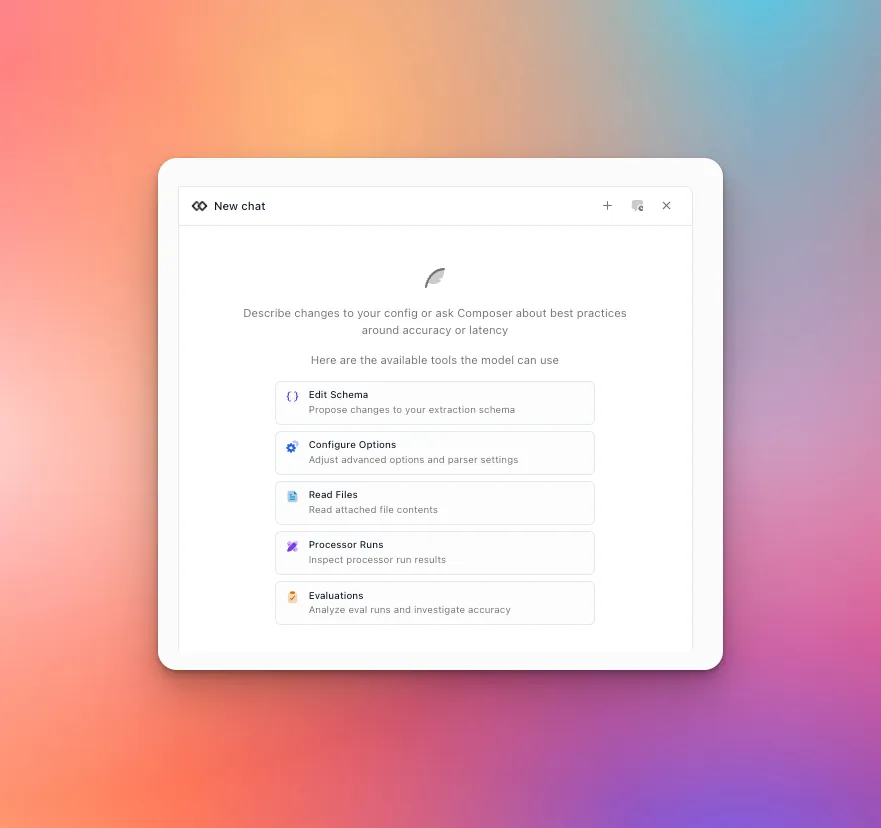
Depending on your permissions, Composer can:
The empty state lists only the tools currently available to you. For example, a user who can view an extractor but cannot edit it may still ask questions or inspect permitted evidence, but Composer will not receive schema or configuration mutation tools. See User Roles and Permissions.
Useful prompts include:
Workflow chat
Open Composer in the workflow builder to create or edit the draft much as you would through the visual UI. Composer works from the workflow currently displayed in the builder.
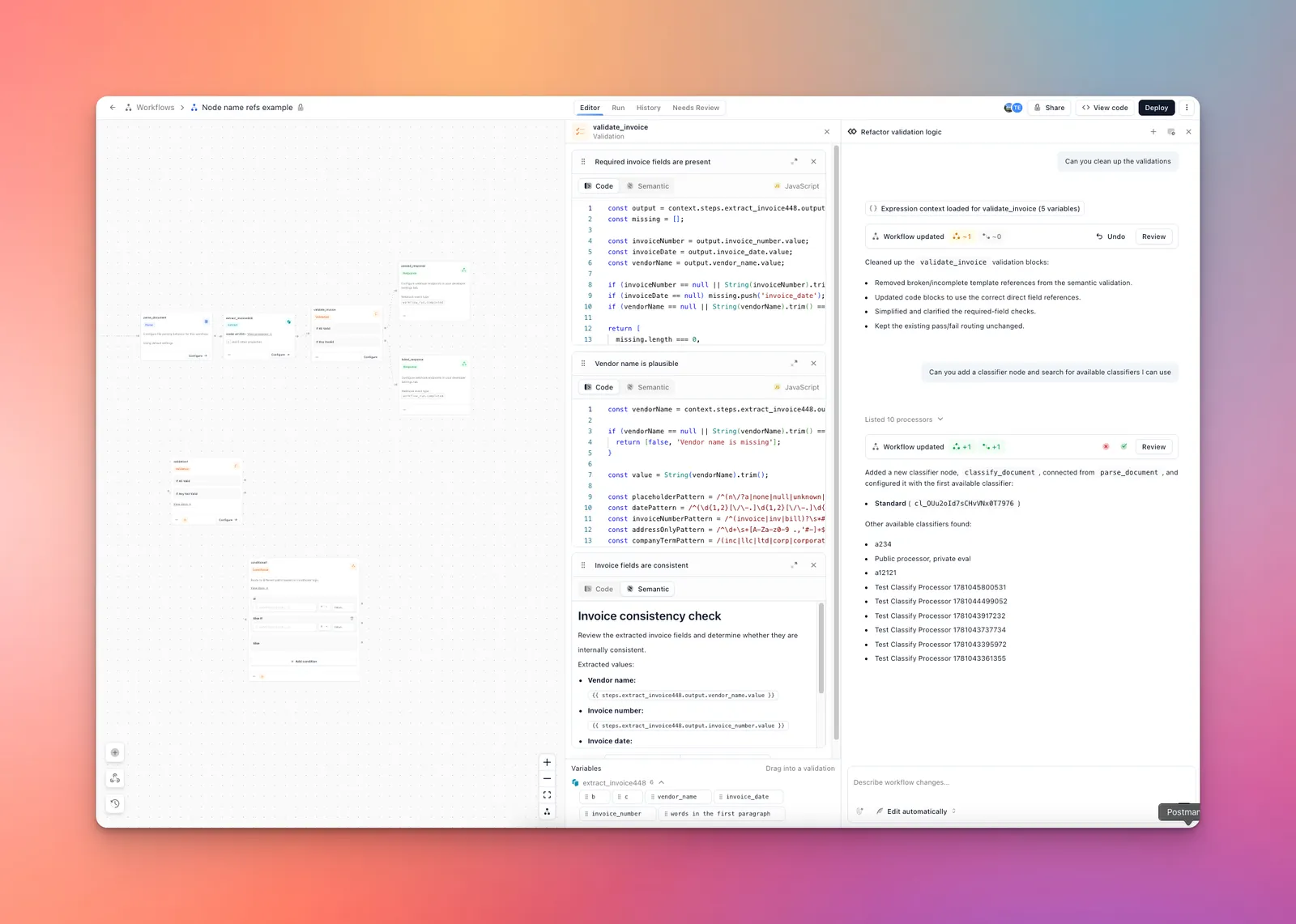
With workflow edit access, it can:
- Add, rename, update, and remove supported workflow nodes
- Connect or disconnect steps and configure branch routes
- Search Studio for extractors, classifiers, and splitters, then link a processor and version
- Configure the Parse step
- Build code or semantic Validation blocks
- Build ordered Router branches
- Inspect available upstream fields before writing expressions
- Check the draft for workflow validation issues
- Read an attached file when its contents help determine the workflow design
Workflow chat requires permission to view the workflow. Editing tools are available only when you can edit it; processor search and file-reading tools are likewise permission-gated.
If Composer cannot make a requested change, update that setting in the workflow builder. Composer preserves legacy Conditional and Rule Validation nodes but uses Router and Validation for new logic.
For broad changes, describe the desired topology and outcomes rather than each click:
Use Review on a workflow update to inspect its JSON diff or diagram preview. Use Undo to revert an applied update.
Approve changes
Use the mode selector beneath the message box to control how draft changes are applied:
- Ask for approval requires you to accept a proposed processor or workflow change before it is applied.
- Edit automatically applies proposed changes to the draft while Composer works. You can still review and undo workflow updates afterward.
The selected mode is remembered across Composer chat surfaces. Read-only tools can run without changing the draft.
Conversations and history
Composer saves each conversation as a thread after you send a message. Thread history is scoped to your user in the current organization and workspace; it is not shared automatically with other workspace members.
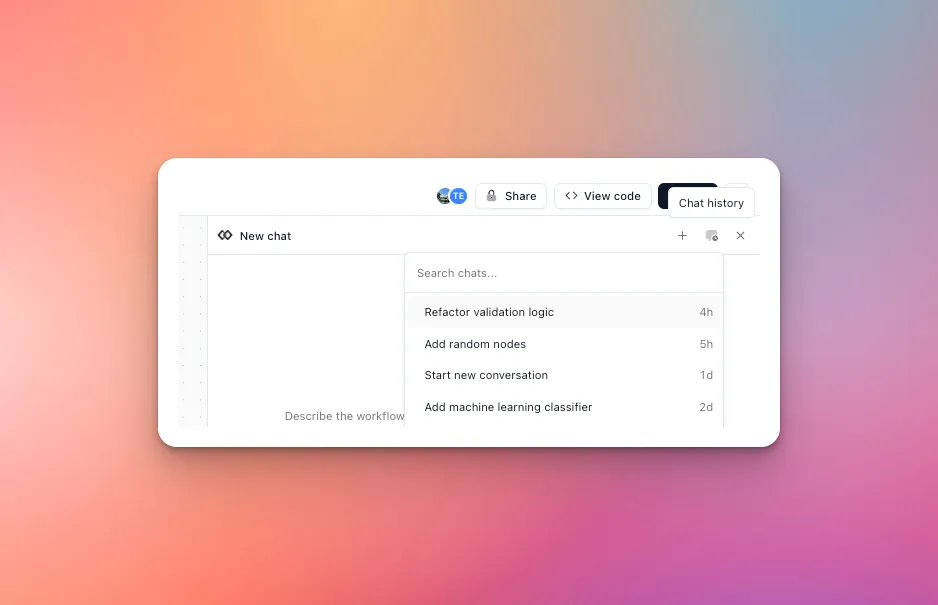
- Select New chat to start a separate thread without changing earlier conversations.
- Open Chat history to search saved thread titles and switch conversations.
- Thread titles are generated from the conversation, and the history is ordered by recent activity.
- Each message remembers the extractor or workflow where it was created, so the transcript keeps its resource context when you move between supported surfaces.
- If a response is still running, its thread shows an activity indicator. You can return to the thread and continue from the persisted response.
- Hover a history item and select Archive chat to remove it from active history.
Composer also remembers the last selected thread for each extractor or workflow, so reopening the panel returns you to the relevant conversation.