

Publishing Processors
Every processor has one editable draft and a history of immutable published versions. All edits, whether made in Studio or with extractors.update / classifiers.update / splitters.update, land on the draft. Publishing snapshots the draft into a new version string ("1.0", "1.1", "2.0") that never changes afterwards.
Publishing does not affect anything already using the processor. A workflow step or API call that references "1.0" keeps running "1.0"; only references that say "latest" pick up the new version. That is what lets you iterate on the draft freely and promote a version only when your evaluation set says it is ready.
Major or minor?
The release type decides how the version number increments. Nothing else about the version differs; the distinction is a signal to the people and workflows consuming the processor.
Via the API
Update the draft
Make your configuration change on the draft first. The update endpoints accept the full config for the processor type and write it to the draft; see Extraction configuration, Classification configuration, or Splitting configuration for the config shape. Run your evaluation set against "draft" before publishing.
Publish a version
Publish snapshots the current draft. releaseType is "major" or "minor"; description is free text that shows in the version history and is worth writing for whoever reads the history later.
Python
TypeScript
Java
Go
The same call exists for the other processor types: classifierVersions.create (classifier_versions.create) and splitterVersions.create (splitter_versions.create), with the same releaseType and description fields.
Reference the version
Anywhere a processor is referenced you can pass a version. The three special forms:
In a standalone run:
Python
TypeScript
Java
Go
In a workflow step definition, the extractor reference must include an explicit version:
A deployed workflow version freezes this reference. Choose "1.1" for reproducibility or "latest" to let the workflow adopt future publishes automatically. See Configuring Workflows via API and Workflow Versioning.
Via Extend Studio
From the processor page in Studio, you can publish new versions of your processor, which can then be selected and used in one or more workflows deployed on Extend.
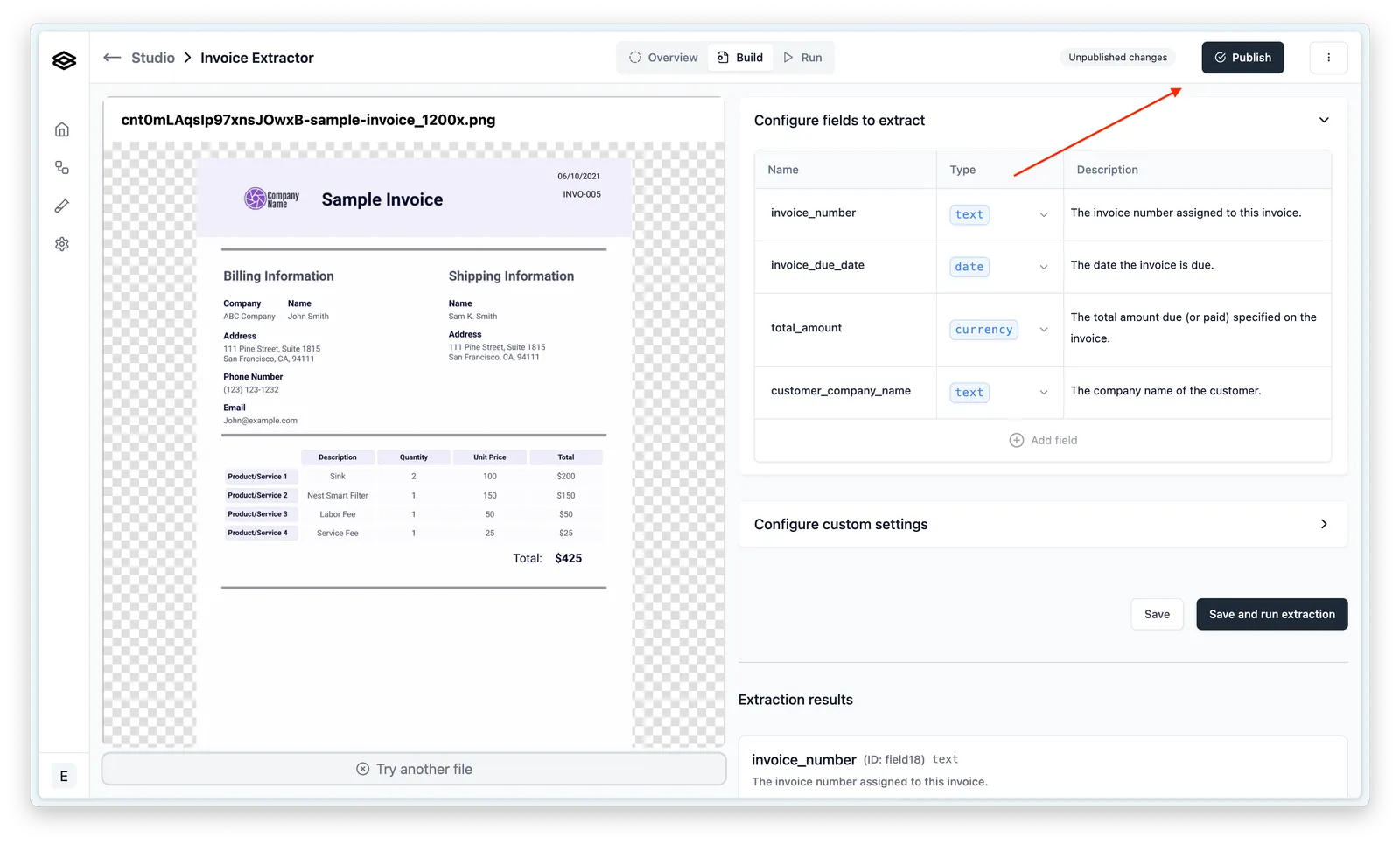
When you save changes to a processor, they update the draft. You can make as many changes as you want to the draft before publishing. Once you publish, the draft changes are rolled into the new version and the draft goes back to having no “Unpublished changes”.
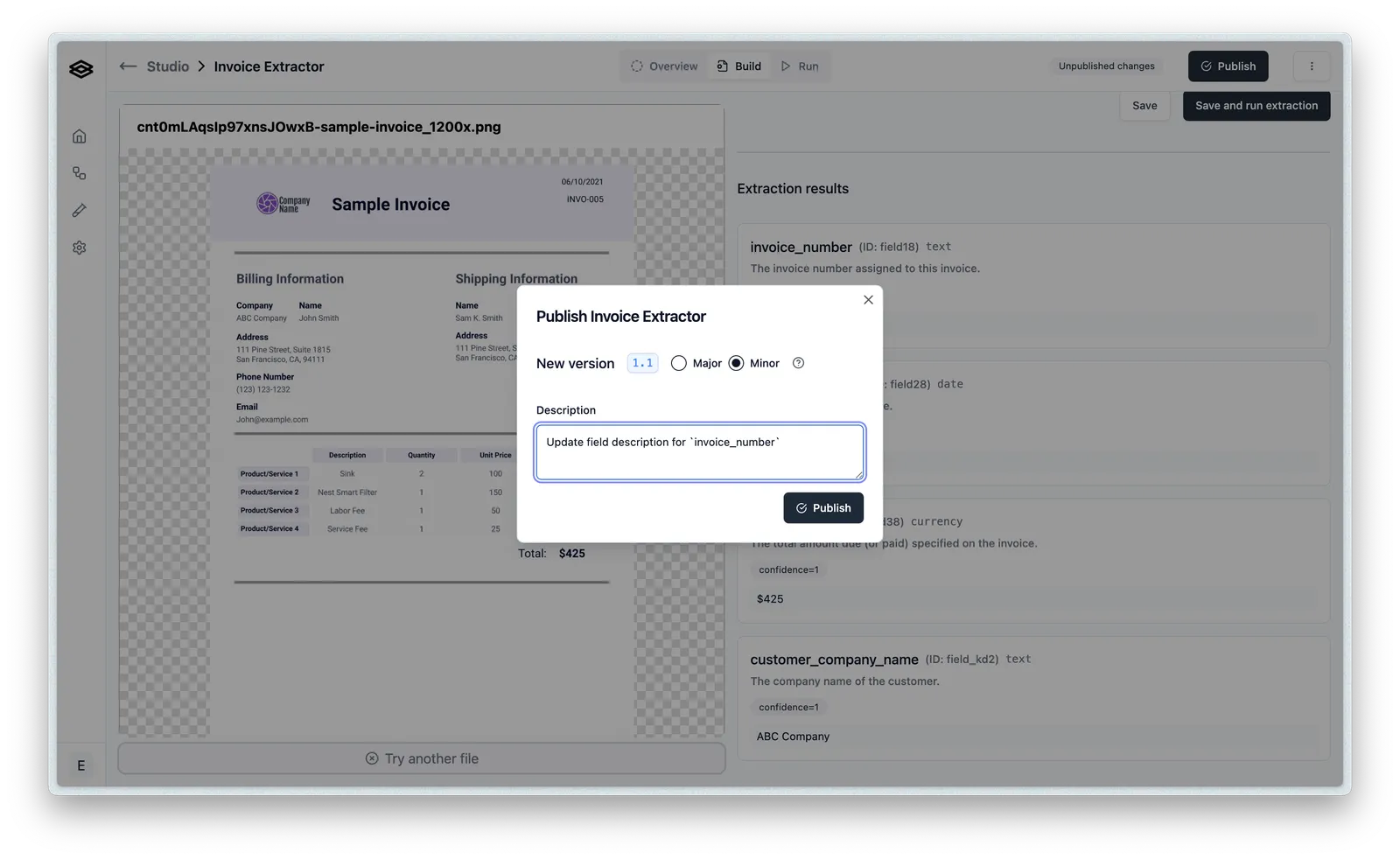
Minor version
To publish a minor version, click the “Publish” button and select the “Minor” radio option:
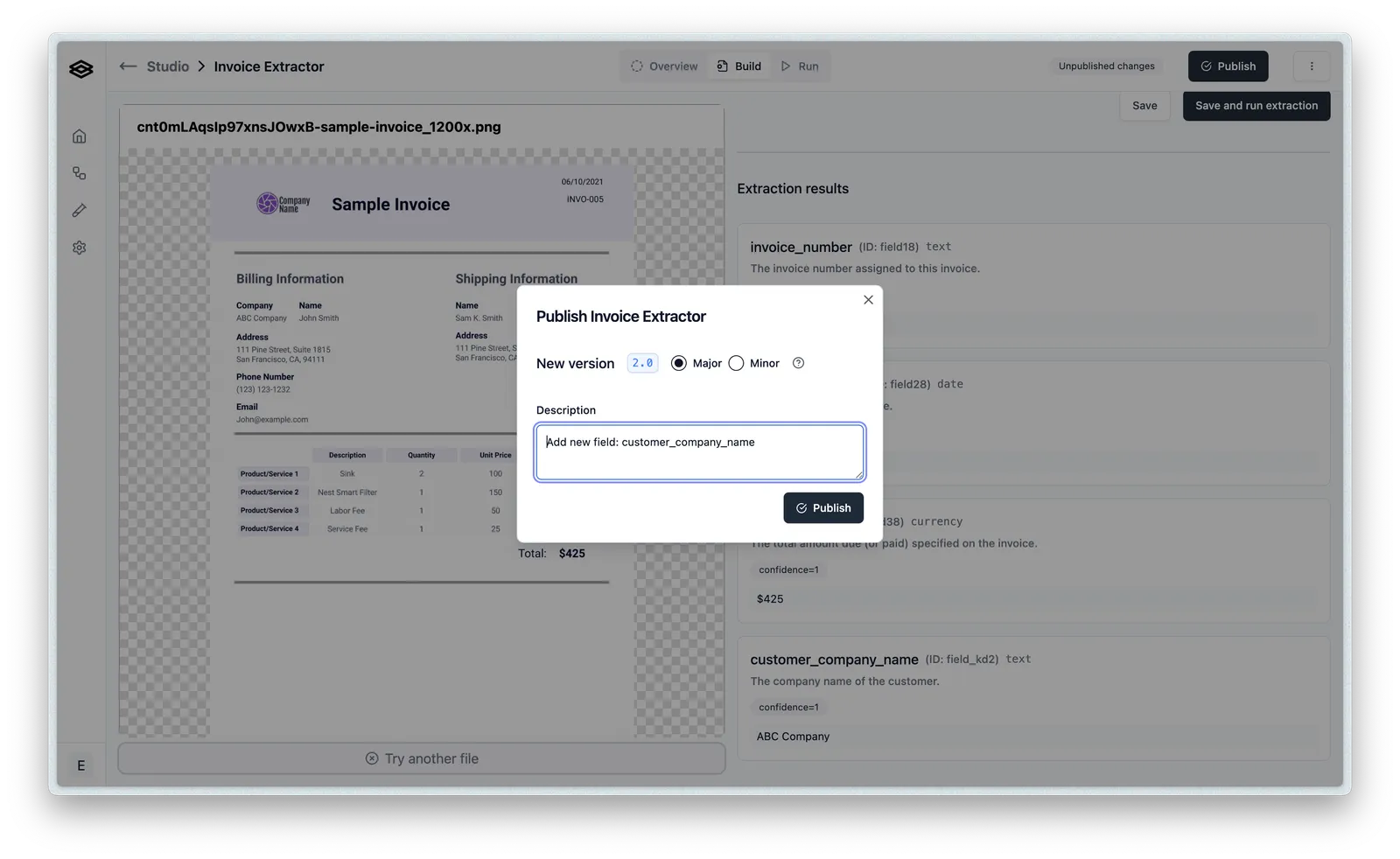
Major version
To publish a major version, click the “Publish” button and select the “Major” radio option:
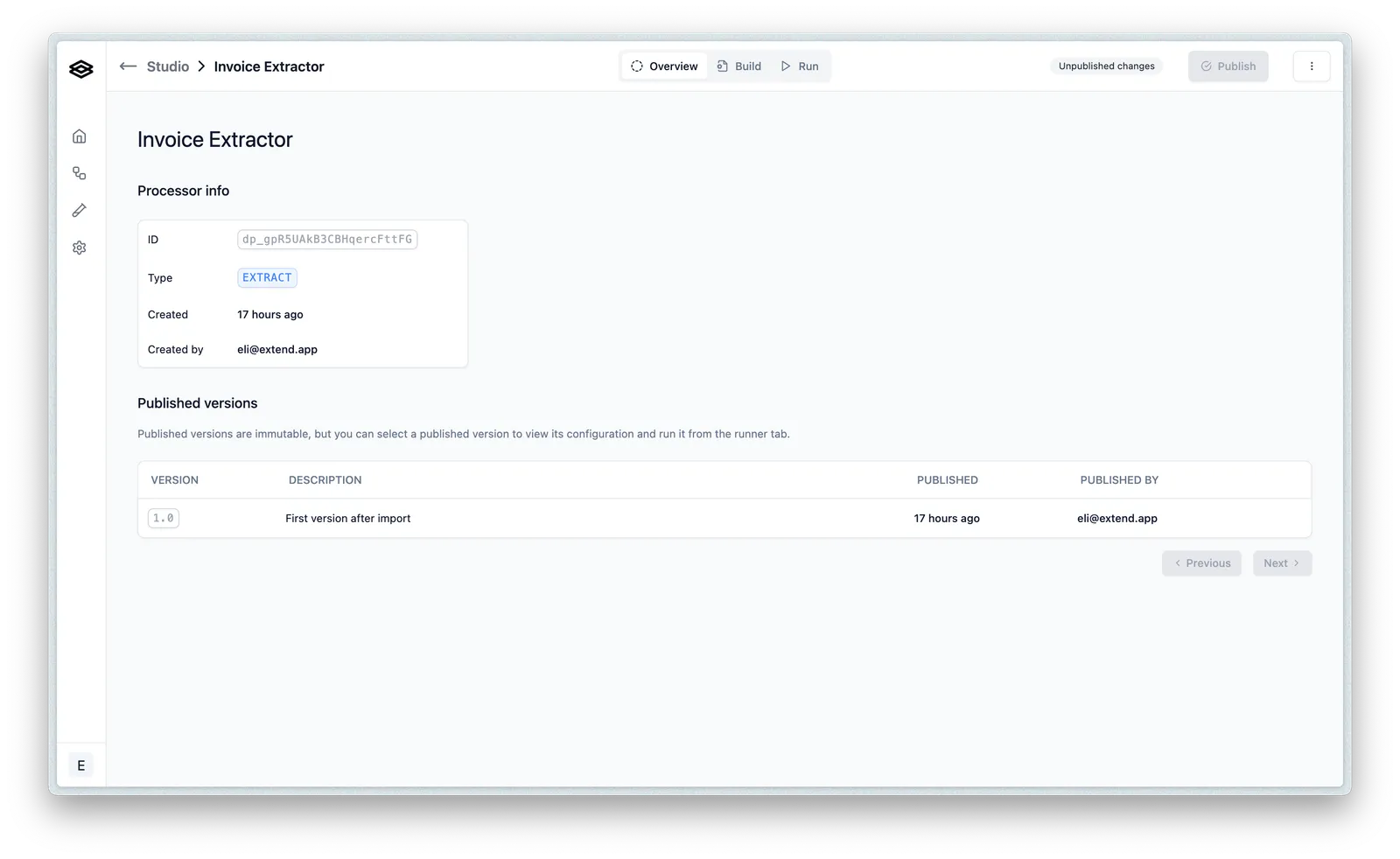
Viewing published versions
Once a version is published, it cannot be updated and is viewable in read-only mode.
Select a published version on the processor Overview tab to see its details and the configuration it was published with:
Reference
- Create Extractor Version, Create Classifier Version, Create Splitter Version, List Extractor Versions
- Processors: what a saved processor is and when to use one
- Running Evaluation Sets: gate a publish on accuracy
- Workflow Versioning: the parallel concept for workflows
- Create a Workflow: use a published processor in a pipeline