

Creating Evaluation Sets
An evaluation set is a collection of items: each item pairs a file (or, for extractors, a package of files) with the output you expect a processor to produce for it. You create the set once against a primary extractor, classifier, or splitter, add items over time, and then run the set to measure accuracy.
You can build a set entirely through the API, entirely in Extend Studio, or mix the two (for example, create items via the API and review them in Studio). Evaluation sets can also be run against workflows; this page covers sets for processors.
Via the API
The full flow is four calls: create the set, upload a file, produce the expected output, and add the item. Use this when you want an evaluation loop in code, for example to rebuild a set from a folder of reviewed documents.
Create the evaluation set
entityId is the primary processor the set is for. You can later run the set against any compatible processor, but every set has one default.
Python
TypeScript
Java
Go
Upload the file
Items reference files by Extend file ID (file_...). Upload each document once; you can reuse the same file ID in multiple evaluation sets.
Python
TypeScript
Java
Go
Produce the expected output
The expected output is the ground truth the run is scored against. If you already have reviewed ground truth for the document (from an existing system, a spreadsheet, or a human review), map it to the shape below and use it directly; this is the preferred source because it is independent of the processor you are evaluating. The shape depends on the processor type:
If you do not have ground truth yet, bootstrap it from a run: process the file, correct any mistakes, and save the corrected result. For an extractor, the run’s output already matches the schema’s field names and types:
Python
TypeScript
Java
Go
Add the item
You can add up to 100 items in one call. Each item needs an expectedOutput and exactly one of fileId (a single file) or fileIds (an ordered list of 2–50 files evaluated together as one multifile extraction run — JSON-schema extractors only). Items created with fileIds come back with file: null and their member files in files.
Python
TypeScript
Java
Go
Add a multifile item
If your extractor is designed for multifile extraction, pass fileIds instead of fileId. The item is stored as an ordered package and, when the set runs, is evaluated as a single multifile extraction run with one expectedOutput covering all of the files.
fileIdsmust contain 2–50 unique file IDs (usefileIdfor a single file), and exactly one offileIdorfileIdsmay be set per item.- Multifile items are only supported on evaluation sets attached to a JSON-schema extractor. Classifier and splitter sets reject them.
- Multifile items are returned with
files(an ordered array of file summaries) andfile: null, matching the shape of a multifileExtractRun. Single-file items havefileset andfiles: null.
Python
TypeScript
Java
Go
cURL
To bootstrap expected_value for a package, run the extractor with package: { files: [{ id: ... }, ...] } as shown in the multifile quick start and correct the result, the same way you would for a single file.
Maintaining items
- List what is in a set with
evaluationSetItems.list(evaluation_set_items.listin Python). - Correct an item’s ground truth with
evaluationSetItems.update, passing a newexpectedOutput. The Running Evaluation Sets page shows this in all four languages. An item’s files cannot be changed after creation; delete the item and recreate it instead. - Remove an item with
evaluationSetItems.delete.
Items are scored against the extractor’s schema at run time. If you change the schema (rename a field, add a required property), update the affected items’ expectedOutput so the field paths still line up. Fields present in the schema but missing from expectedOutput count as incorrect.
Via Extend Studio
There are two ways to build a set in the dashboard.
Convert a batch run to an evaluation set
The most common way to create an evaluation set is by converting a batch run of reviewed outputs into a new evaluation set.
-
After running a batch of documents through your processor, review the results on the batch run page. Select the documents you’d like to add to an evaluation set and click “Add to evaluation set”.
You do not need to review all documents in the batch to create an evaluation set, but it is recommended. You can always update the expected outputs later.
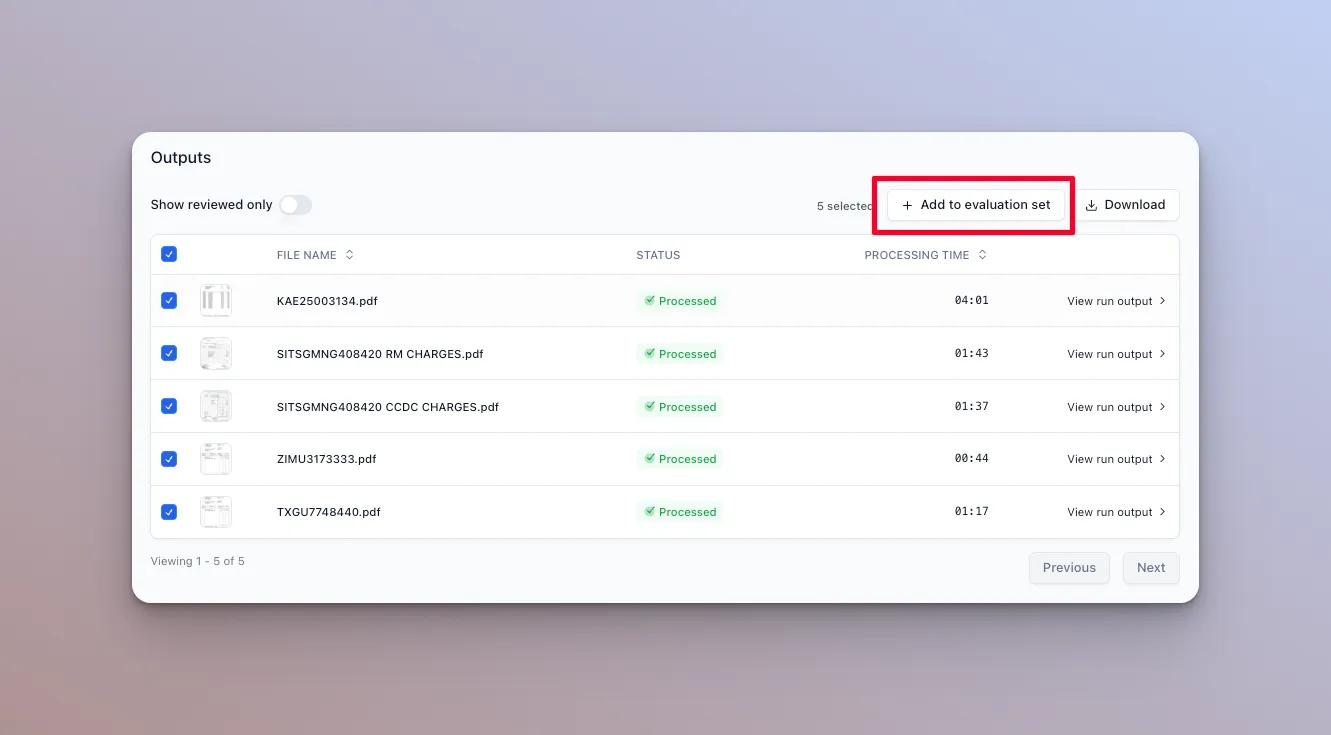
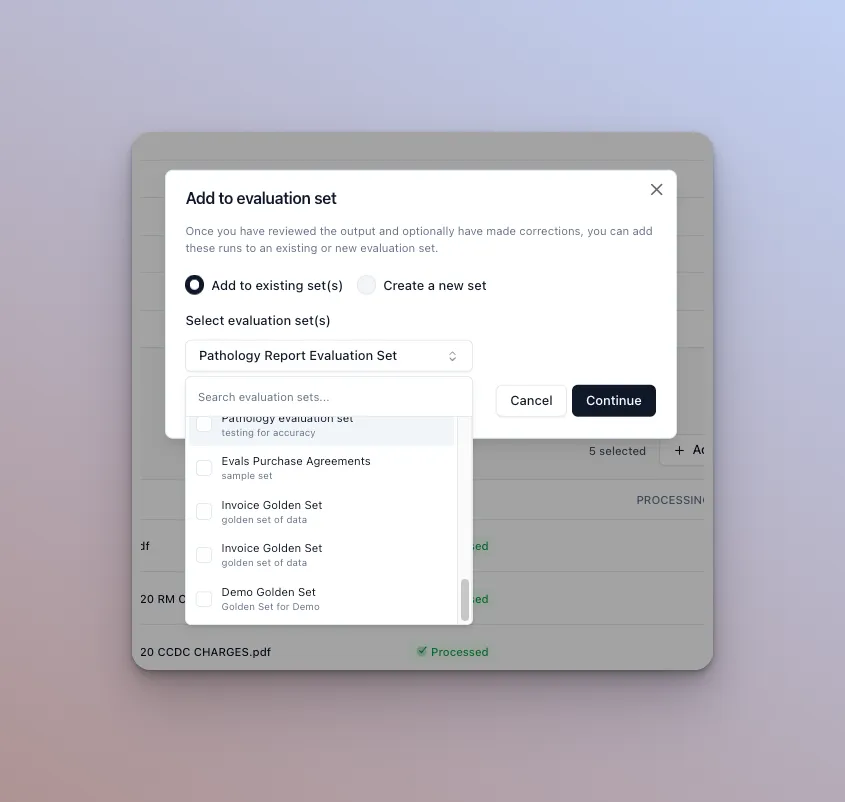
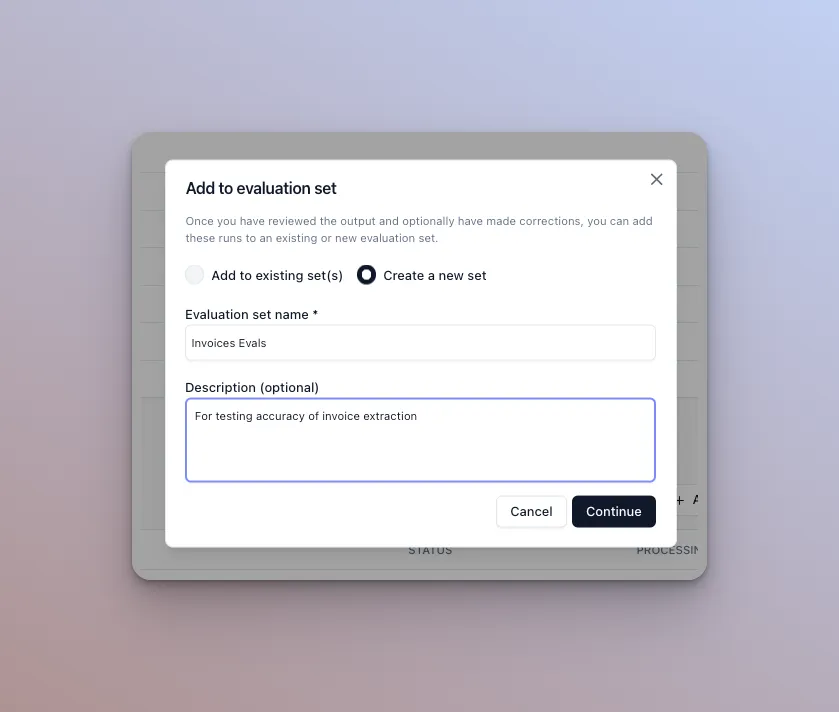
- Either create a new evaluation set or add the selected files to an existing set.
- For existing sets, select the evaluation set.
- For new sets, enter a name and description.
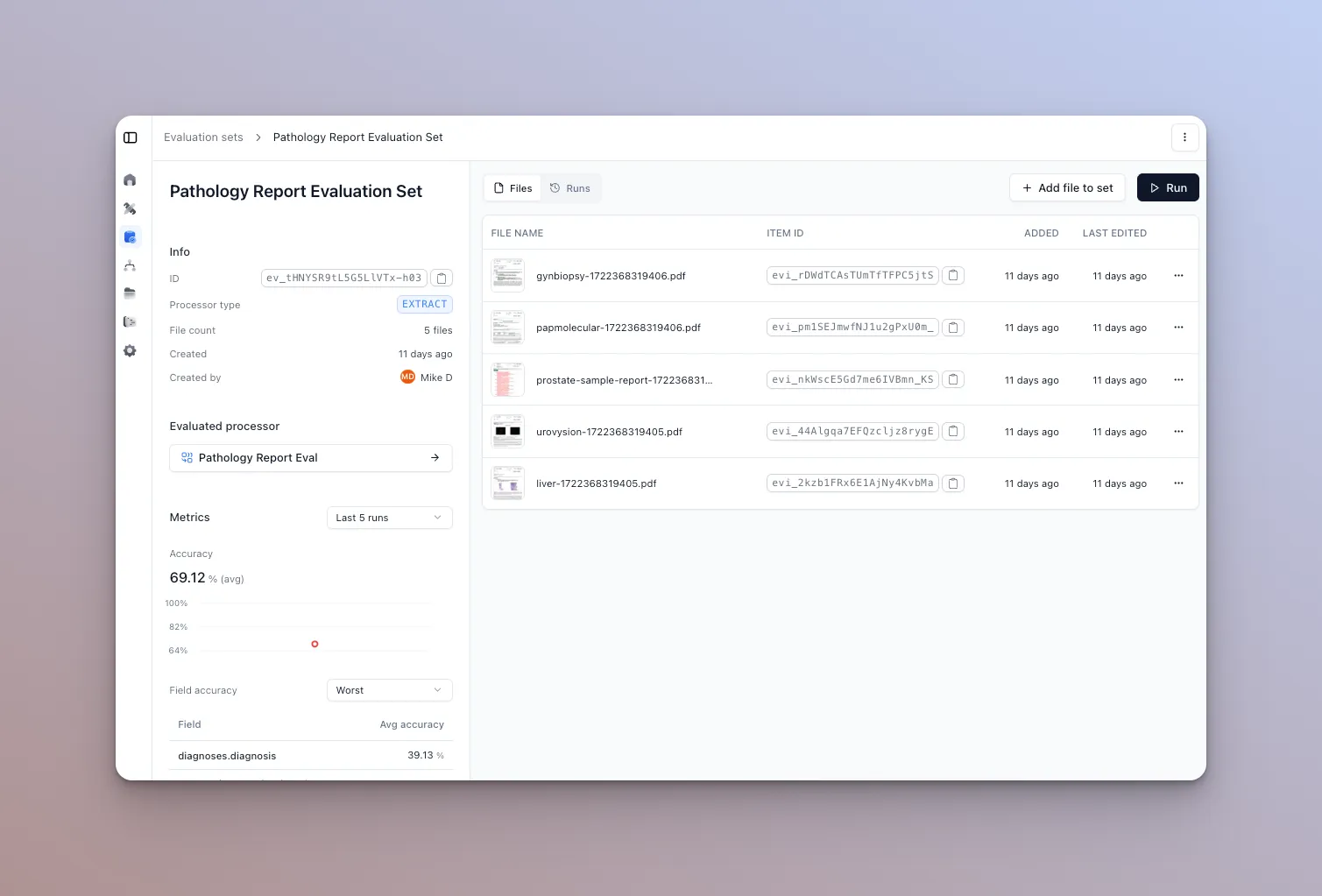
- You are redirected to the evaluation set page where you can view and manage the documents and outputs in the set.
Create a new evaluation set from scratch
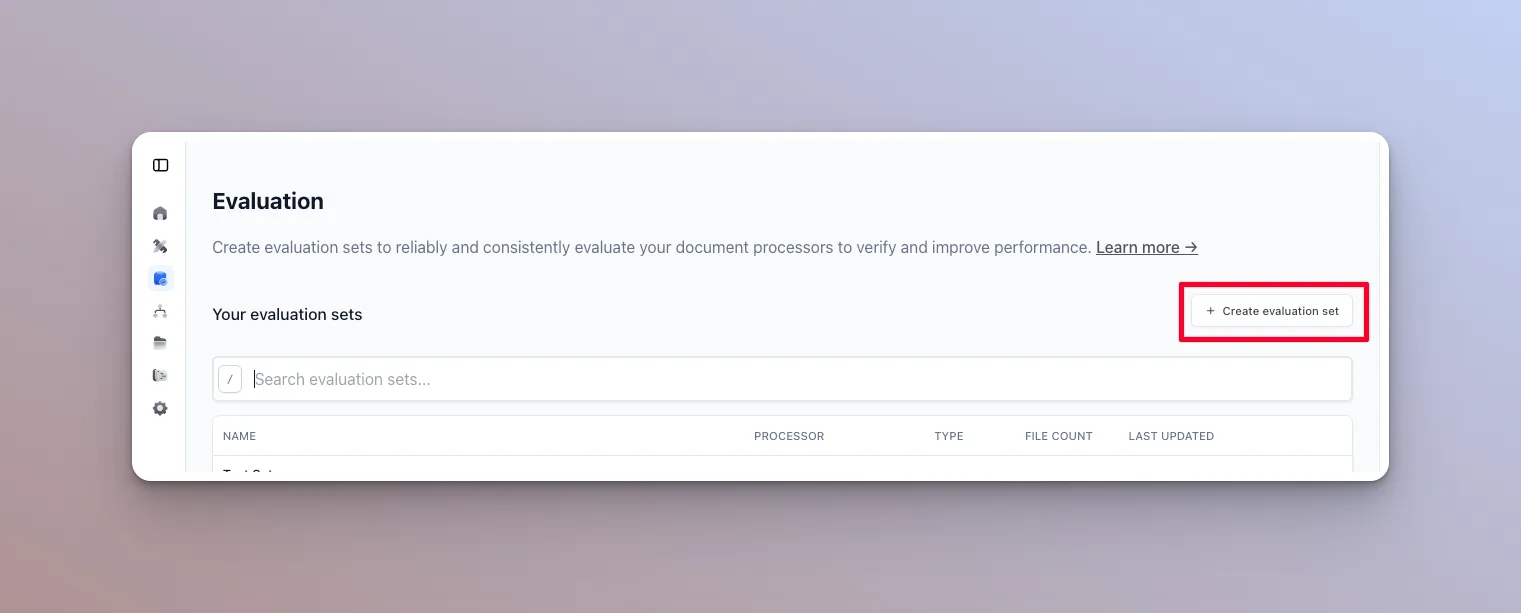
- From the Evaluation tab in Extend, click the “Create Evaluation Set” button.
-
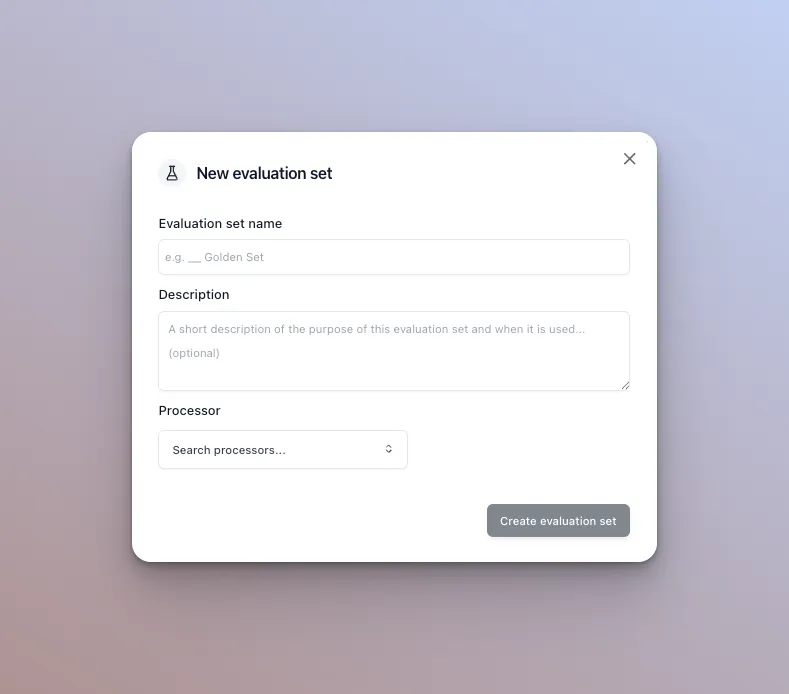
Enter a name and description and select a processor.
You can run this evaluation set against any compatible processor, but you must select one to create the set. That processor becomes the set’s default.
- Add documents by clicking the “Add file” button. Upload a document, then validate the output once processing finishes (which may take several seconds).

You can also add multiple documents at once from the runner results. See Running Evaluation Sets for details.
Reference
- Create Evaluation Set, Create Evaluation Set Items, Update Evaluation Set Item, Upload File
- Running Evaluation Sets: start a run, poll it, and read accuracy metrics
- Processors: the saved, versioned entity an evaluation set is attached to
- Extraction Response Format: how field paths in
valueare structured - Multifile Extraction: how packages of files are extracted together, and the
file/filesresponse shape that multifile items share