

Workflow Versioning
A workflow has one editable draft and any number of immutable deployed versions. Edits always land on the draft; deploying snapshots the draft into a new numbered version ("1", "2", …) that will never change. Production integrations pin a deployed version so that editing the draft, or deploying a newer version, cannot alter what is already running.
How a run picks a version
When you create a workflow run, workflow.version decides which definition executes:
Processors have their own, separate version strings ("draft", "latest", "1.0"). Each extract, classify, or split step in a workflow definition references its processor with an explicit version. A deployed workflow version freezes that reference, but if the reference is "latest" it still resolves to the newest published processor version at run time. To make a deployed workflow fully reproducible, reference specific processor versions ("1.0") in its steps. See Publishing Processors.
Via the API
Deploy a new version
Deploying with no body snapshots the current draft. Pass steps to deploy a definition directly without touching the draft (the pattern for config-as-code, where the repository is the source of truth). All configurable steps must include config; unconfigured steps are rejected with a 400. See Configuring Workflows via API for step definitions.
Python
TypeScript
Java
Go
Rolling back
Deployed versions are never deleted or modified, so a rollback is just pointing your runs at the earlier version string. There is no server-side “current version” pointer to move: the only thing that decides which version runs is the workflow.version you send (or omit).
Via Extend Studio
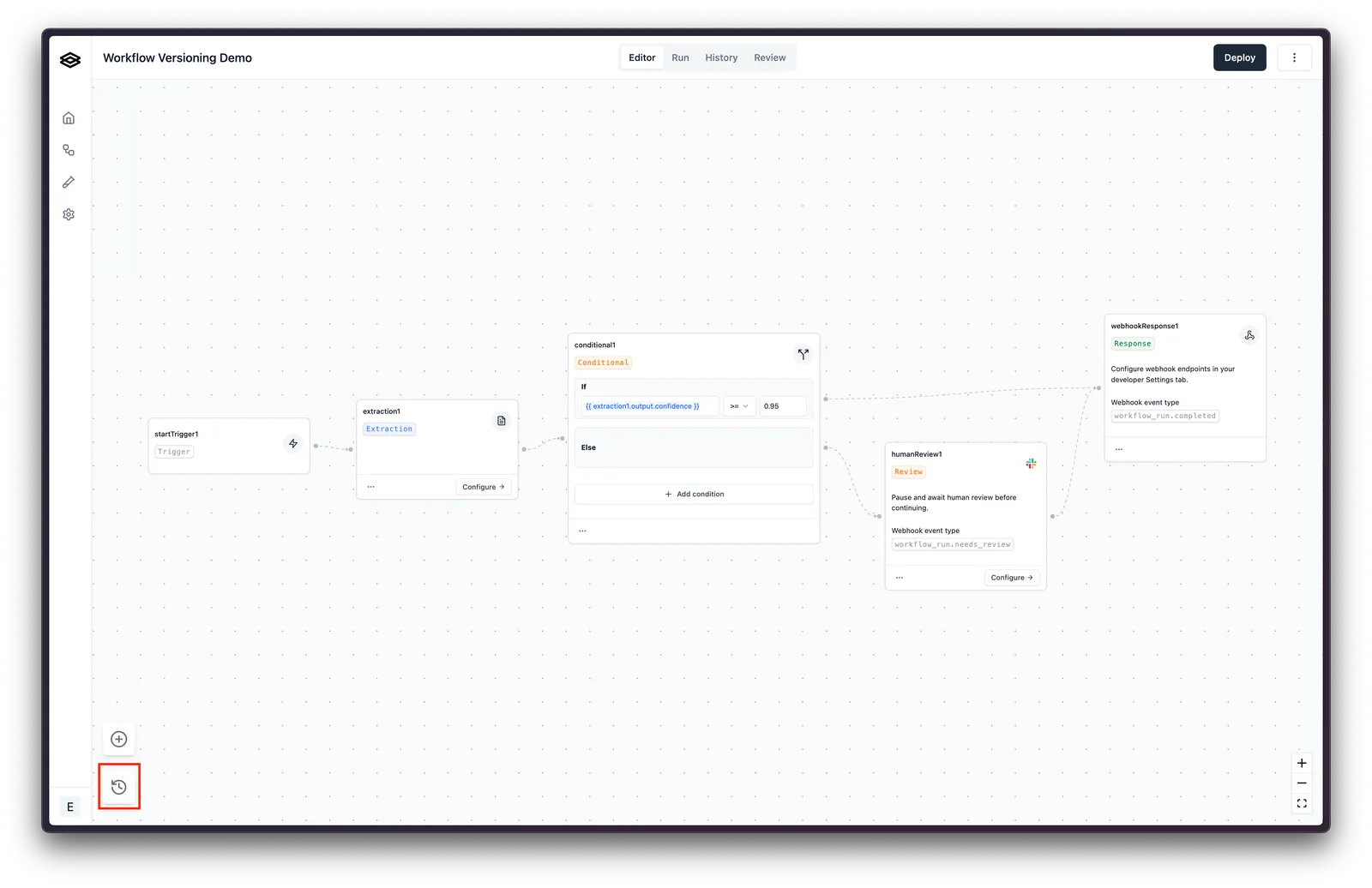
To view the workflow versions, click on the “Version history” button in the lower left corner of the workflow editor.
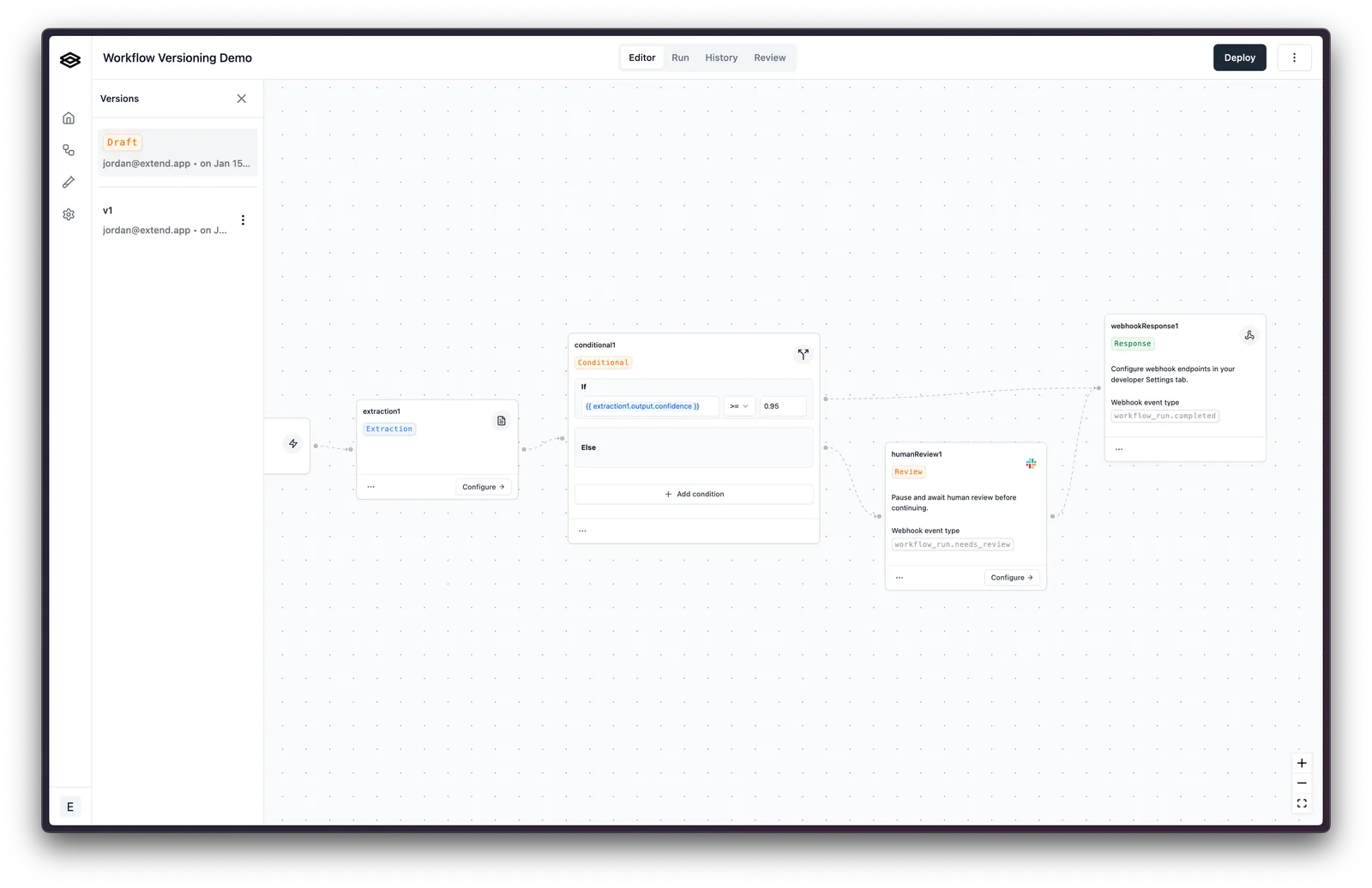
The versions are displayed in a side panel on the left side of the screen. The “Draft” version above the separator is the version where any updates to the workflow will be saved. The versions below the separator are the deployed versions of the workflow.
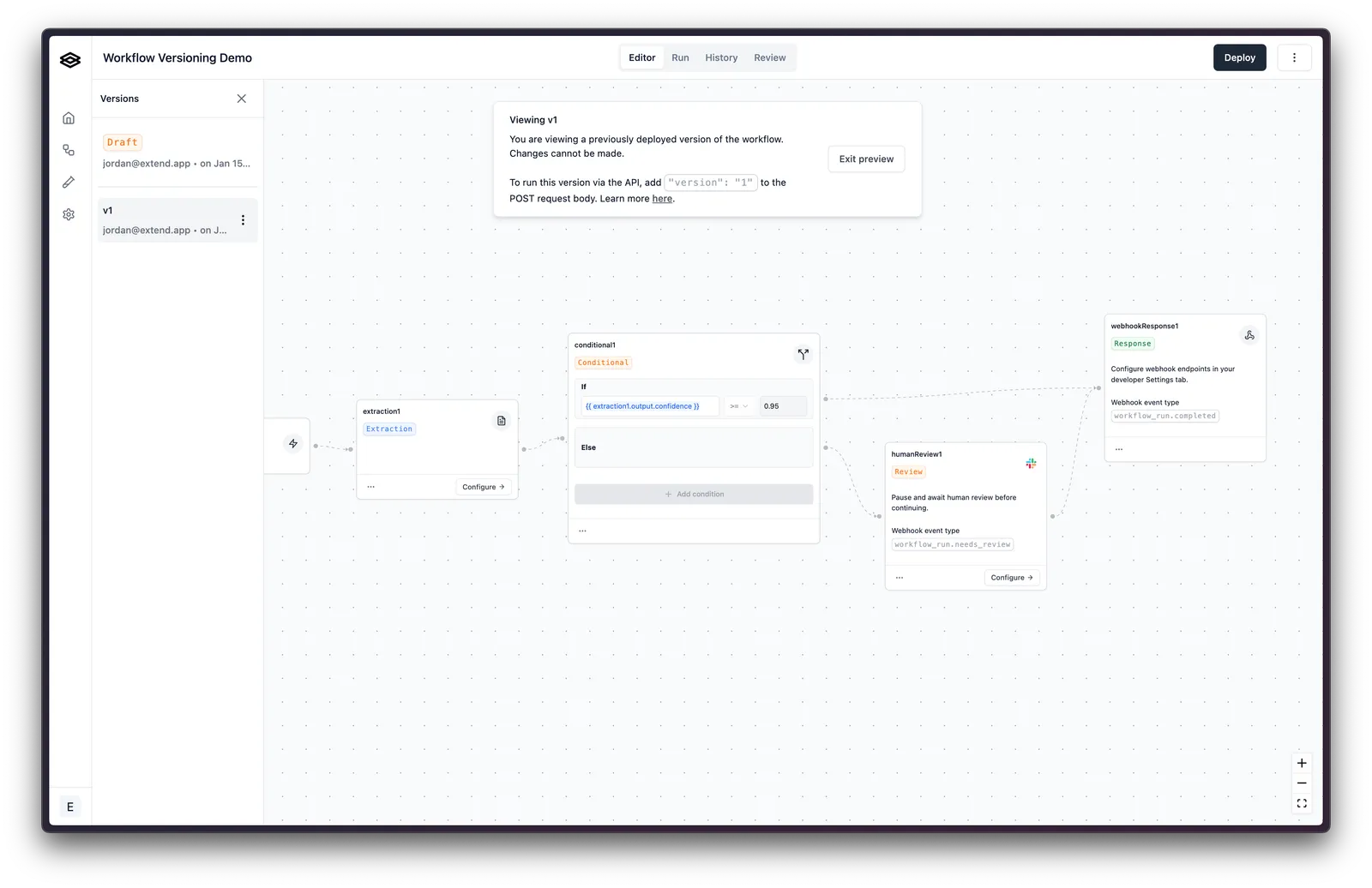
You can view a previously deployed version of the workflow by clicking on the version. This loads the workflow in the editor for viewing; you cannot make changes to a deployed workflow version. Once a workflow has been deployed you can count on it not changing, and can confidently use it in production environments.
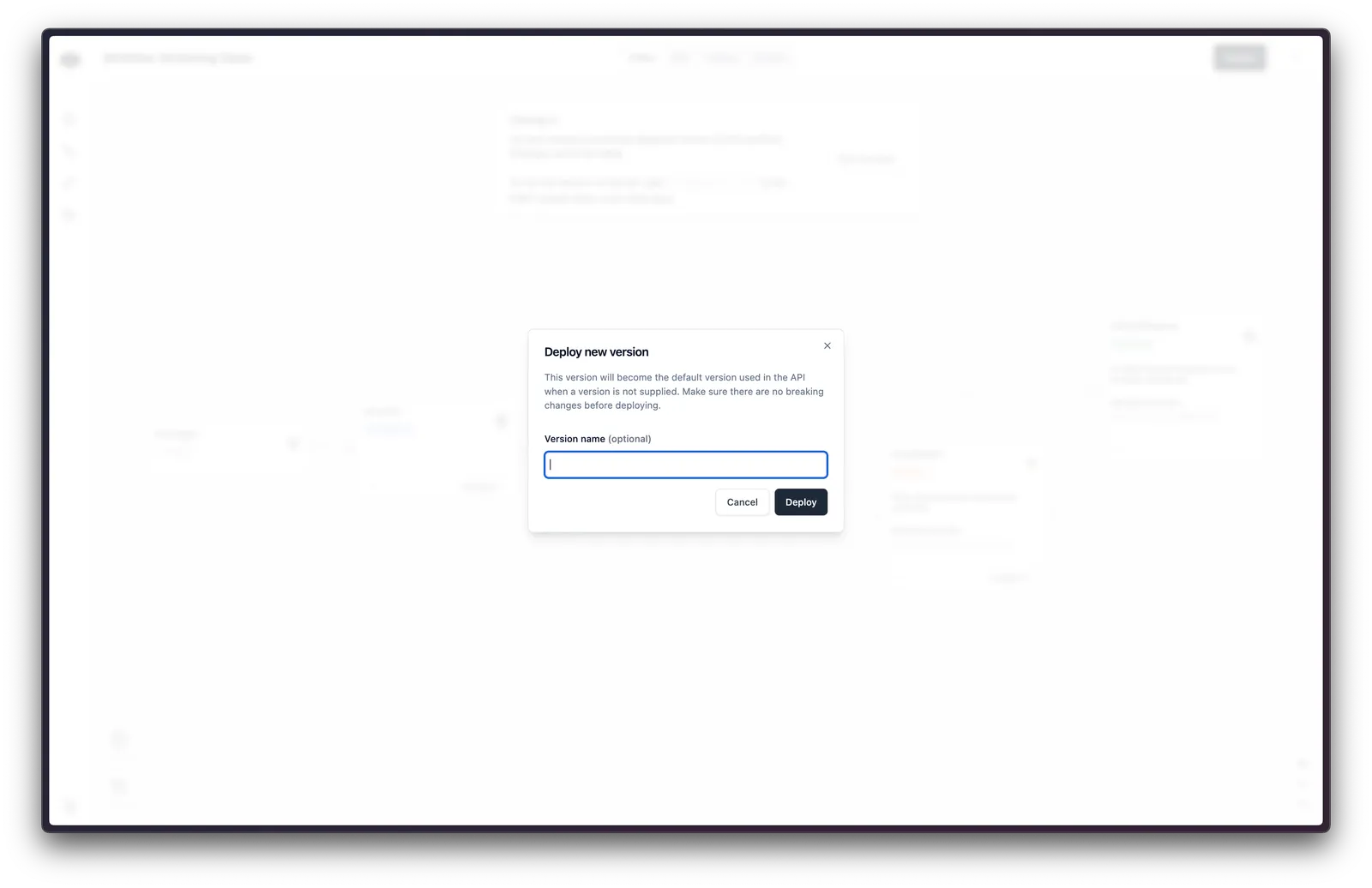
To deploy a new version of the workflow, click on the “Deploy” button in the upper right corner of the workflow editor. This deploys the current draft and creates a new version in the version history.
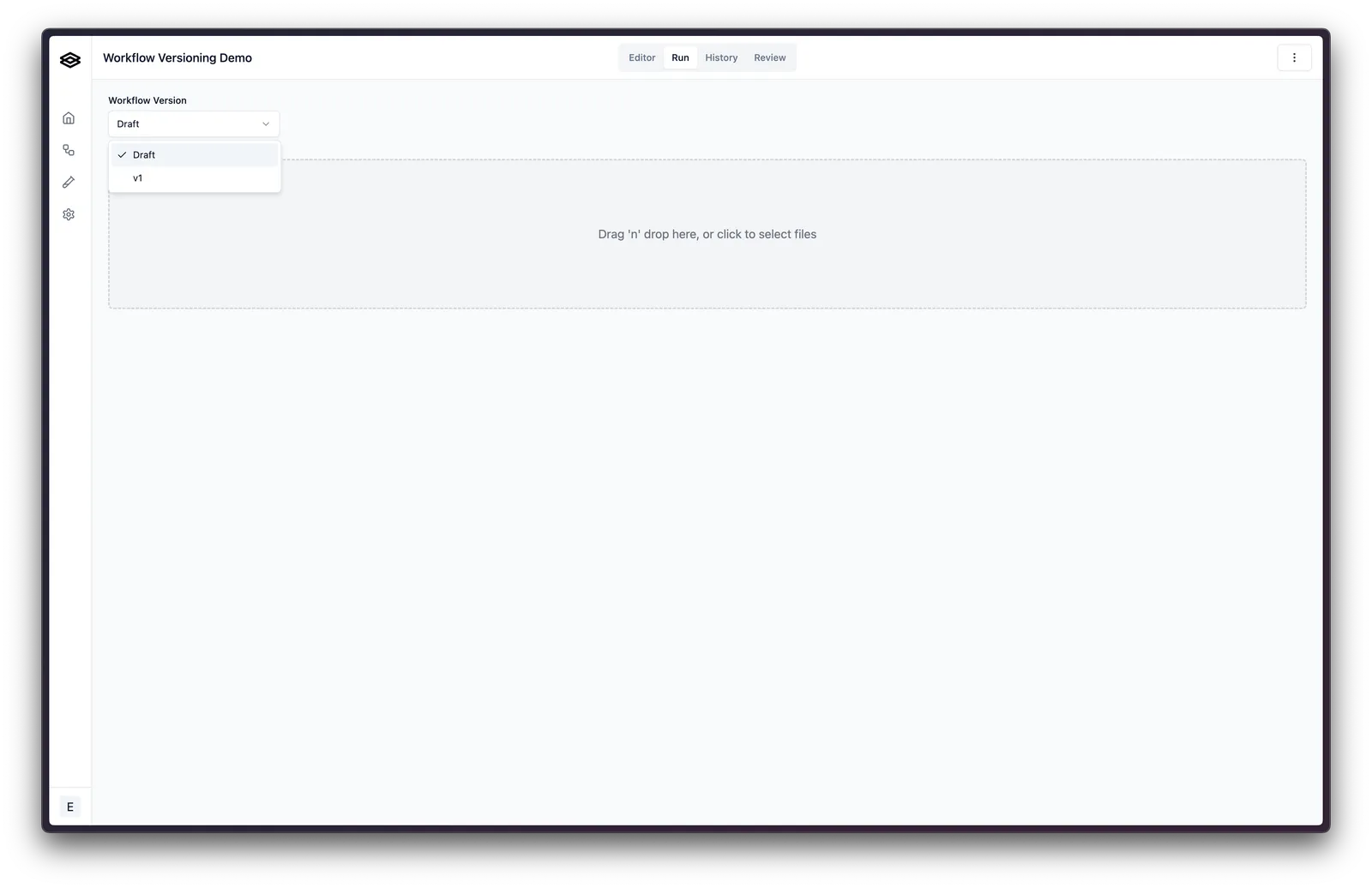
When running a workflow from the Studio runner, you can choose which version to run. By default the “Draft” version is run, but you can choose a different version from the dropdown.
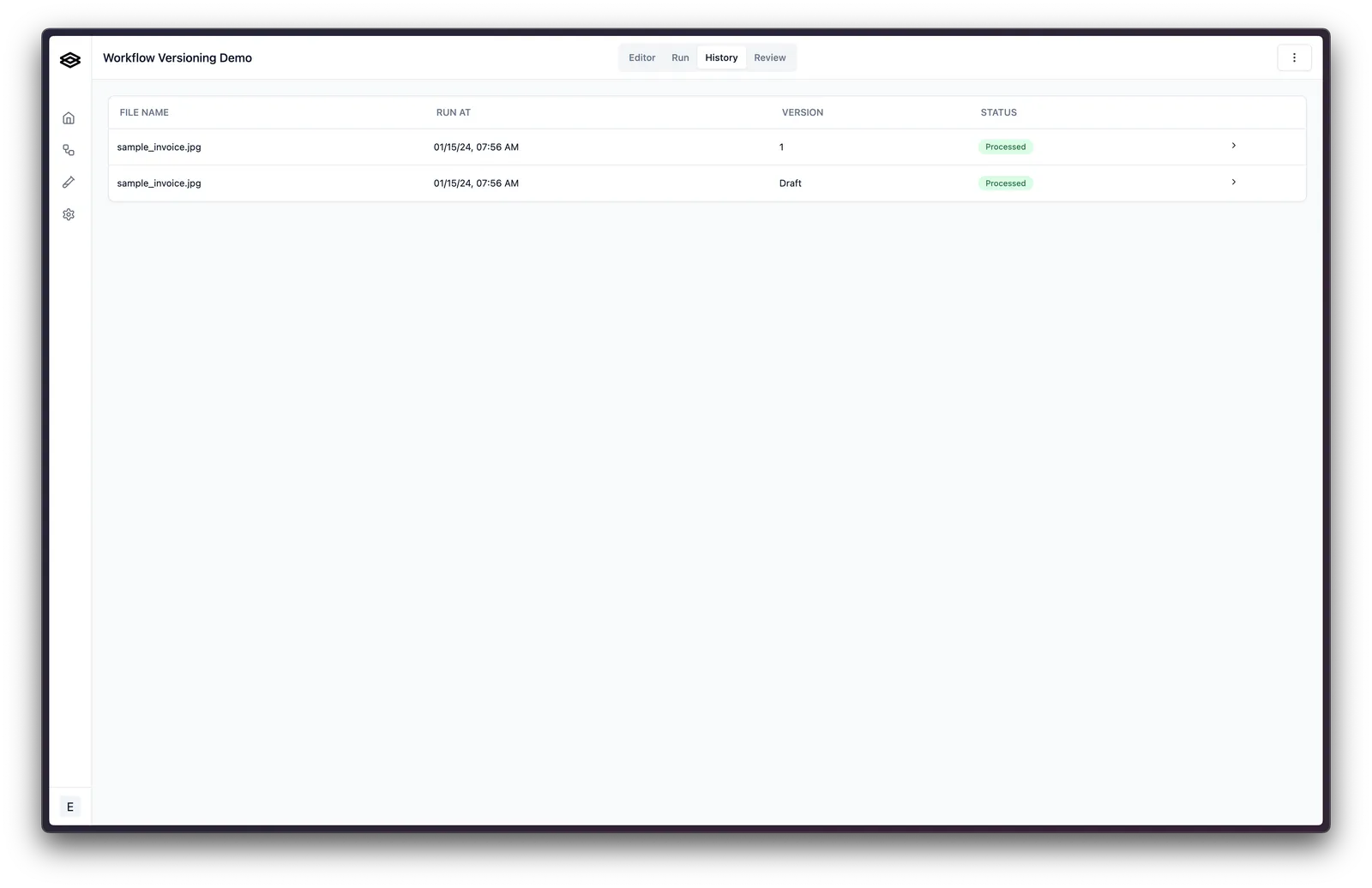
After running a workflow, the history tab shows which version each run used.
You can also deploy workflow versions from GitHub by linking a workflow to a repository file. See GitHub App Integration.
Reference
- Deploy Workflow Version, List Workflow Versions, Get Workflow Version, Create Workflow Run
- Configuring Workflows via API: step definitions accepted by
steps - Publishing Processors: processor versions and how a workflow step pins them
- GitHub App Integration: deploy versions from a repository